3D Anaglyphs with BASH scripts
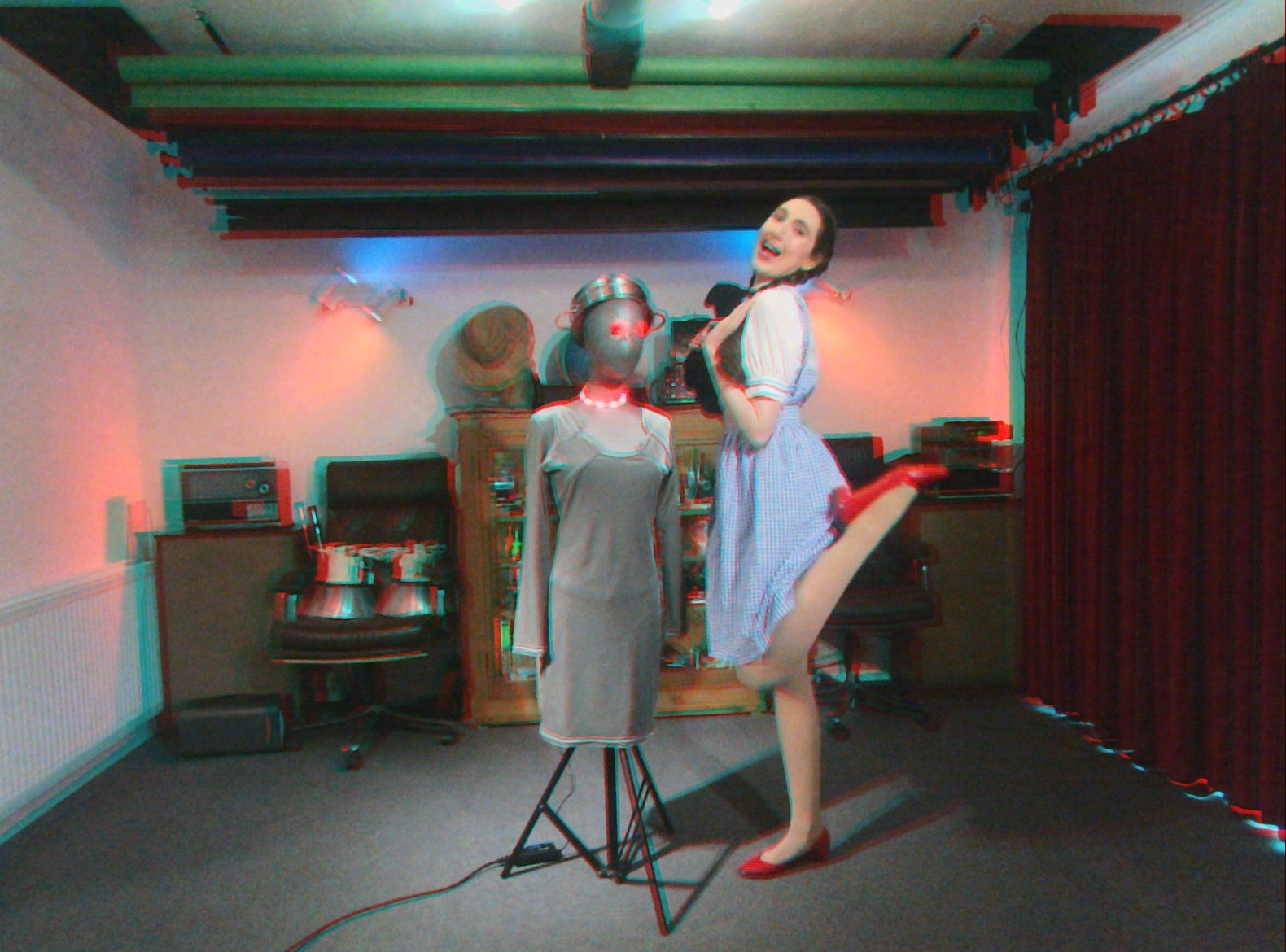
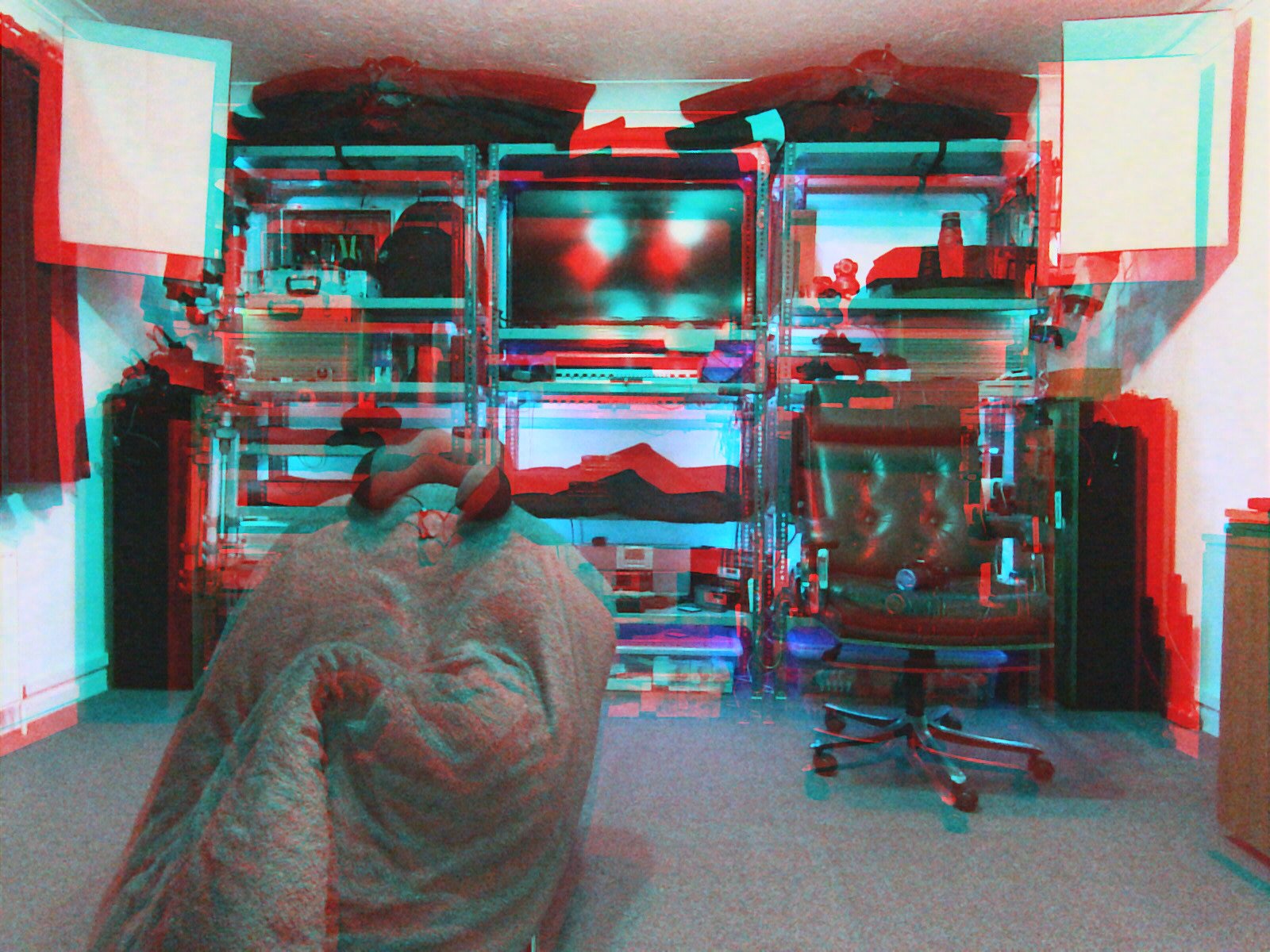
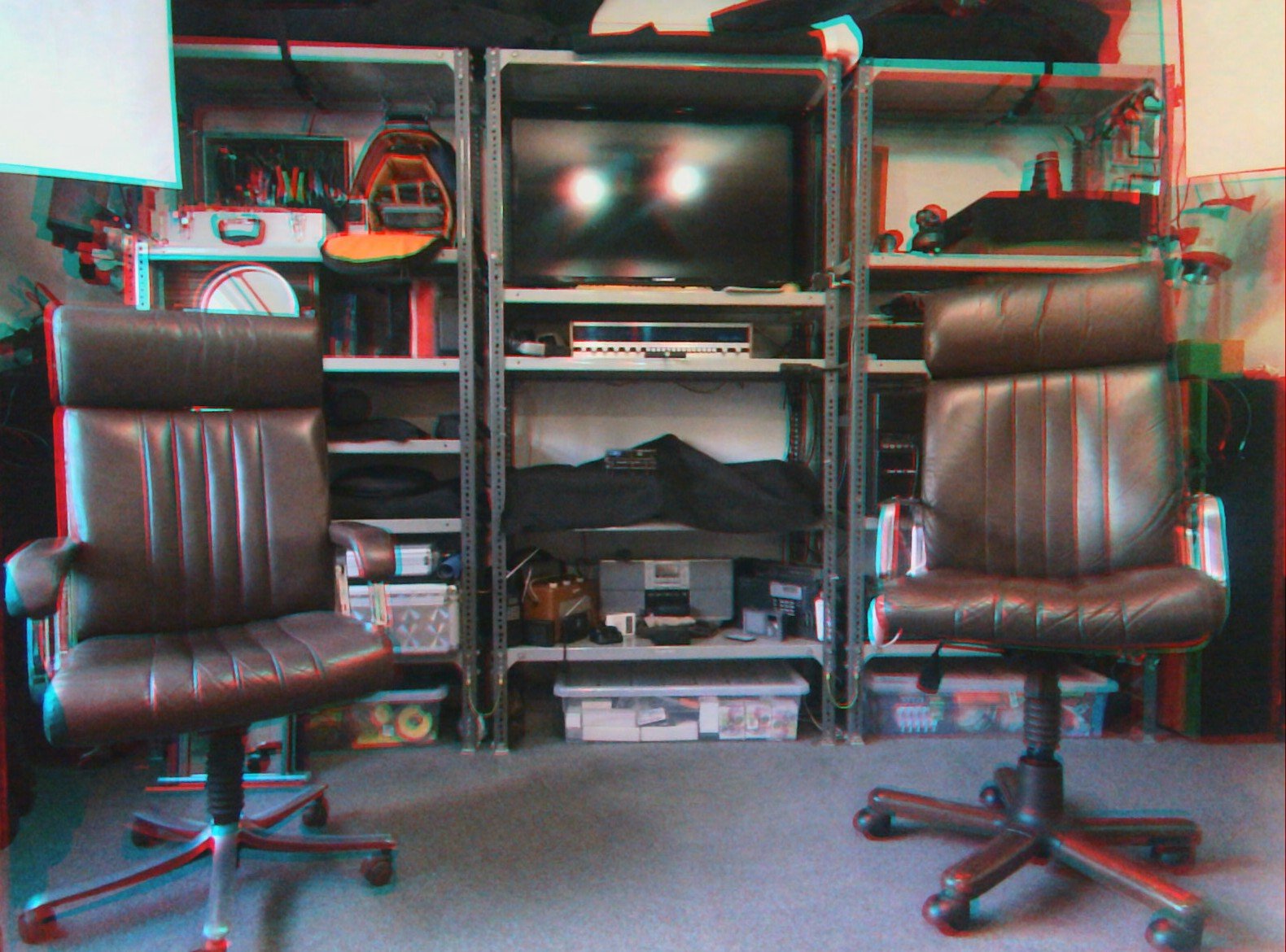
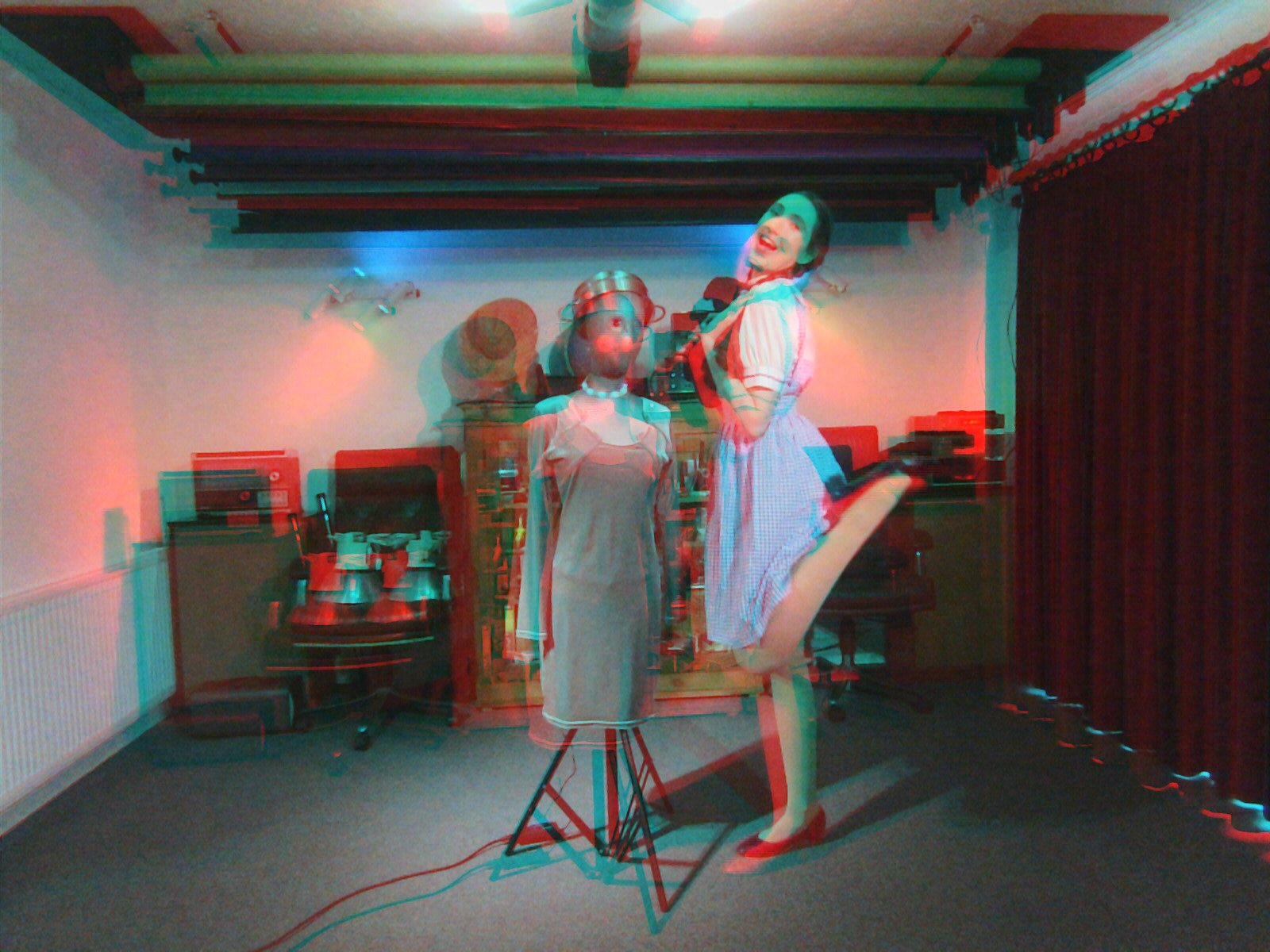
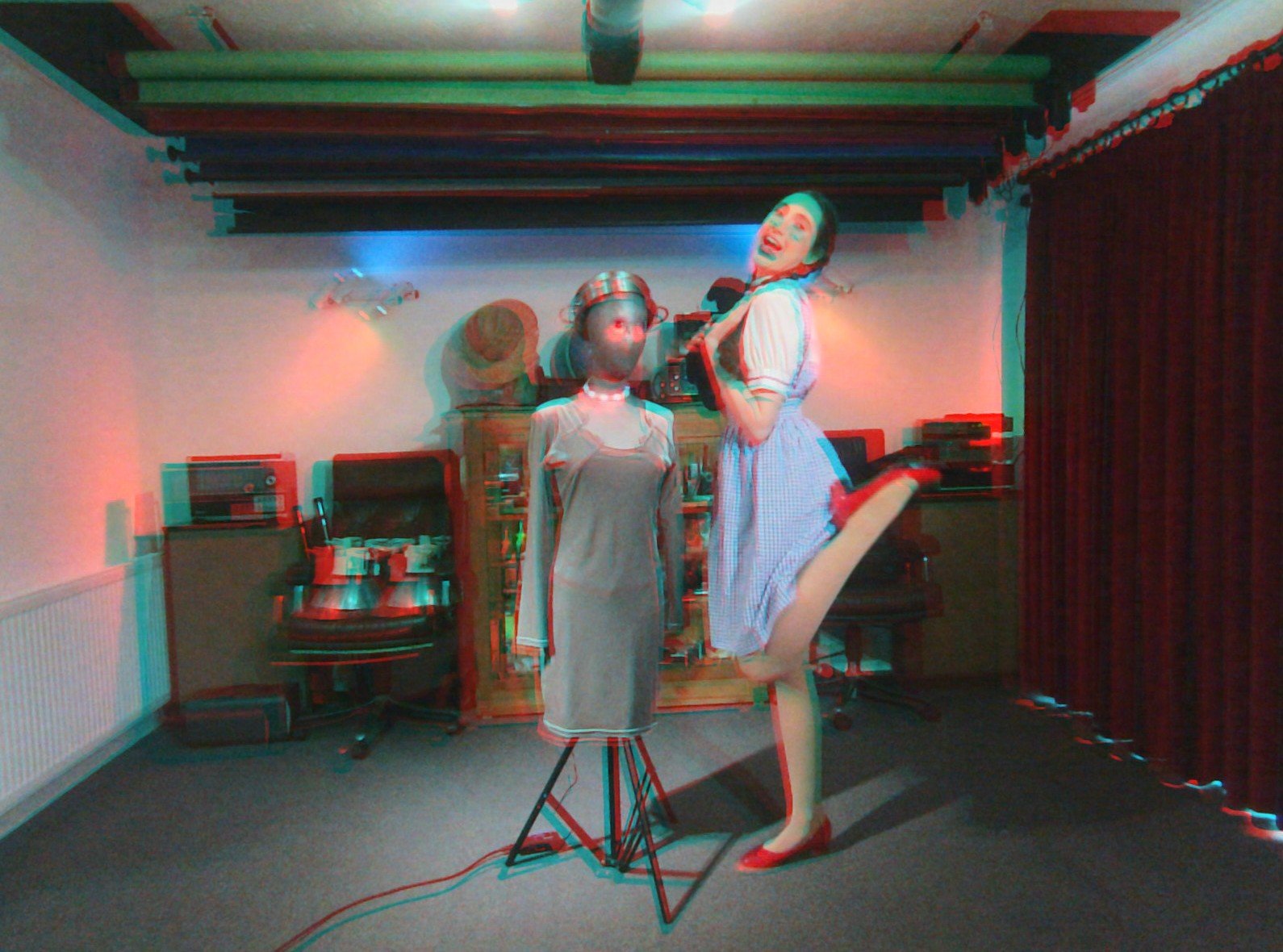
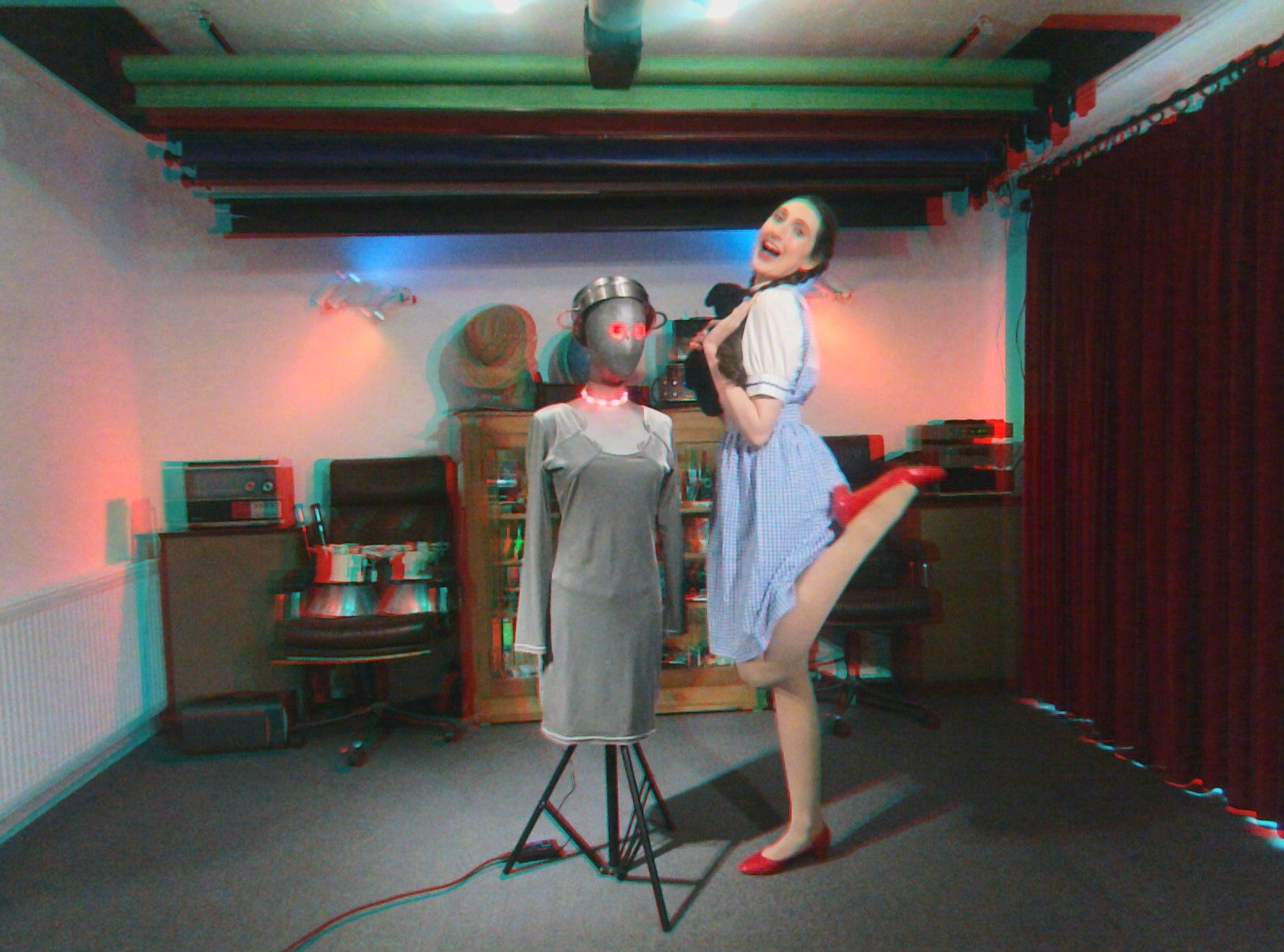
[Jump to gallery | scripts] This article documents my first experiments in producing red-cyan anaglyphs. The gallery contains of four near-identical 3D anaglyphs with varying amounts of X & Y offset to compensate for the fact that the cameras on the board don’t quite point in the same direction. One can create anaglyphs in GIMP. But it is a tedious task because one has to do them one at a time. So it seemed sensible to write a script that would perform the bulk of the most tedious tasks automatically.
Gallery
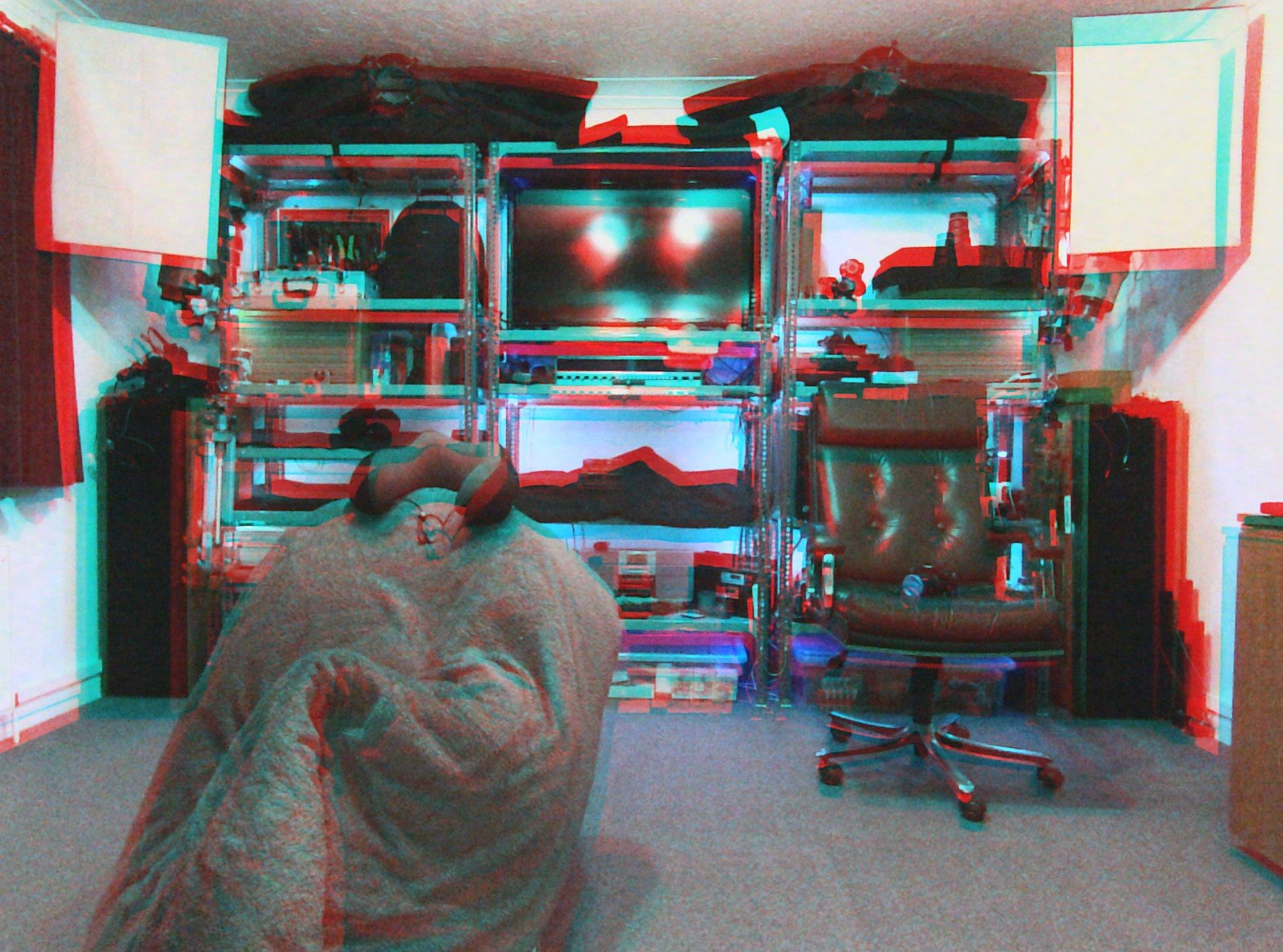
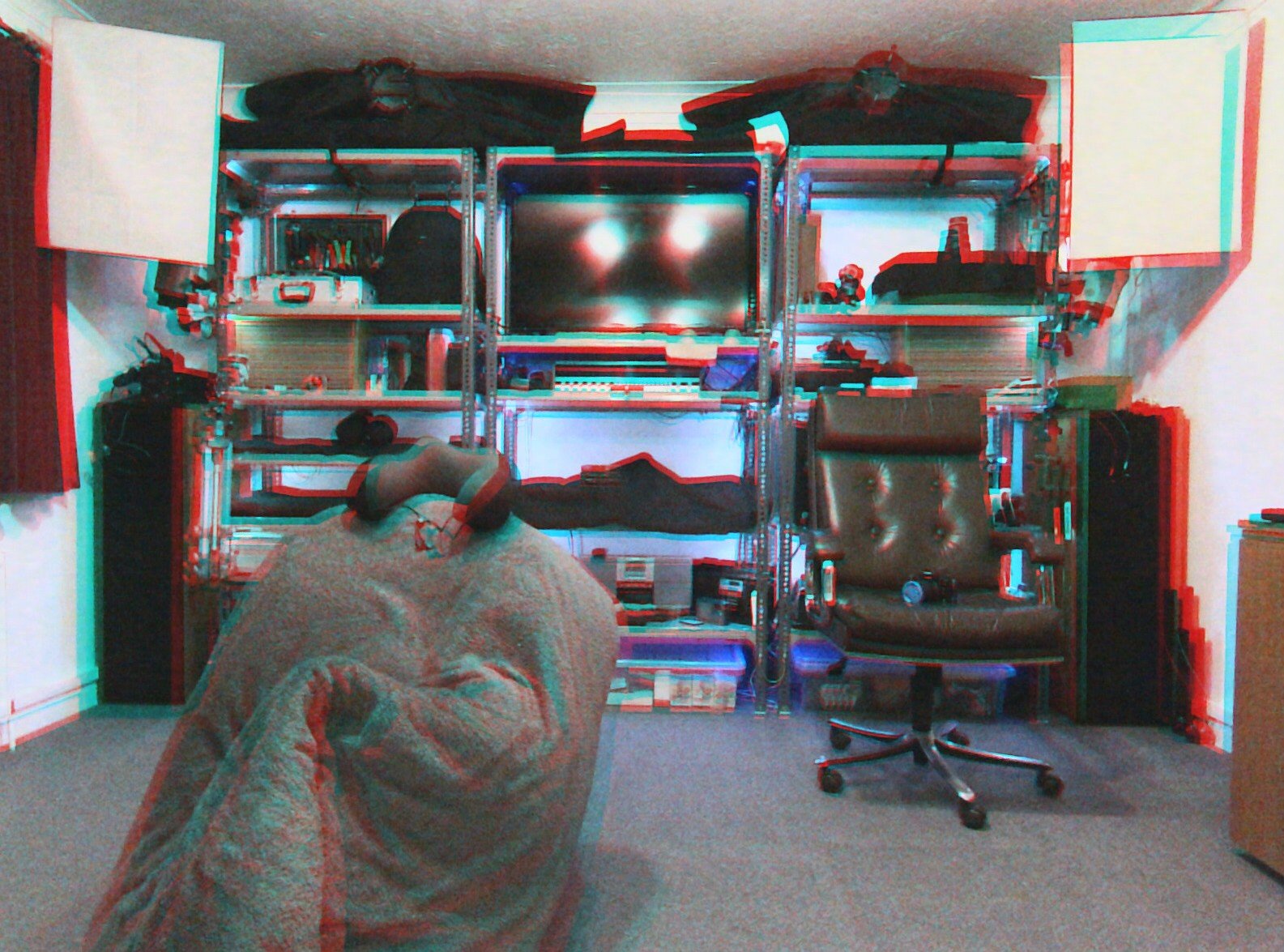
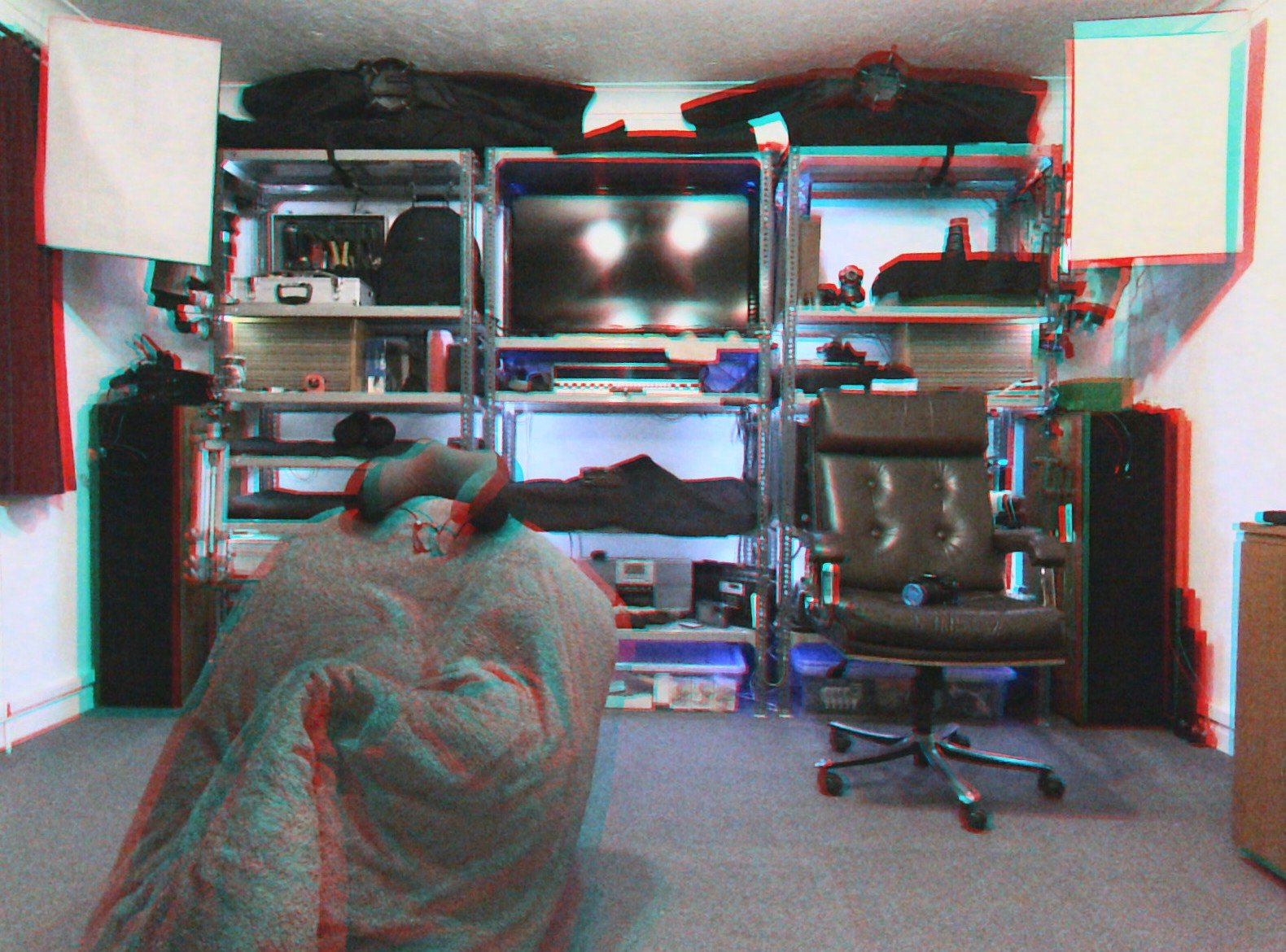
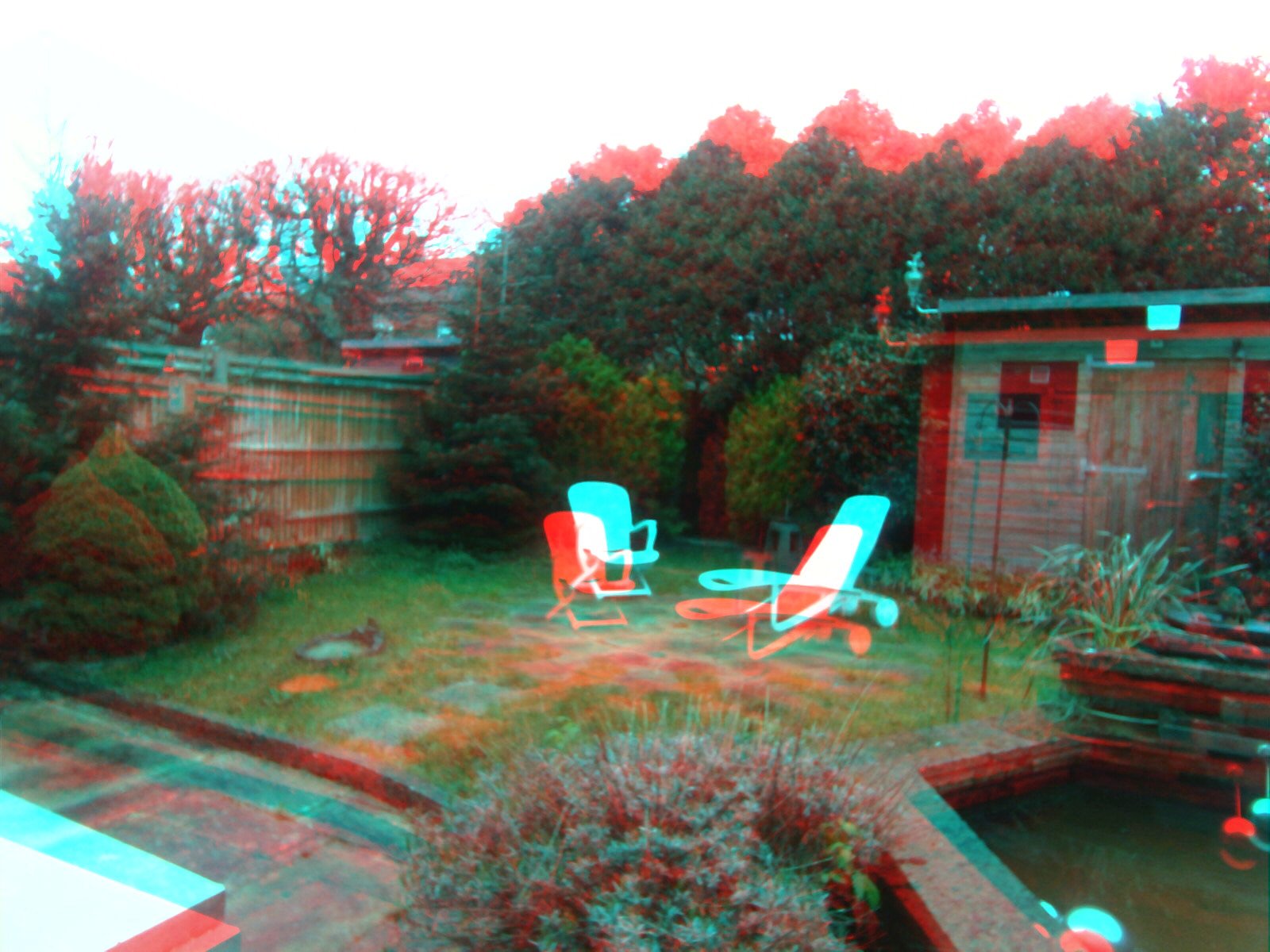
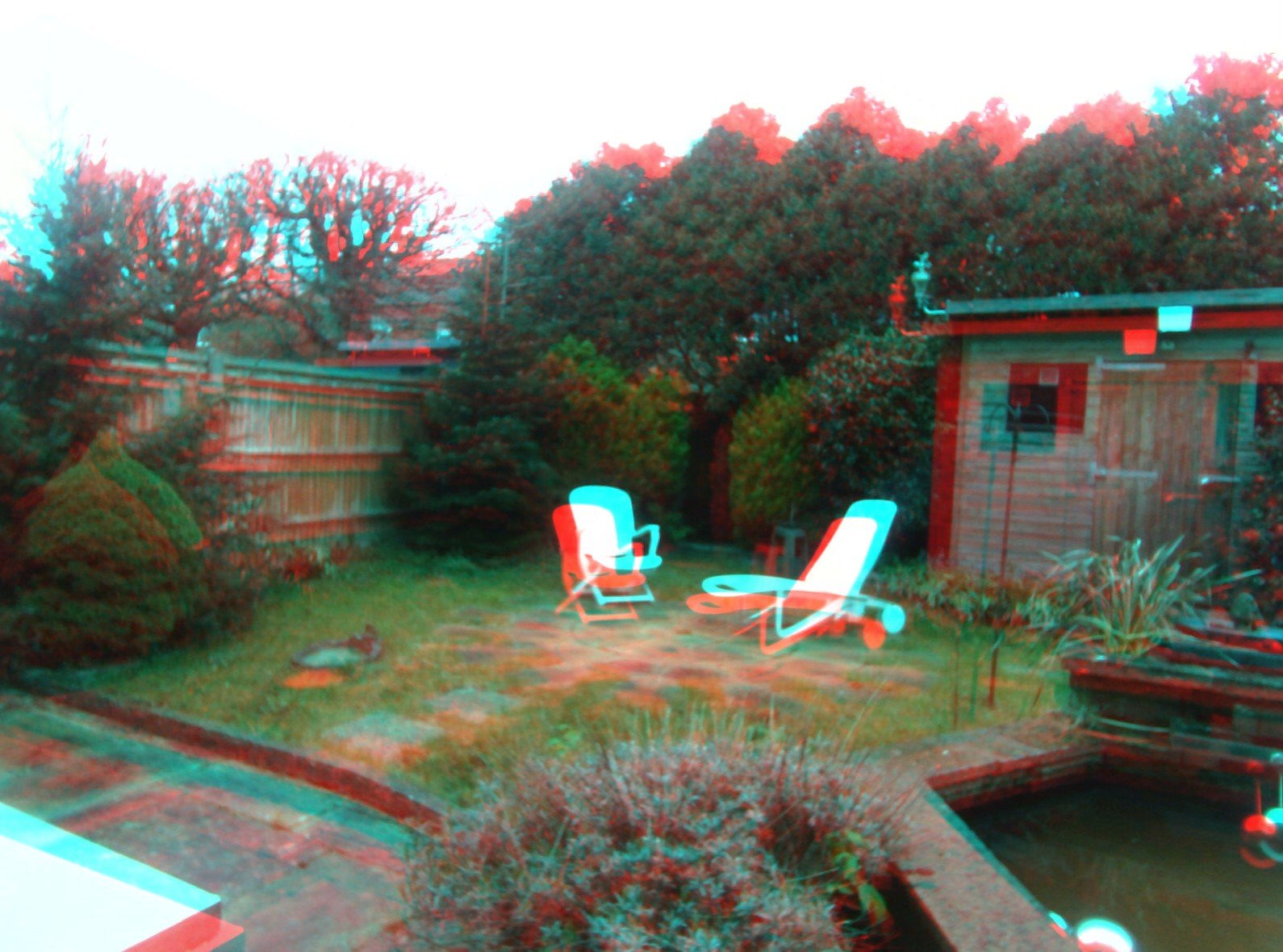
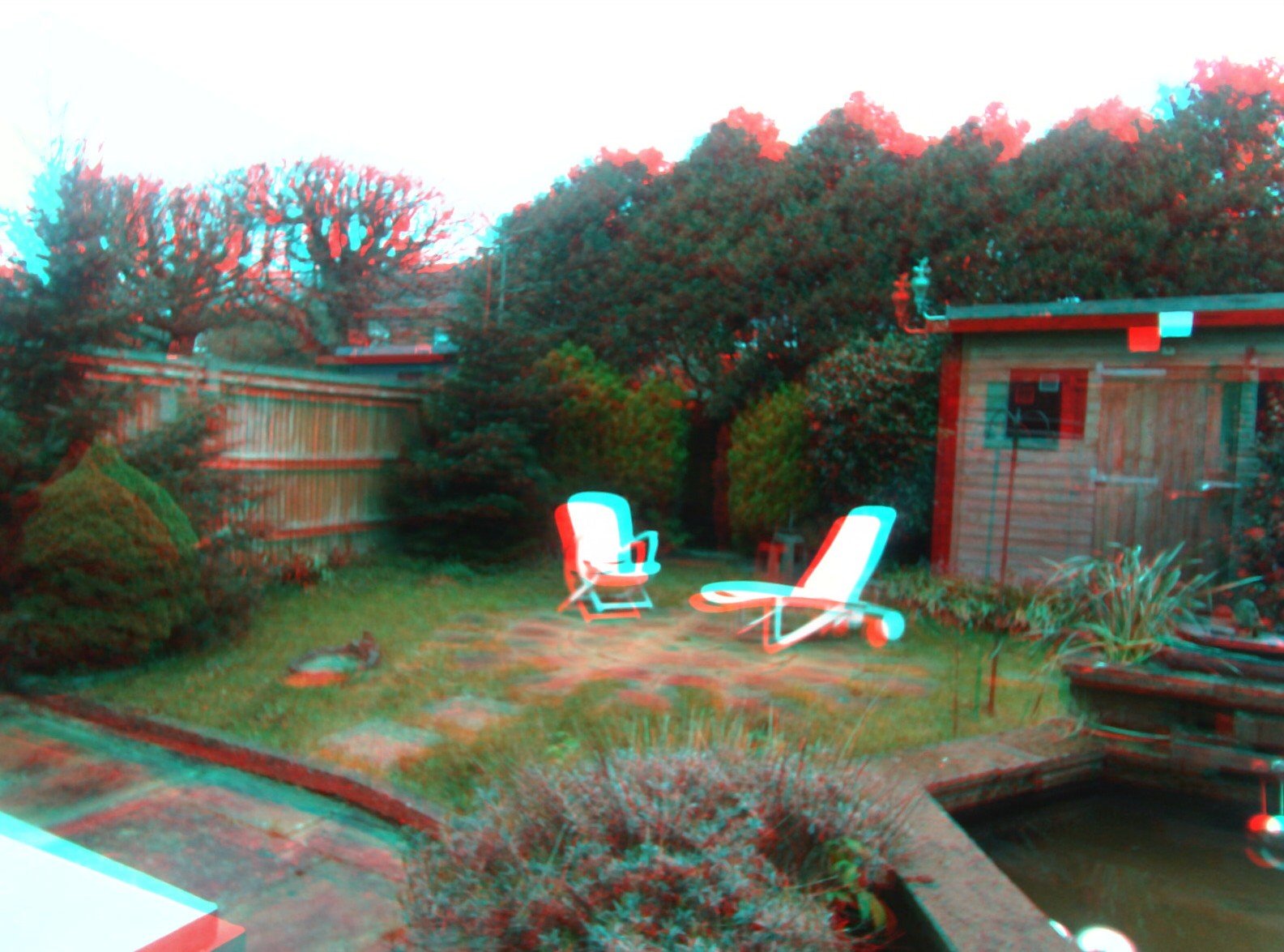
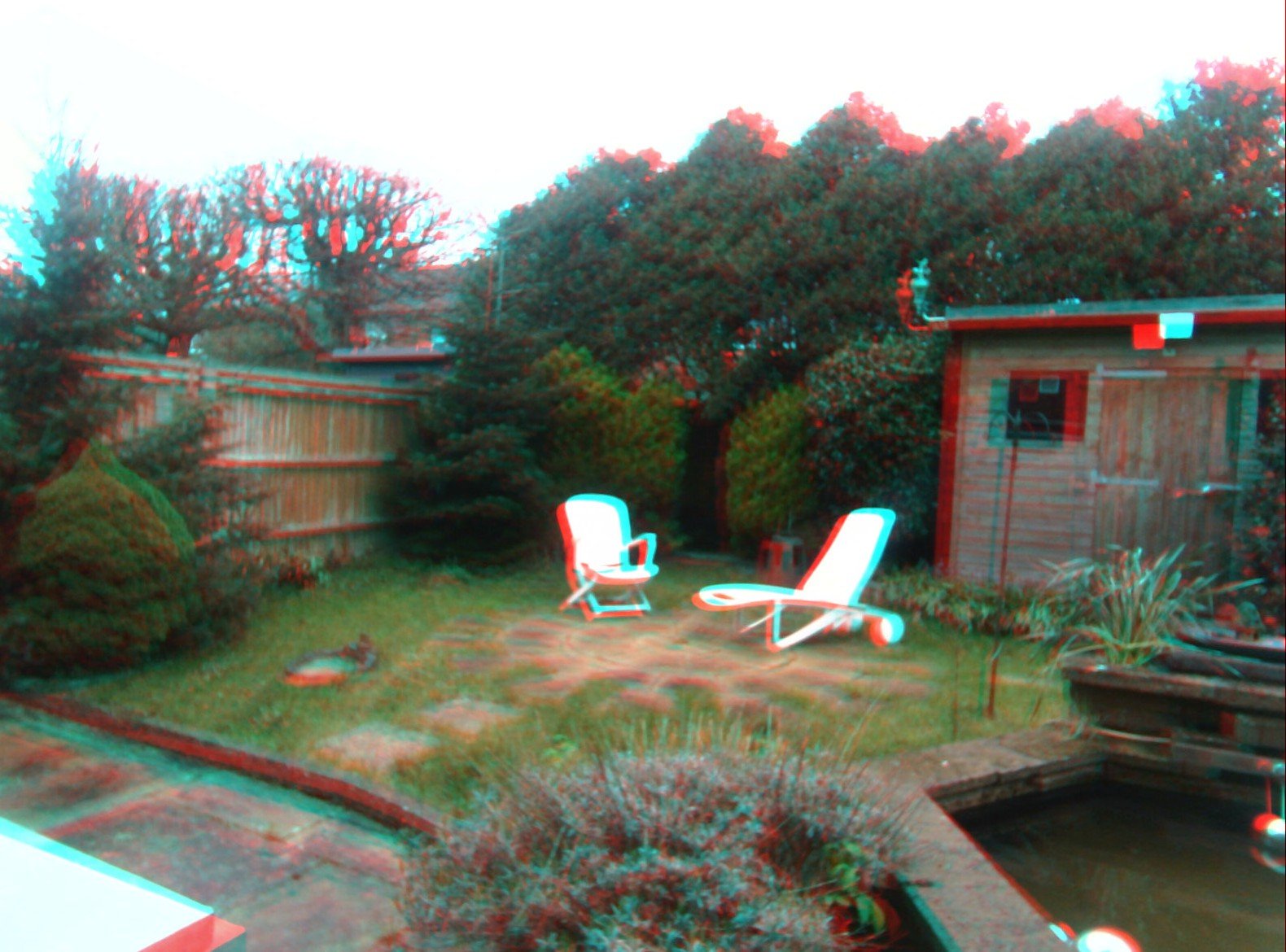
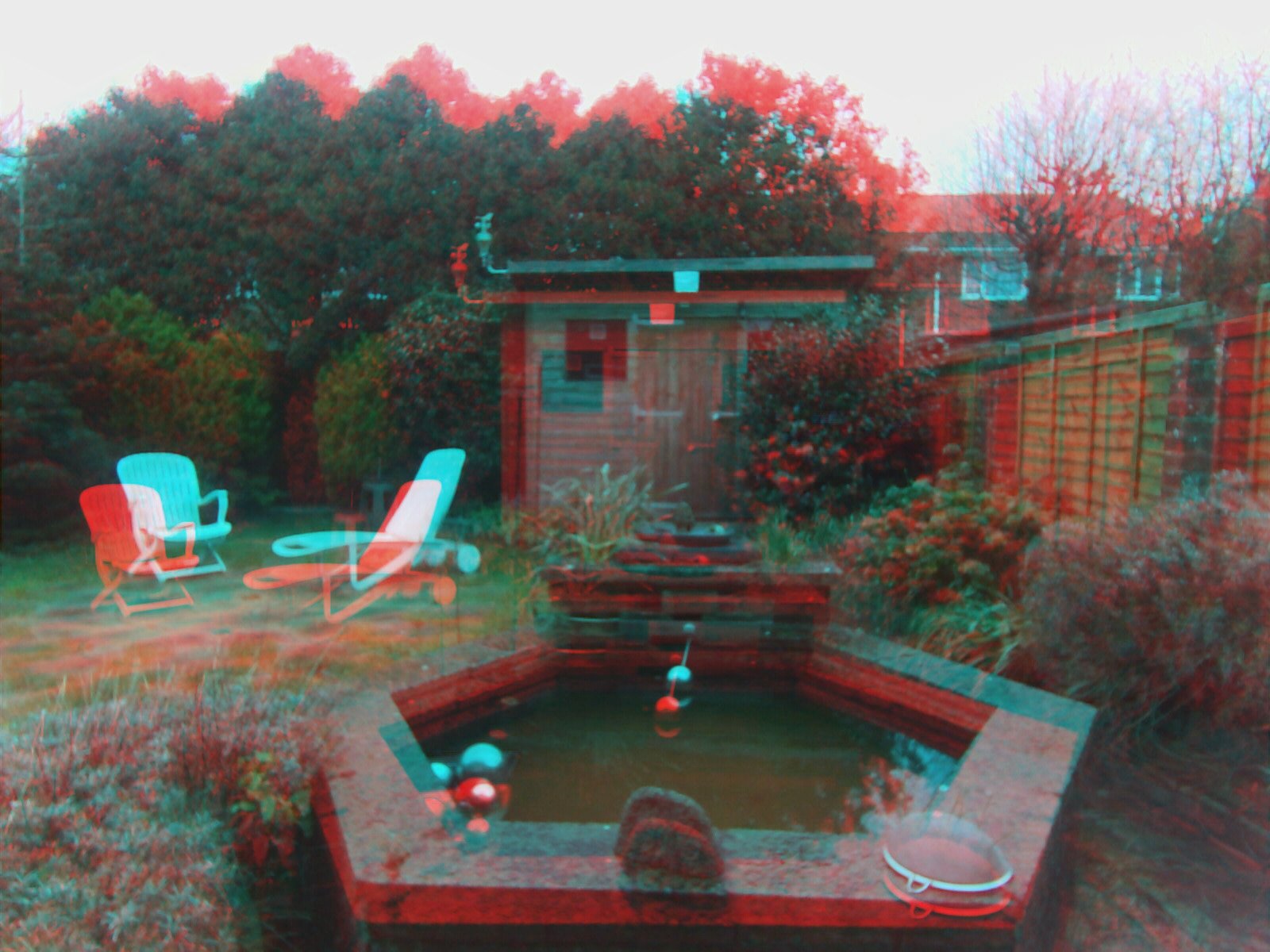

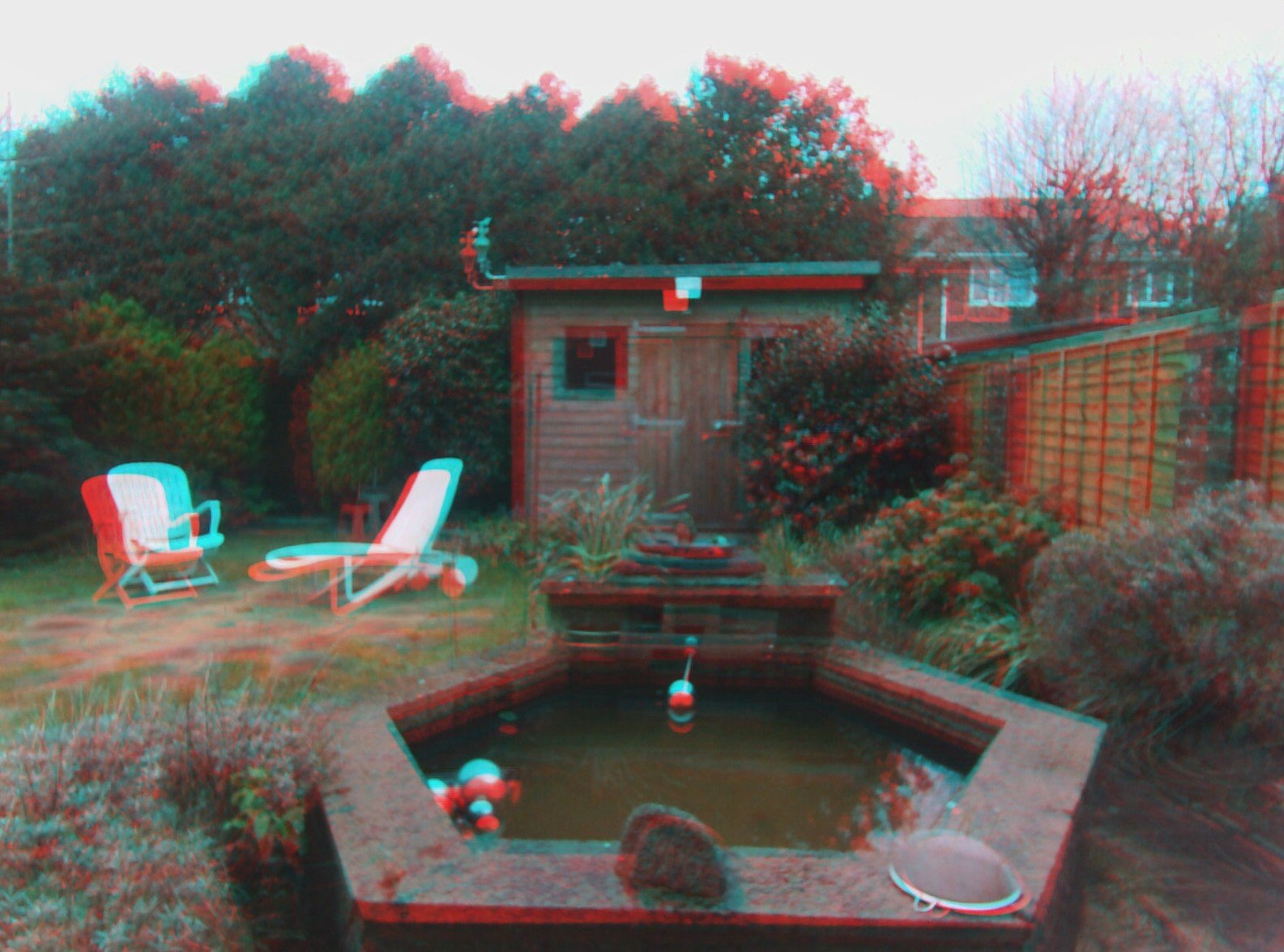
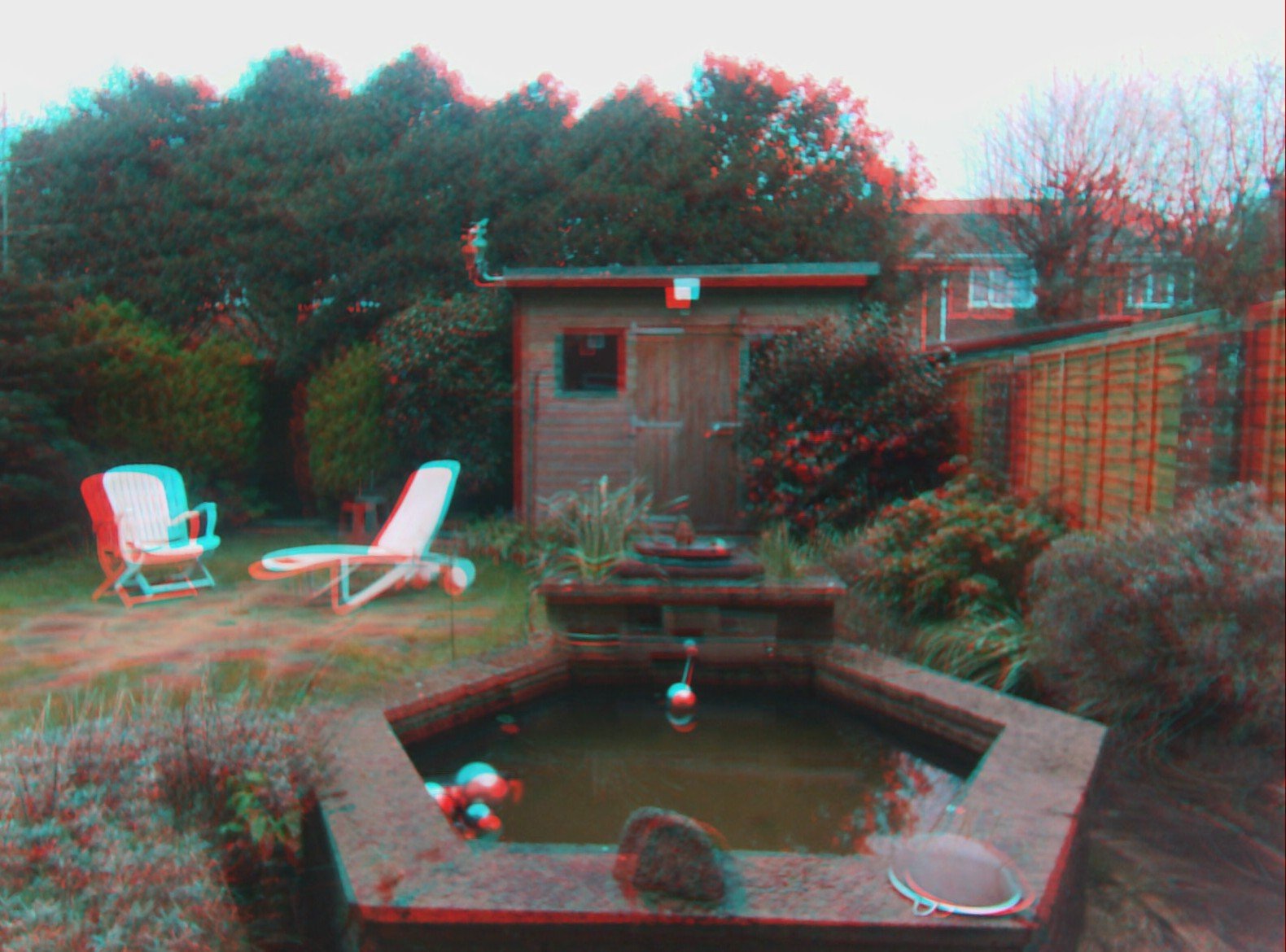
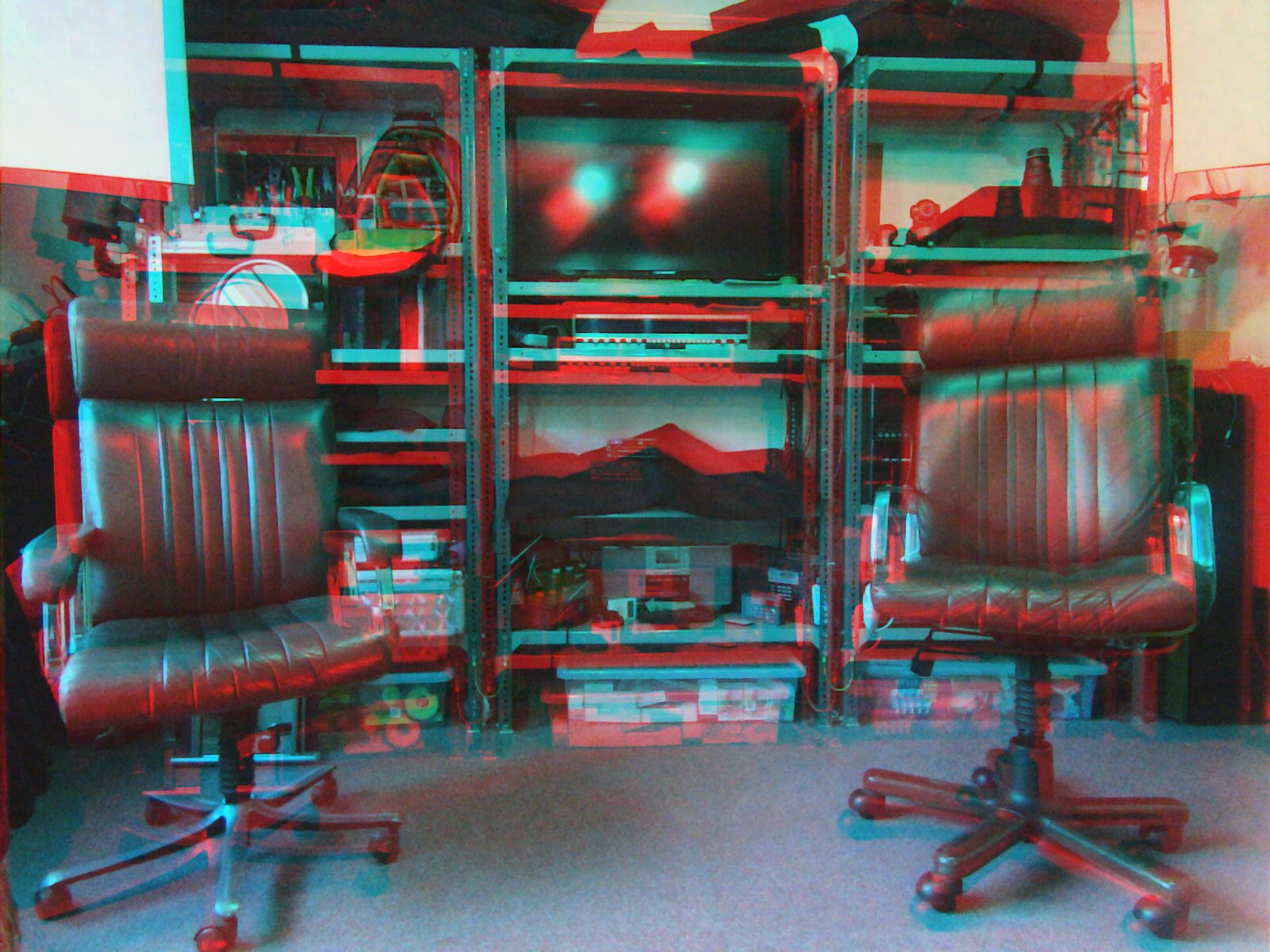

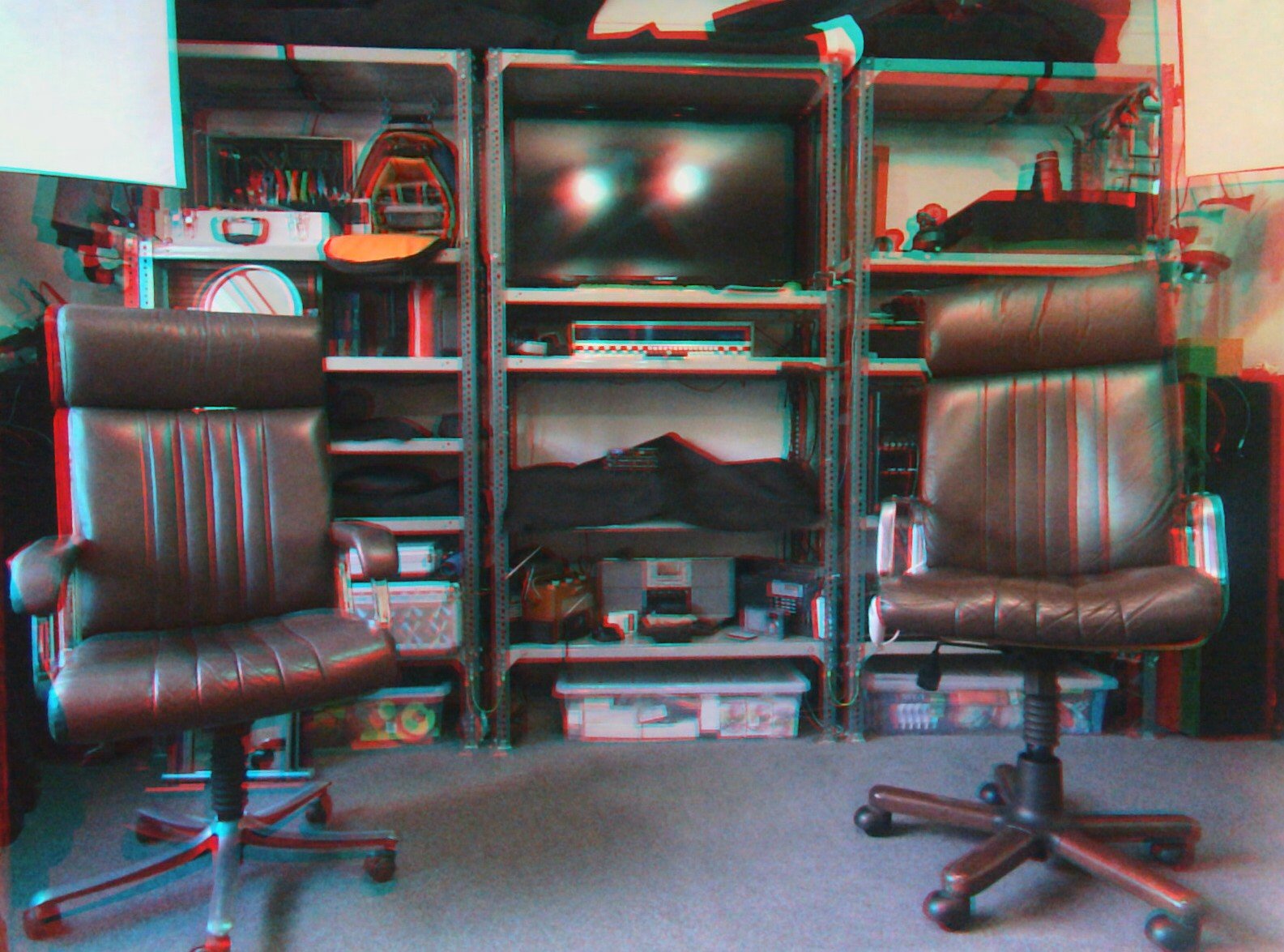
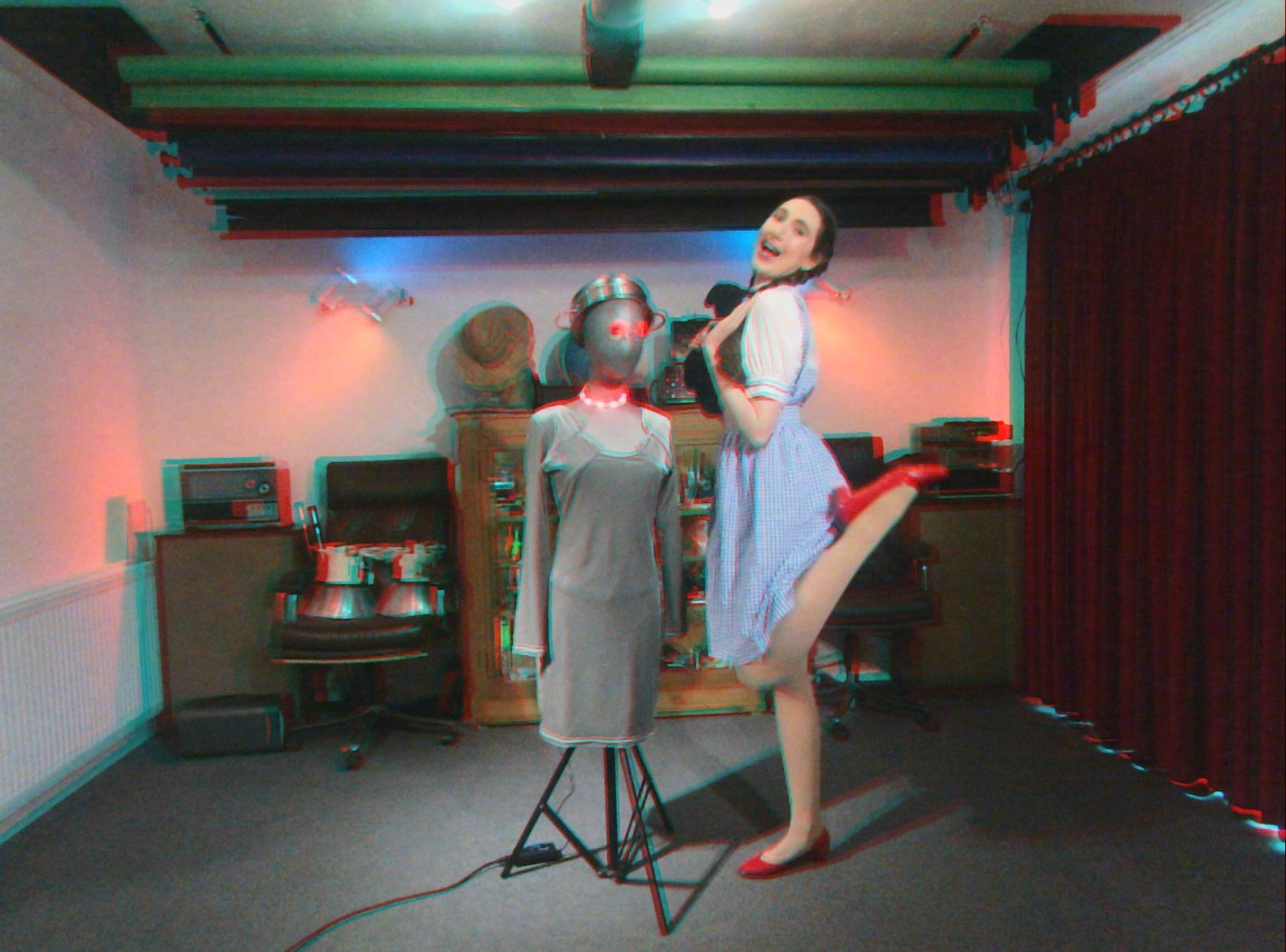
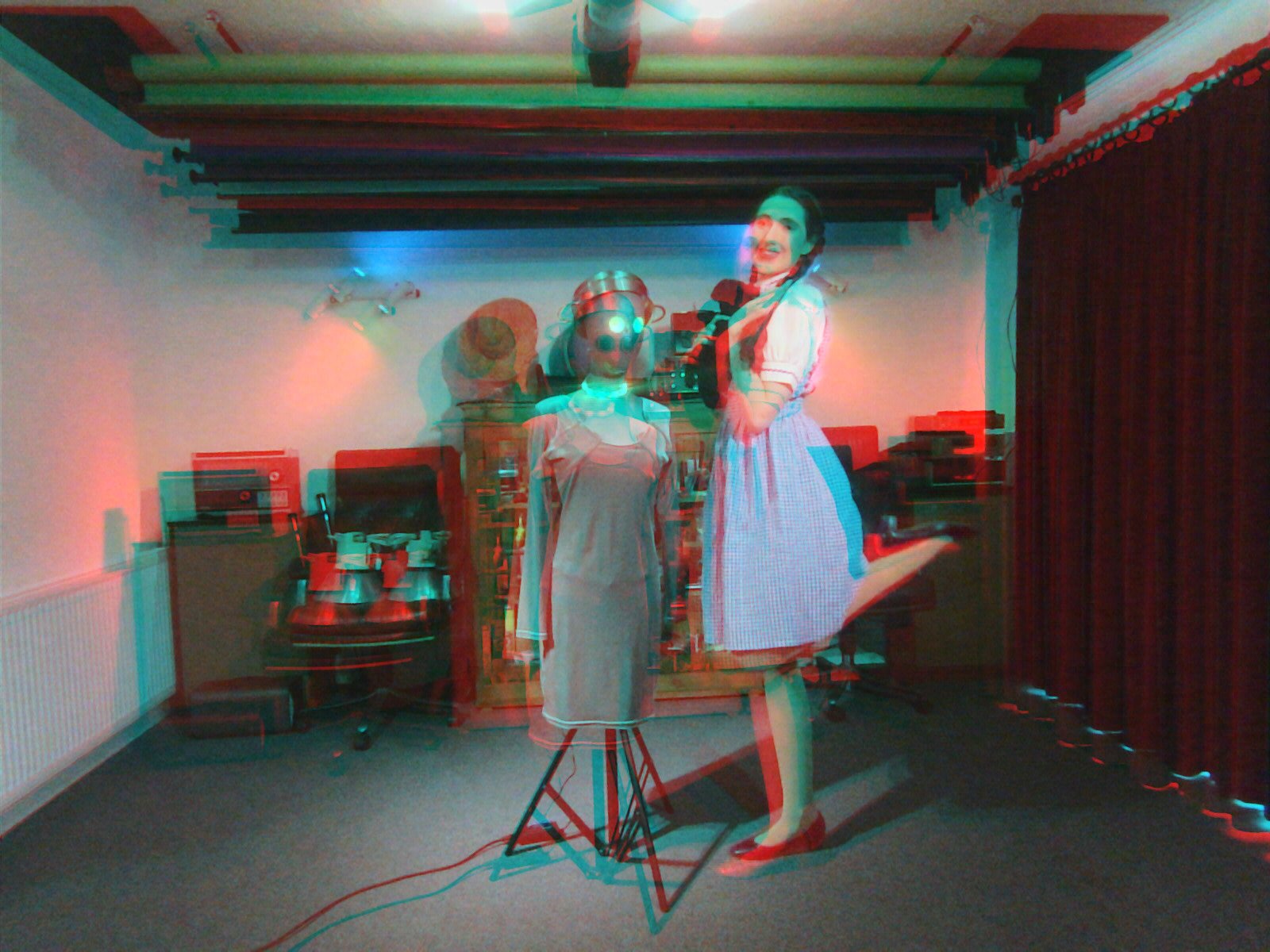
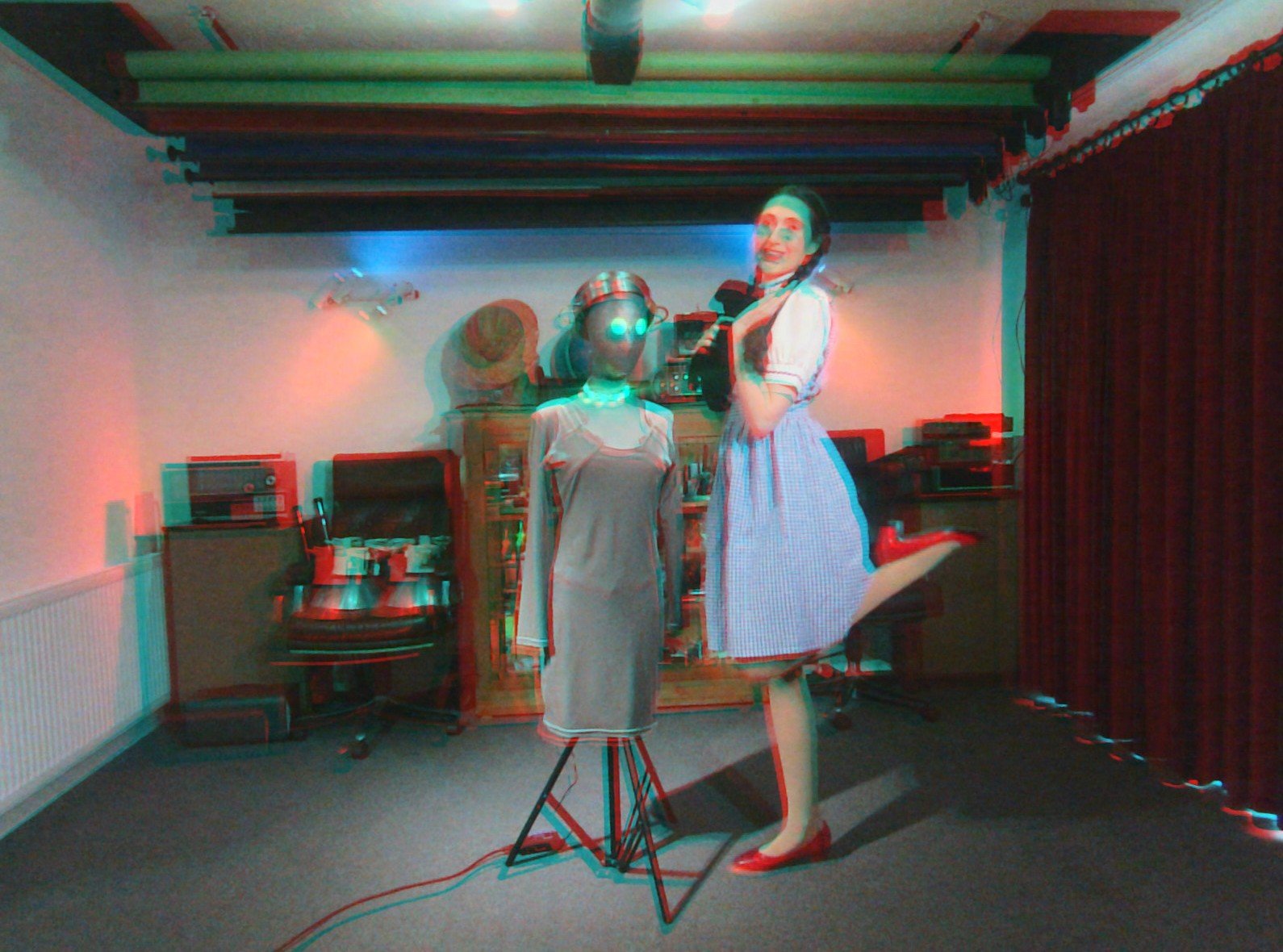

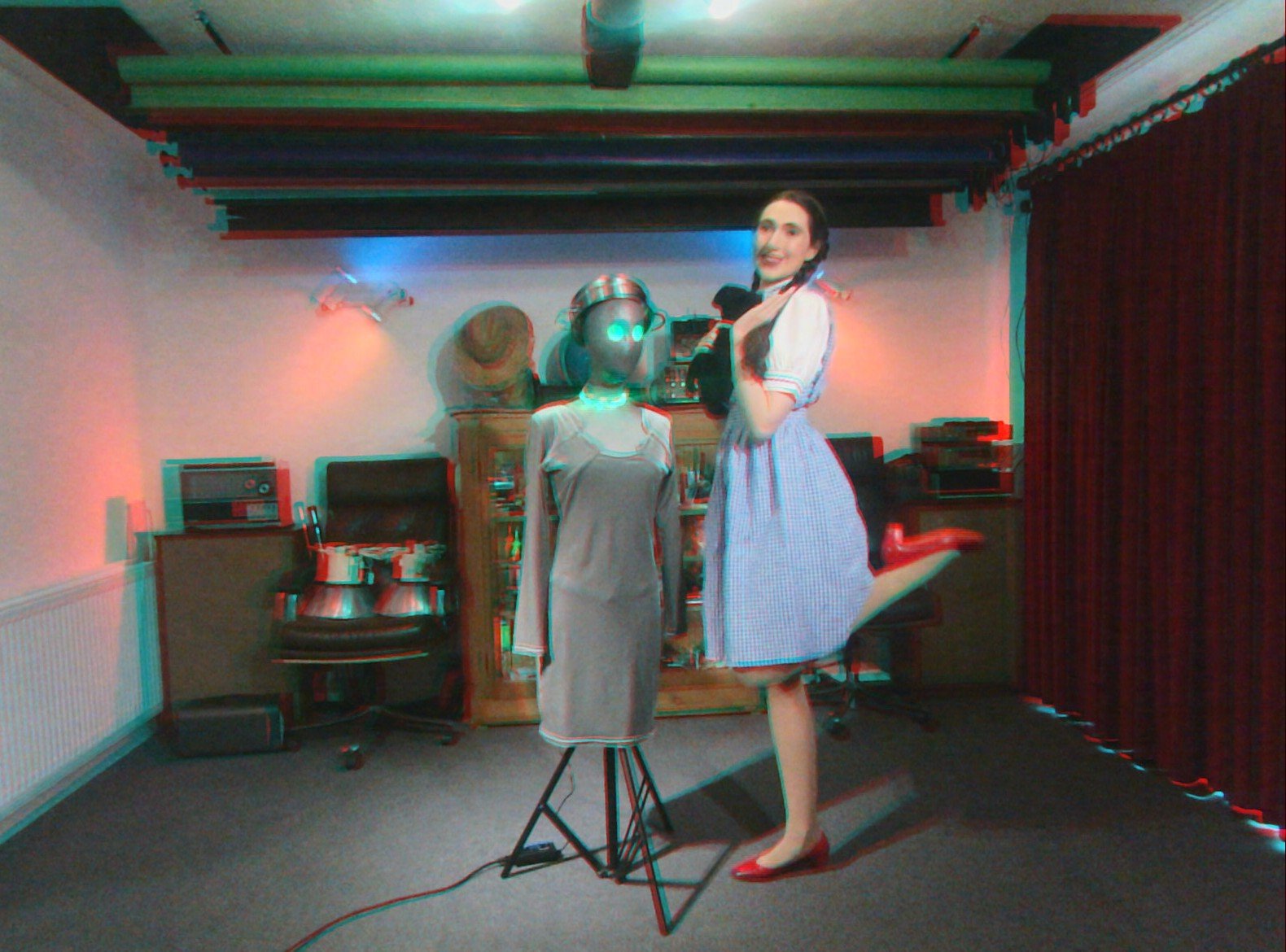
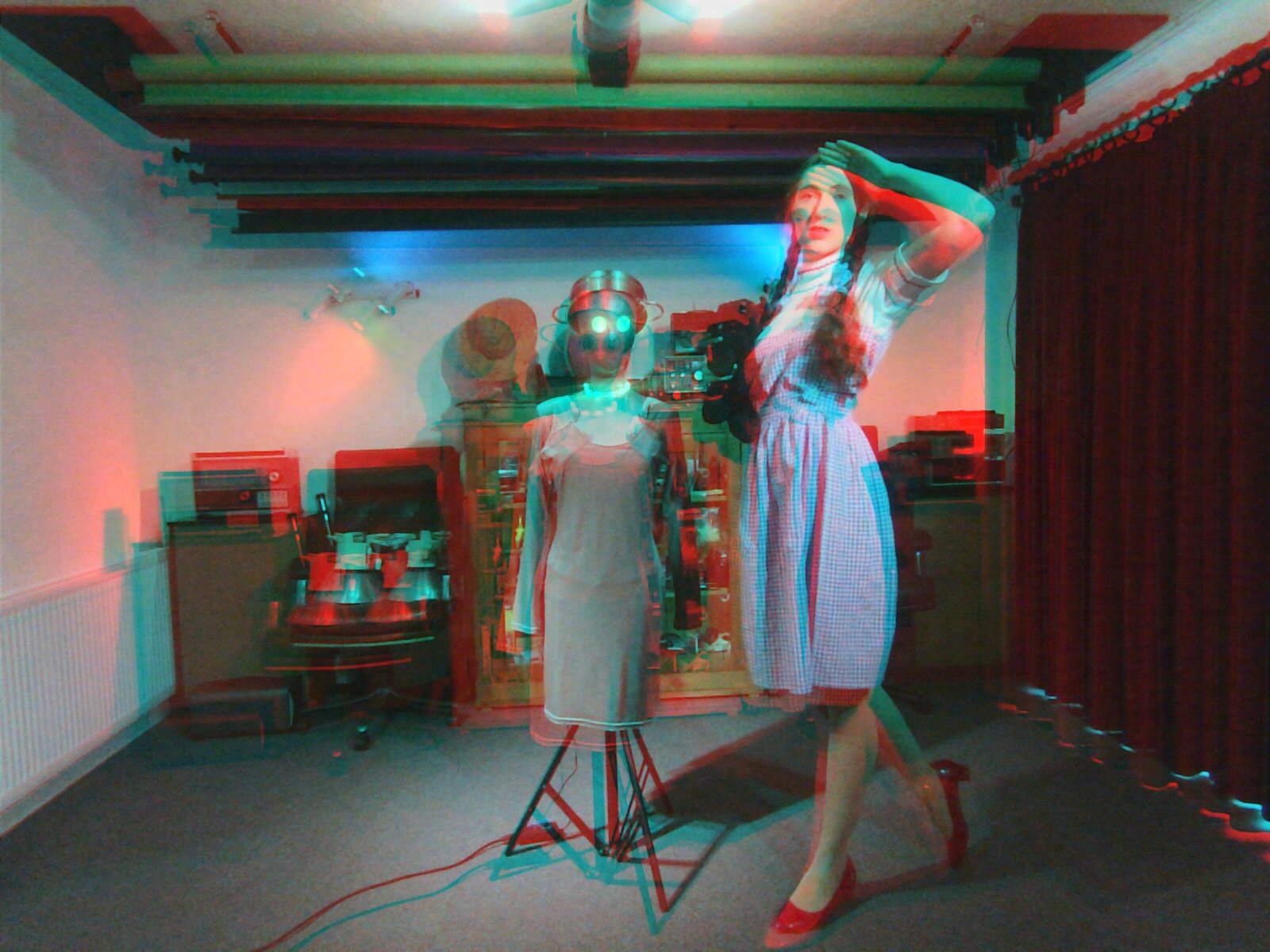
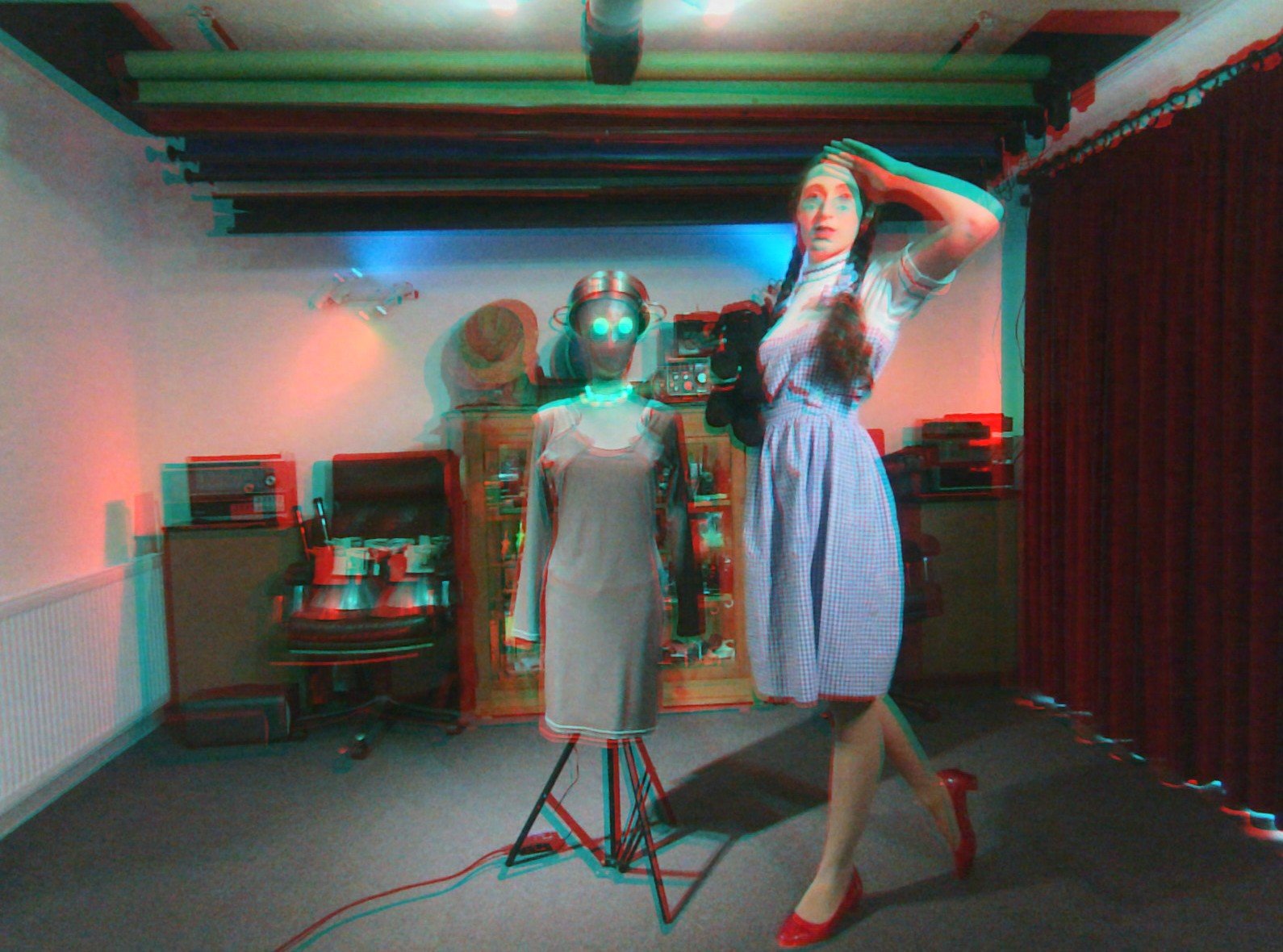
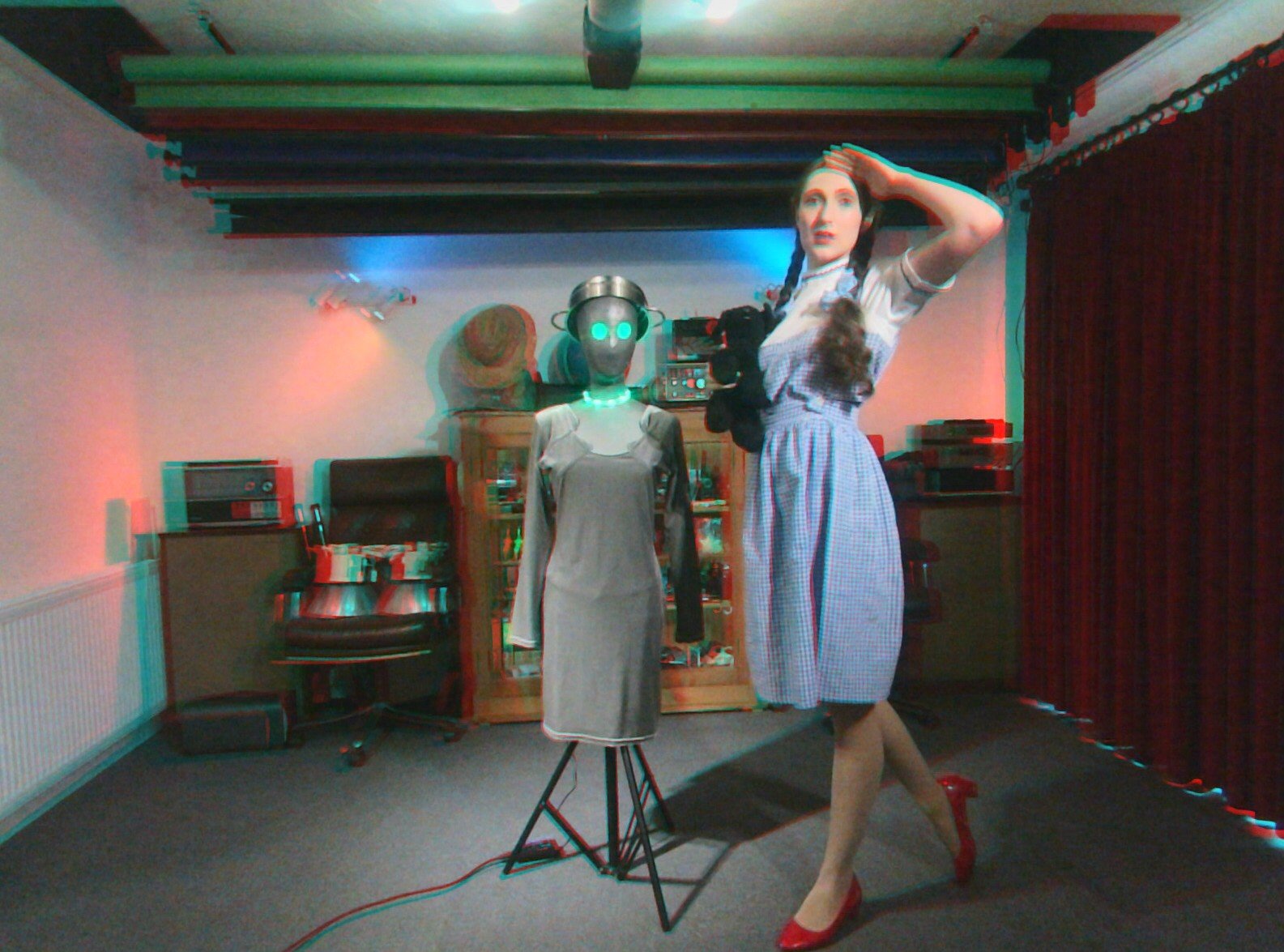
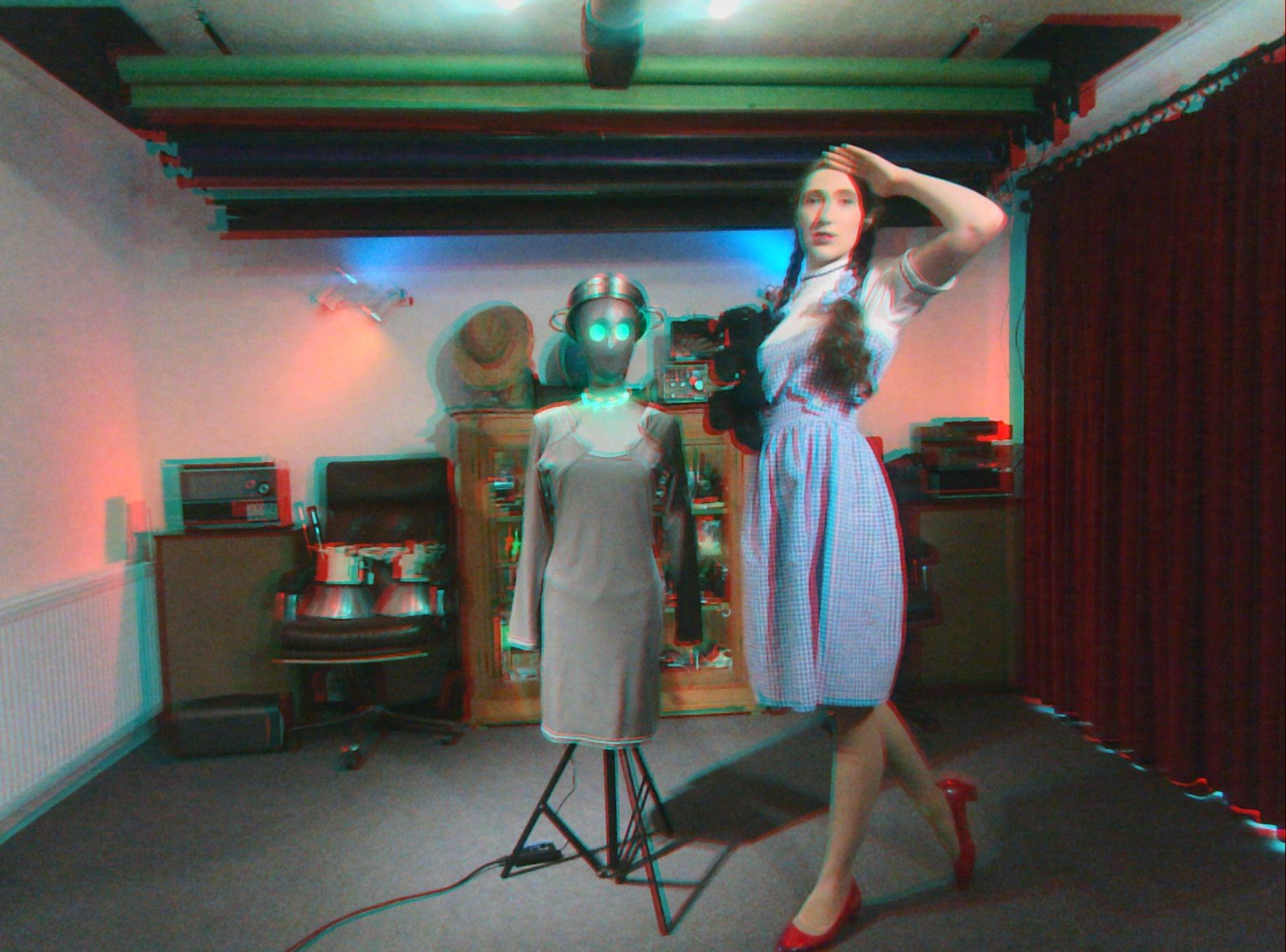
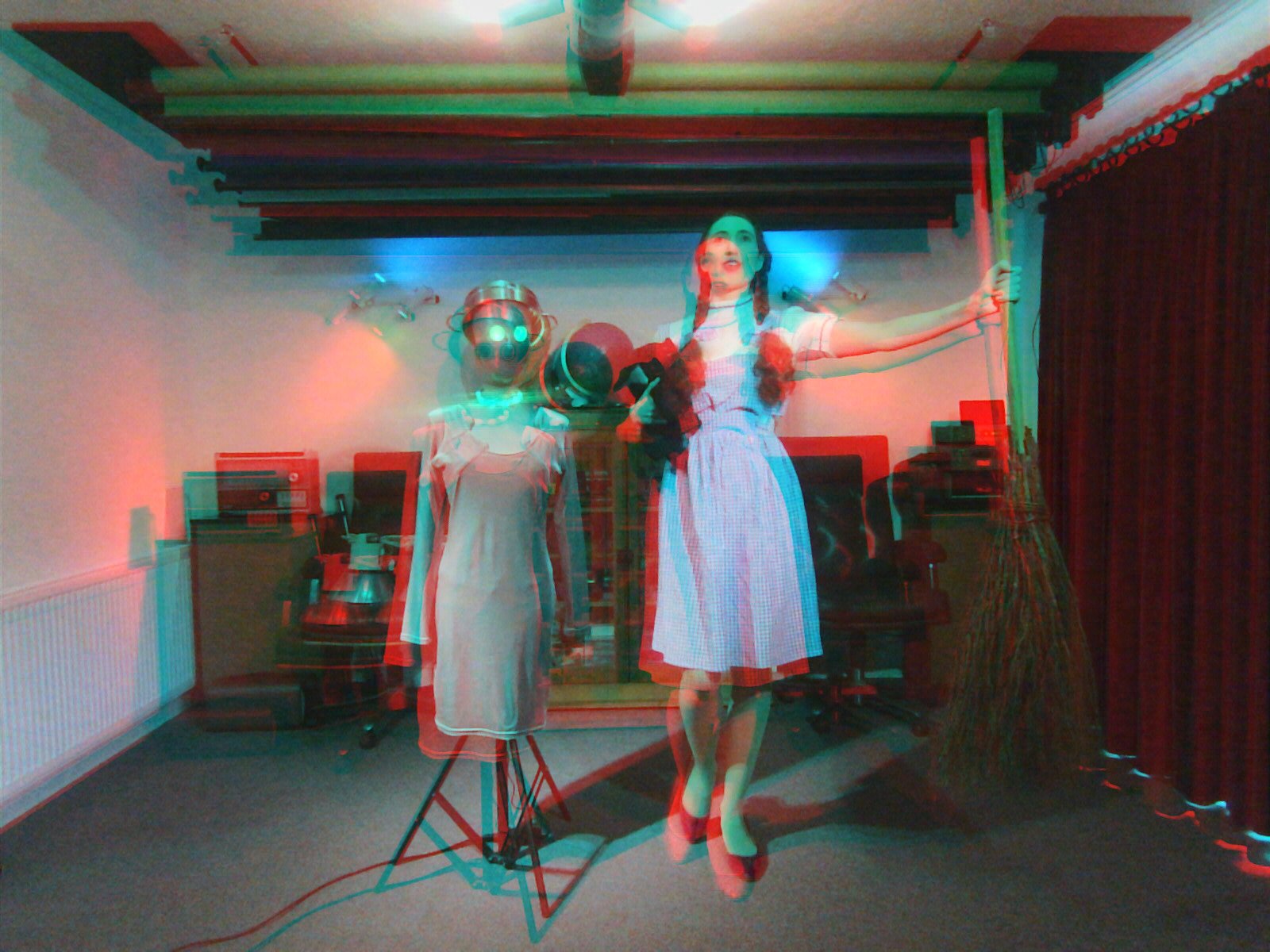
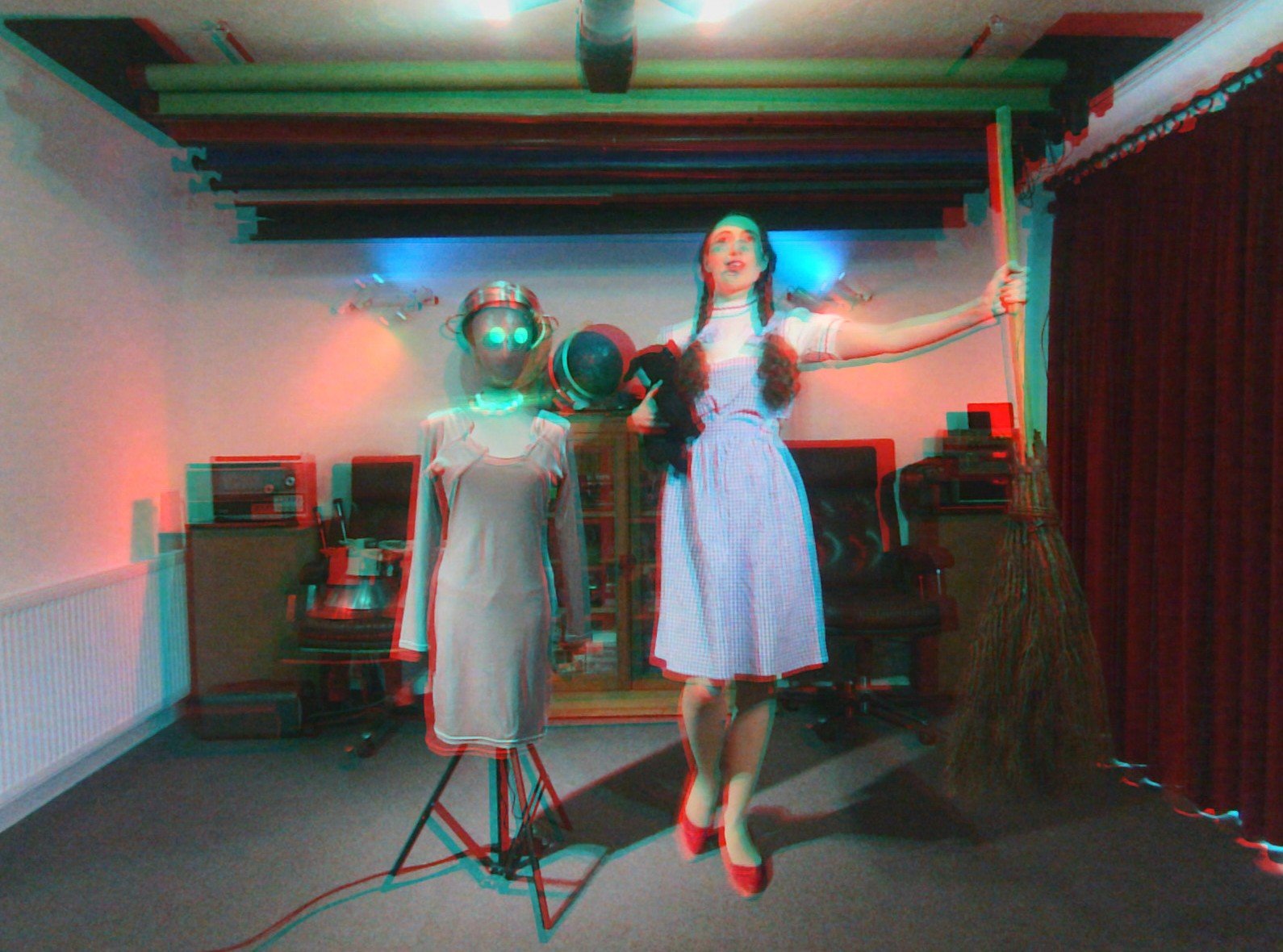
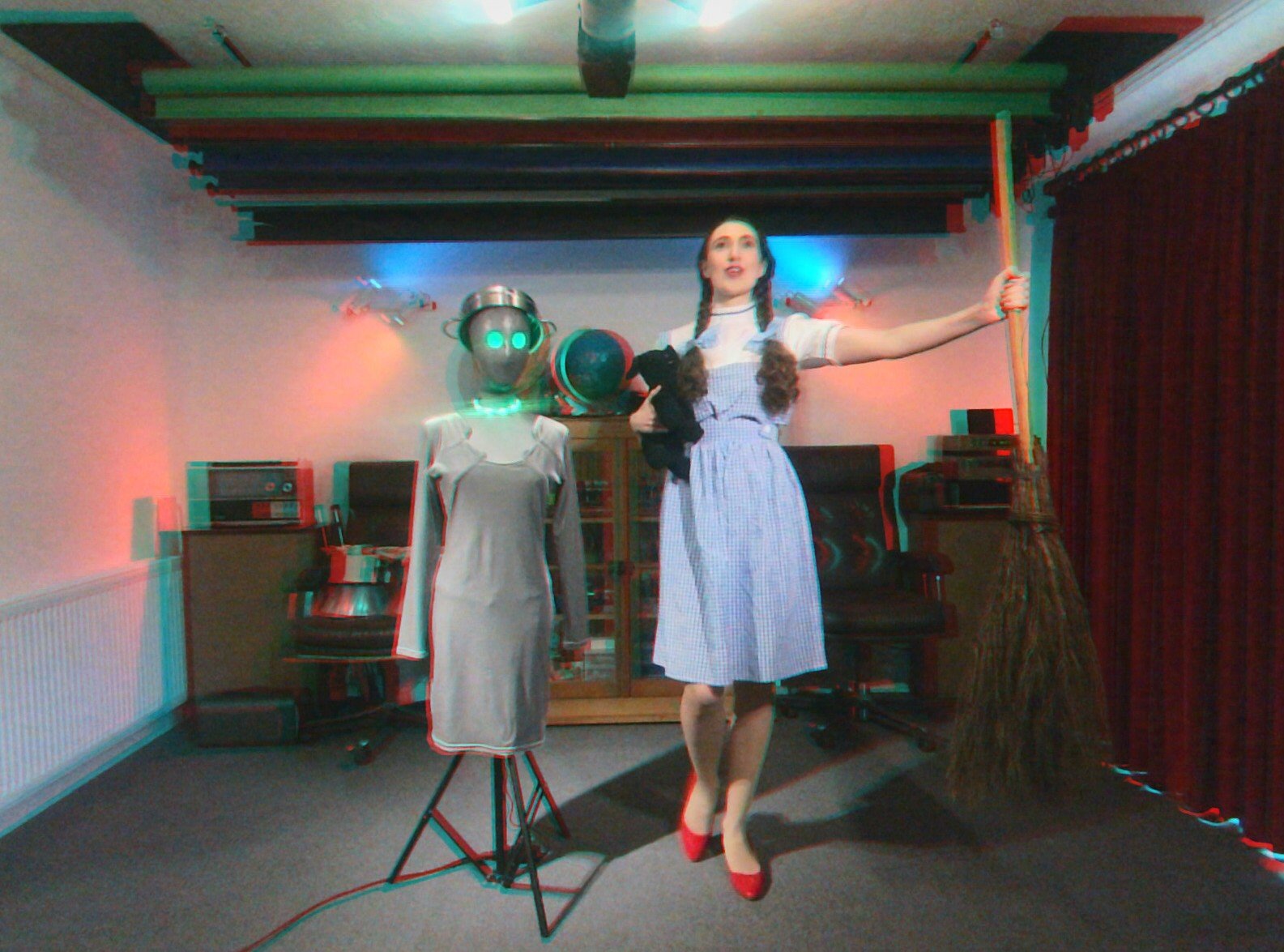
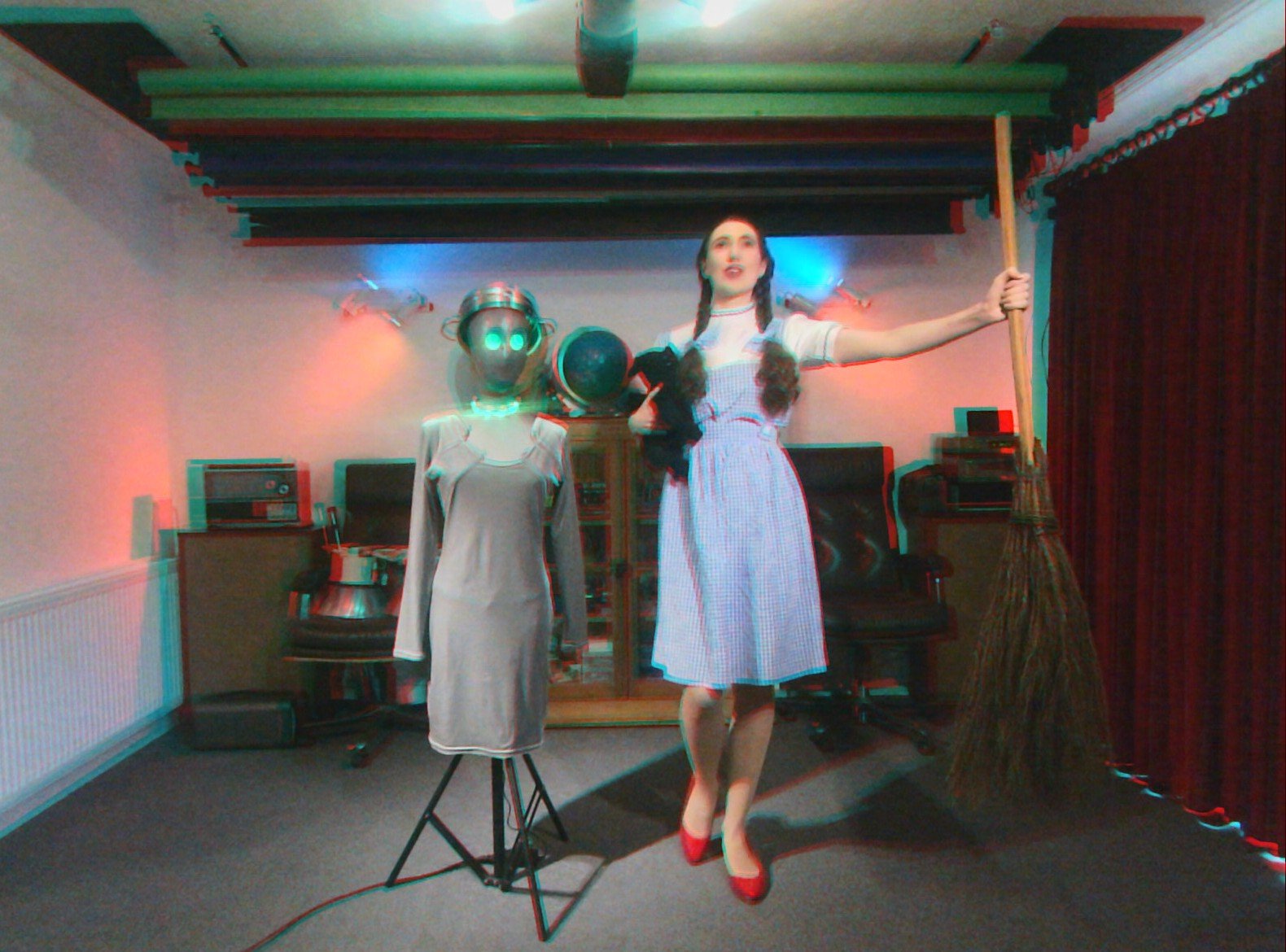
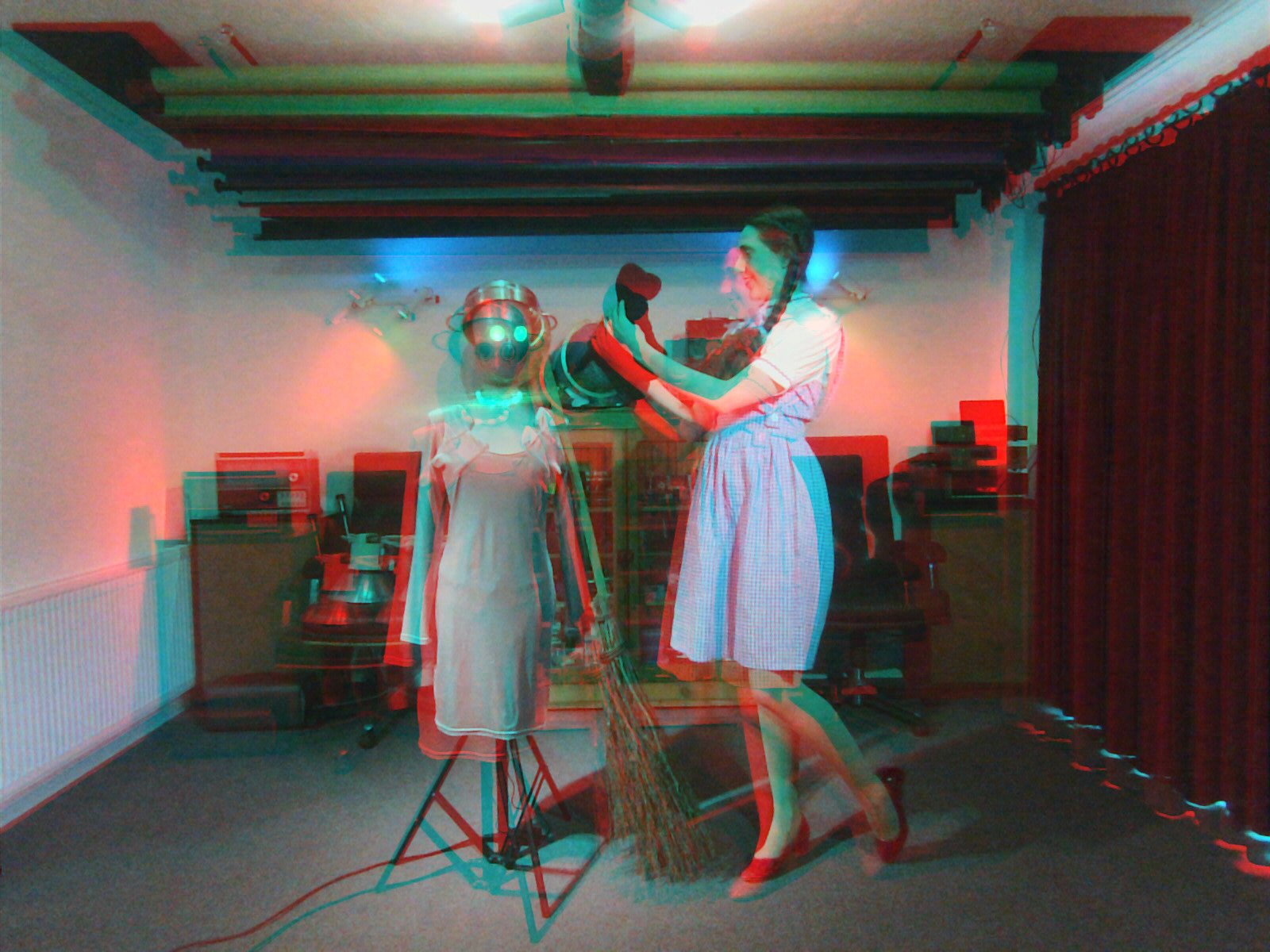
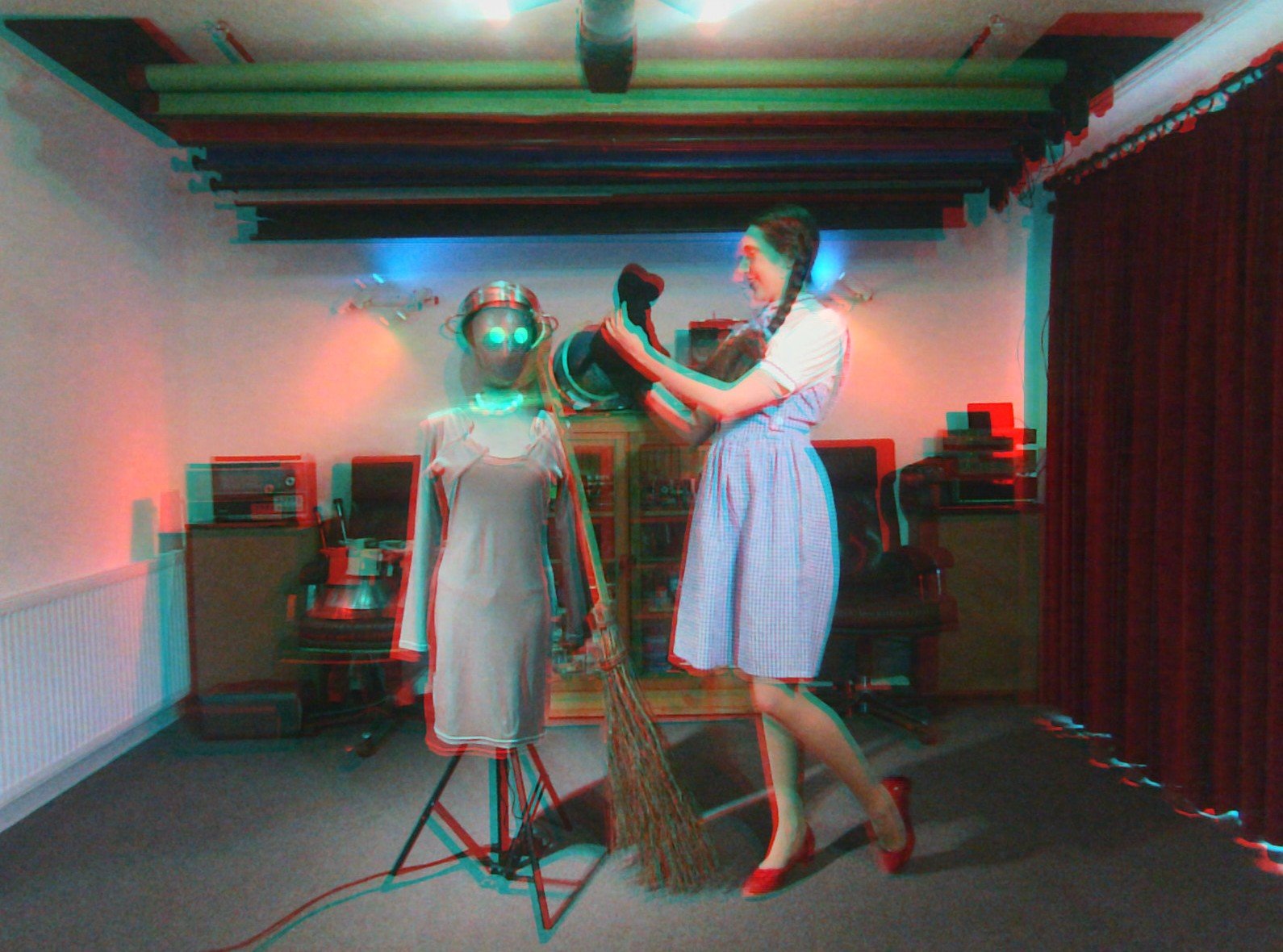
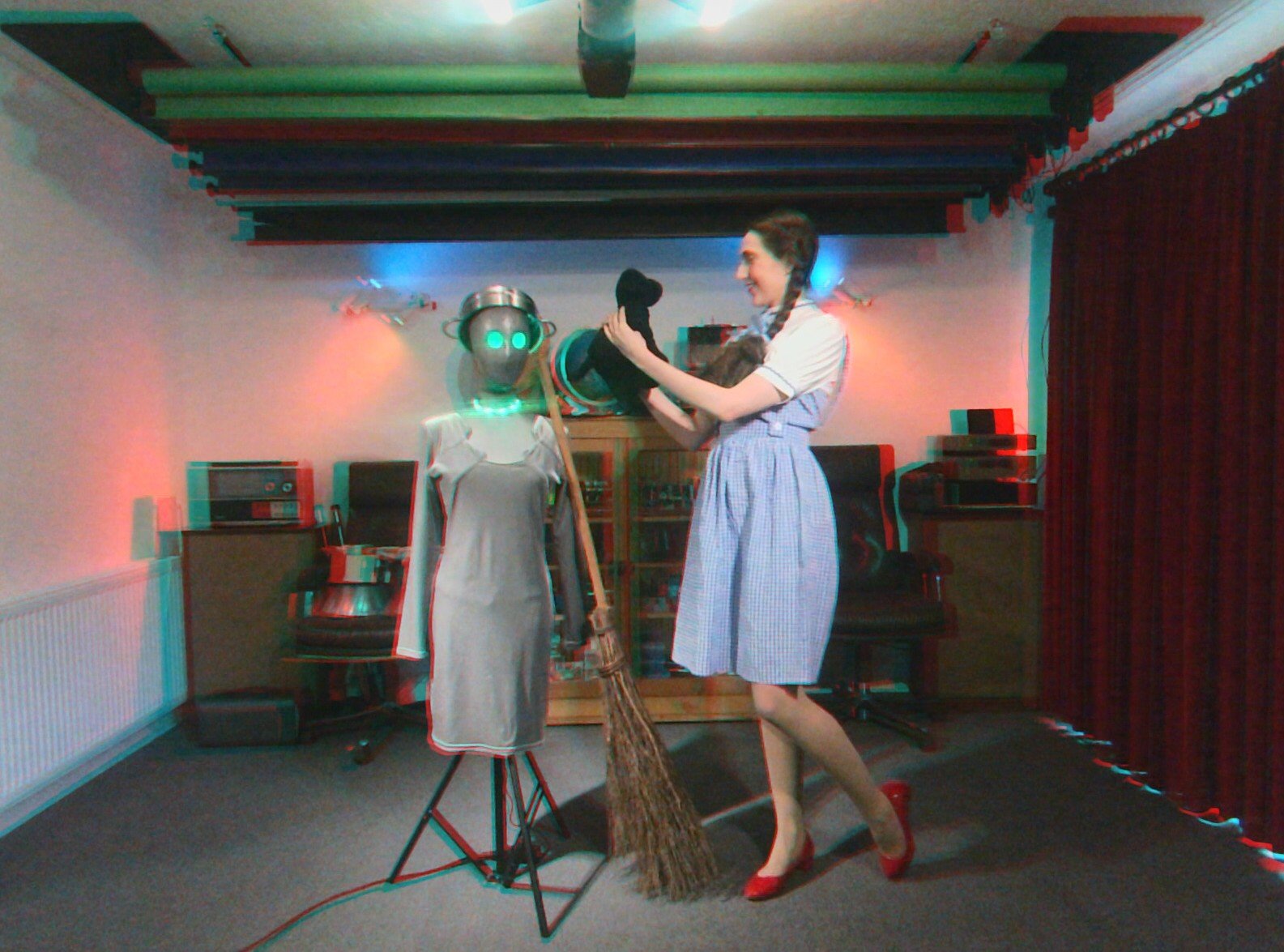
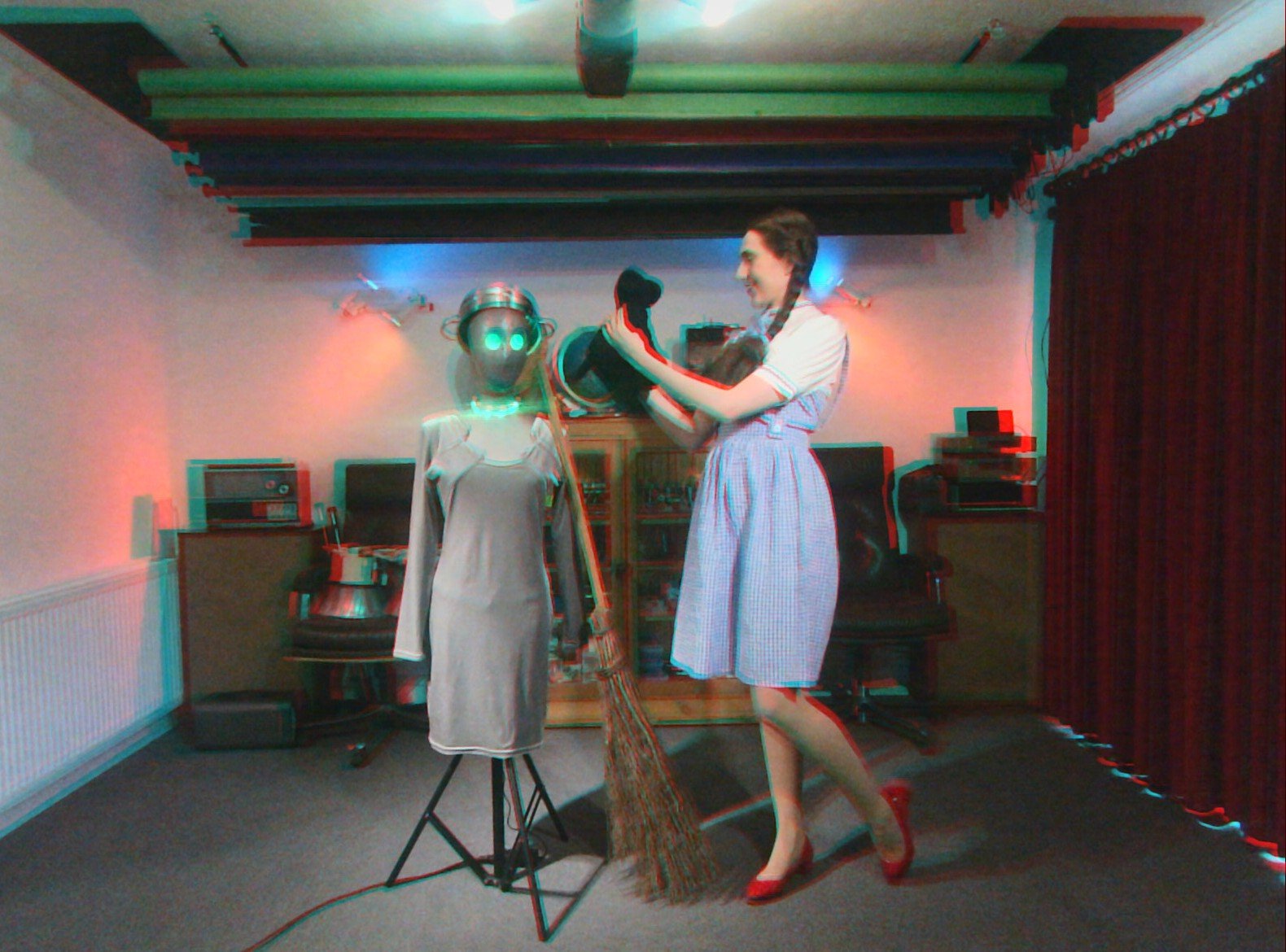
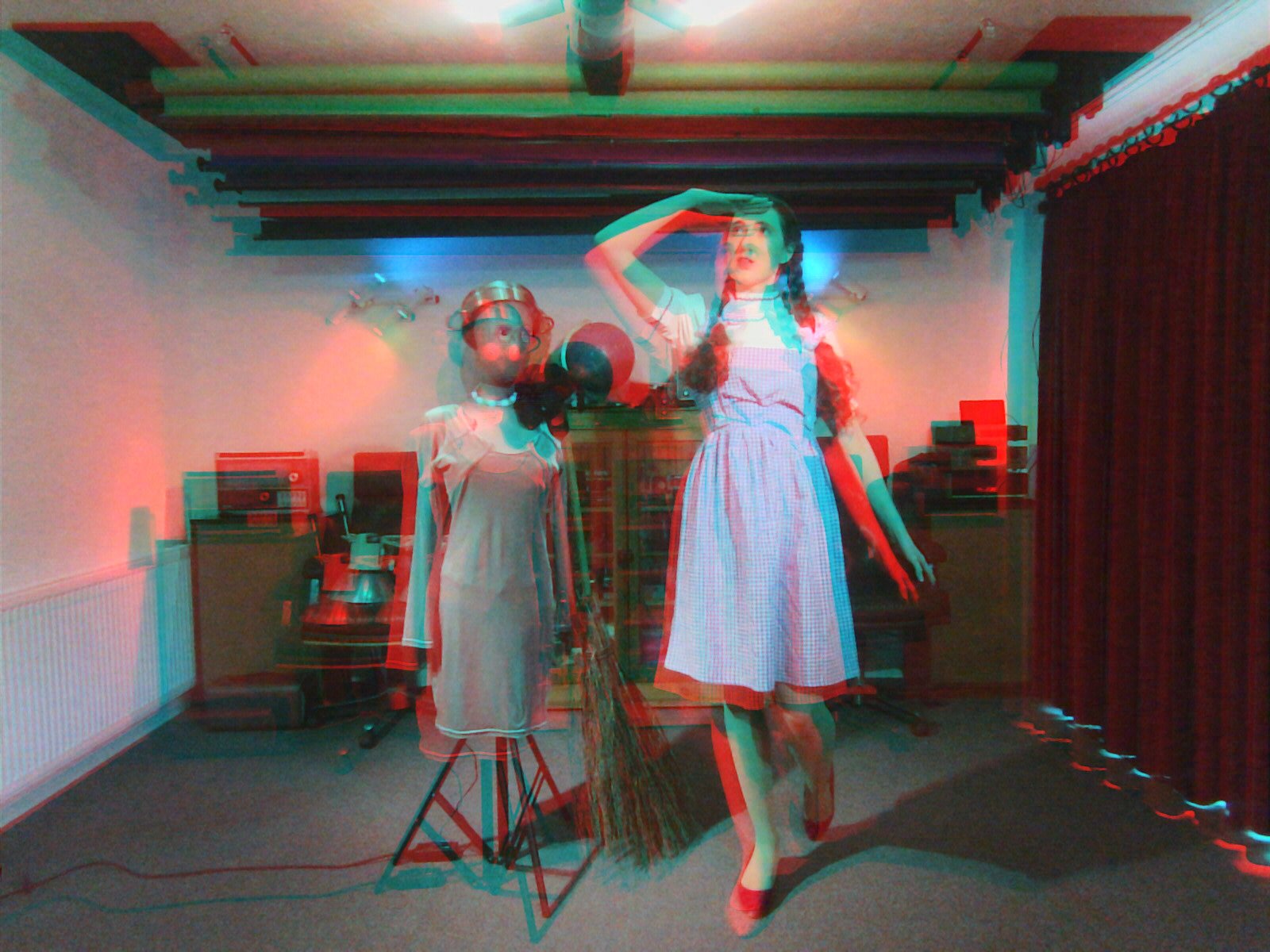

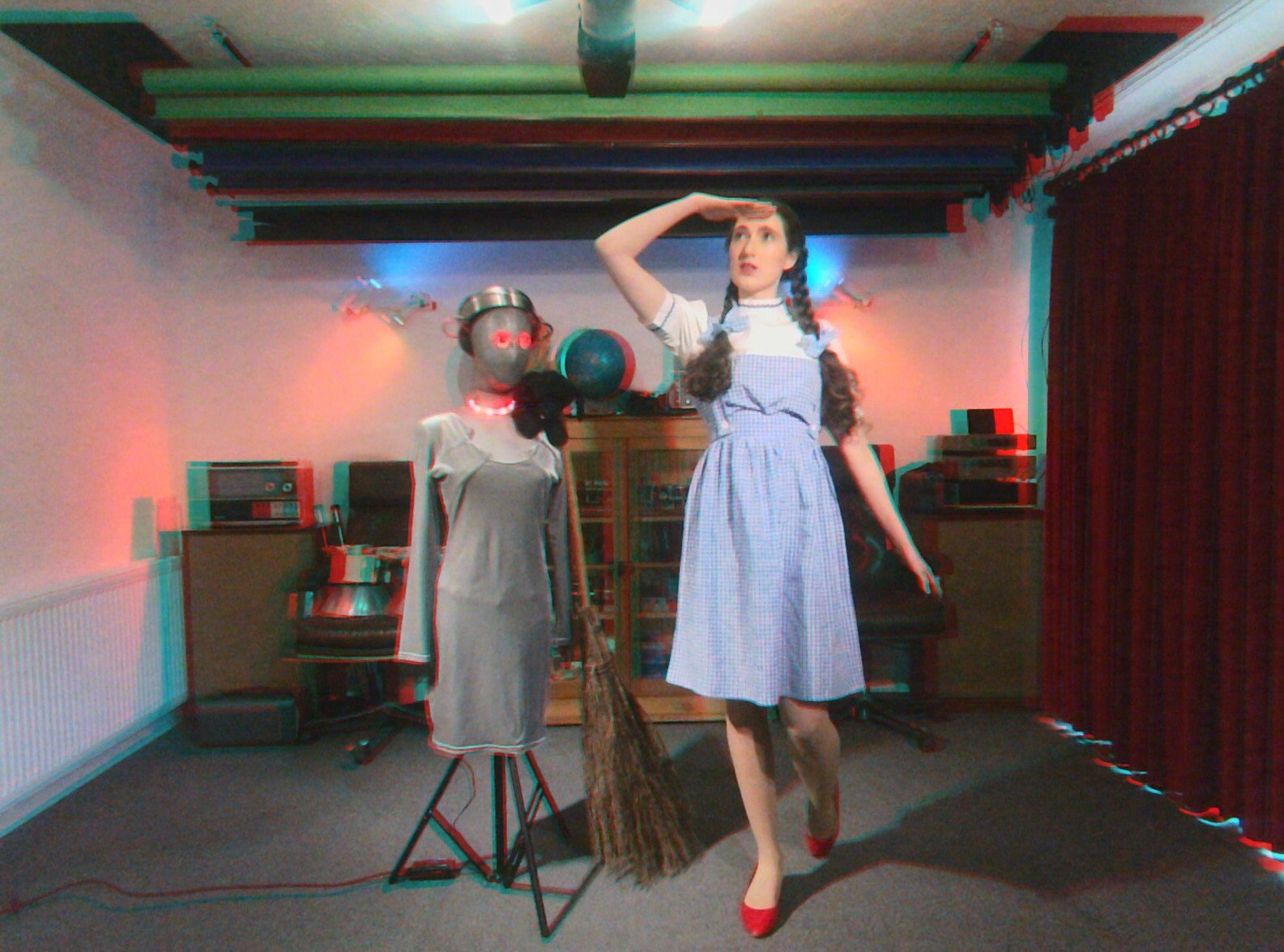
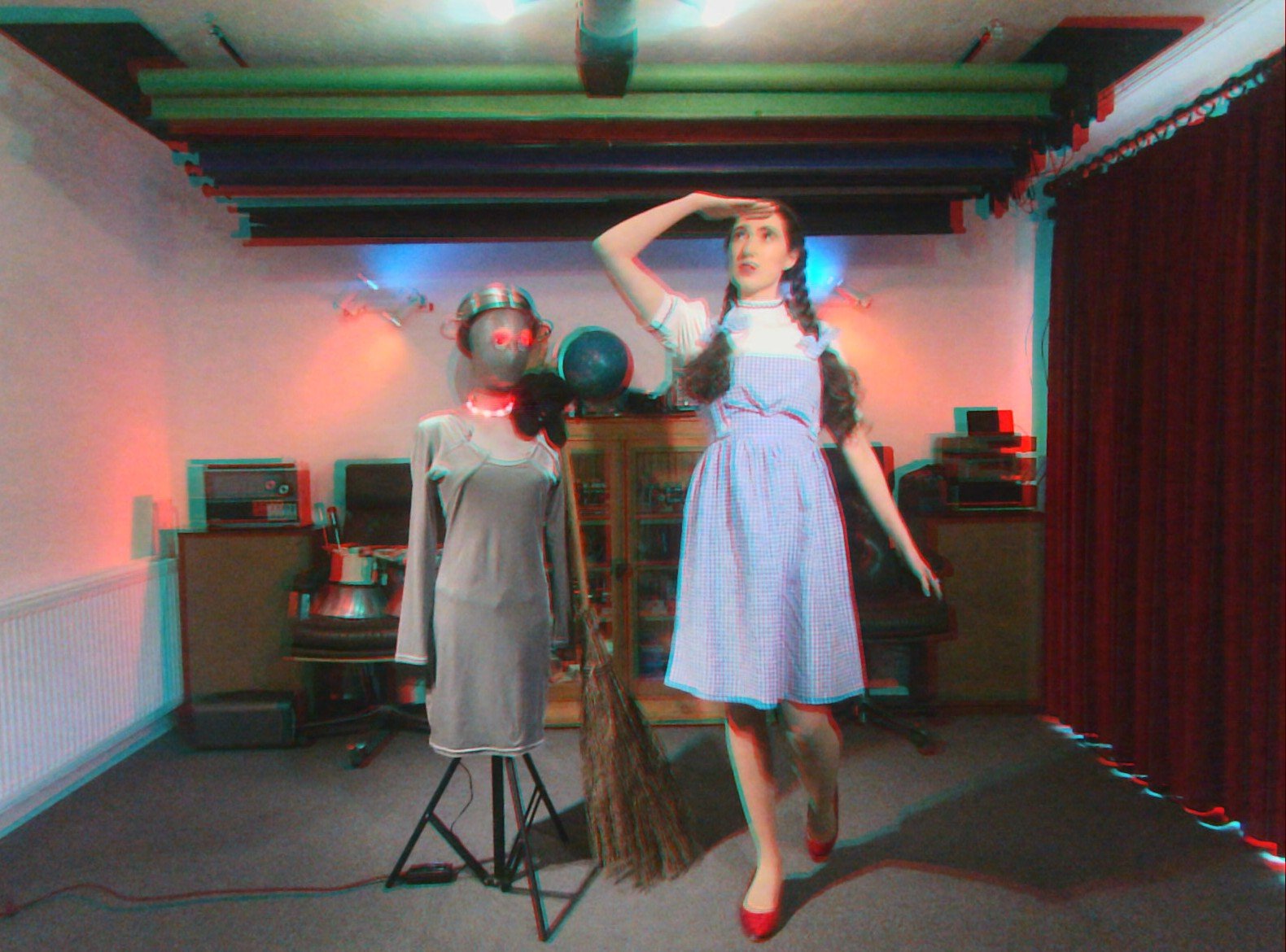
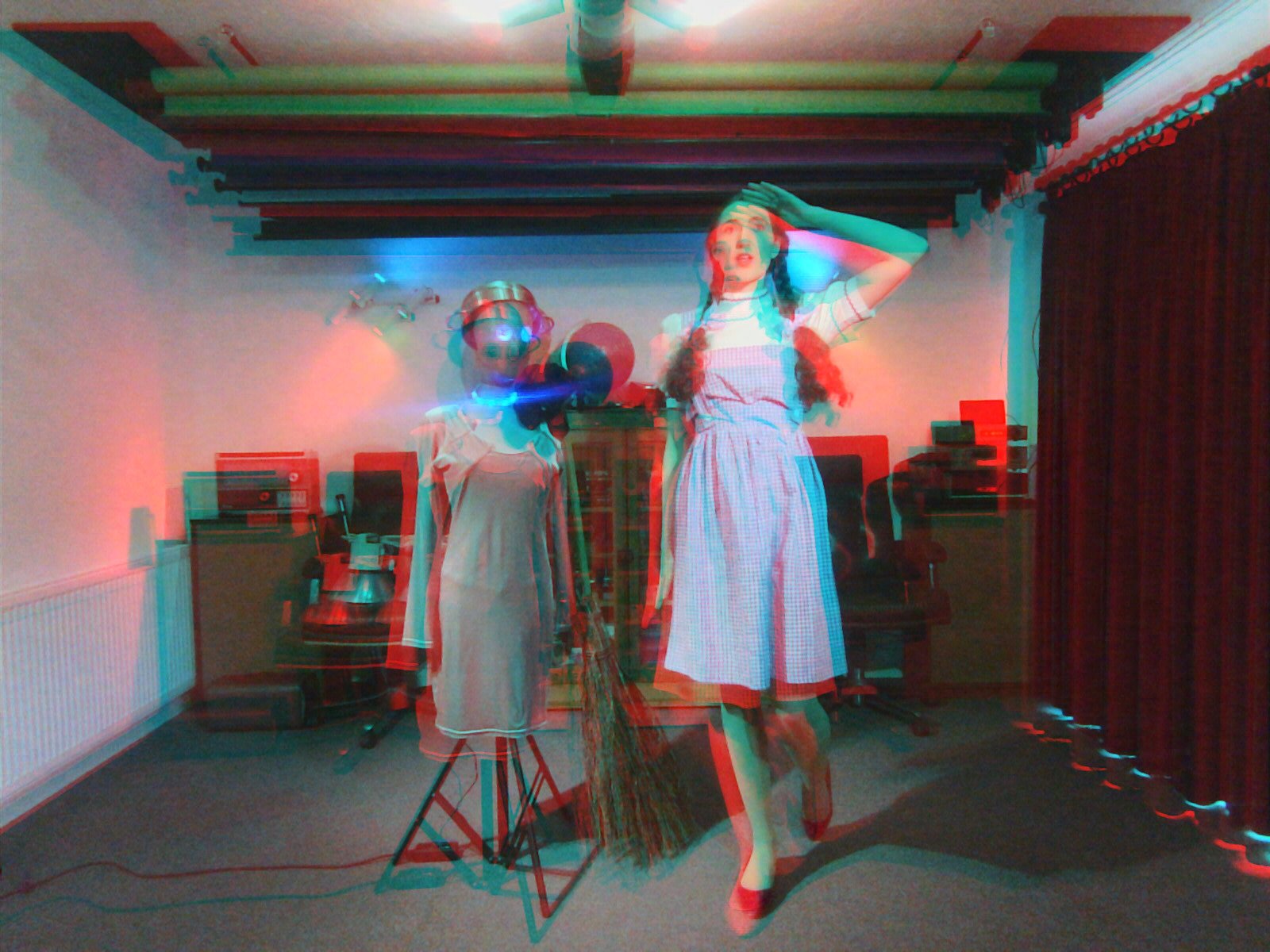
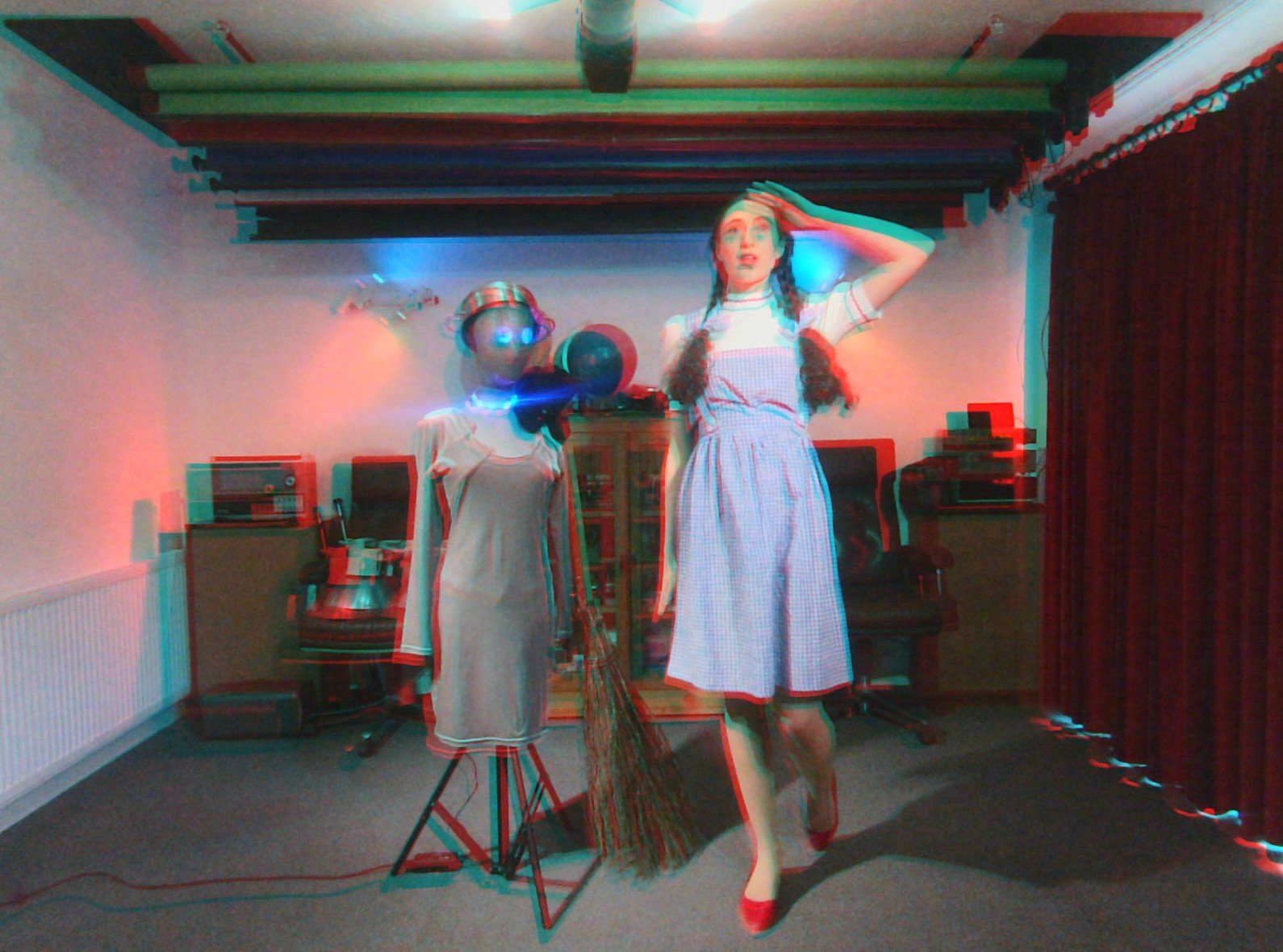
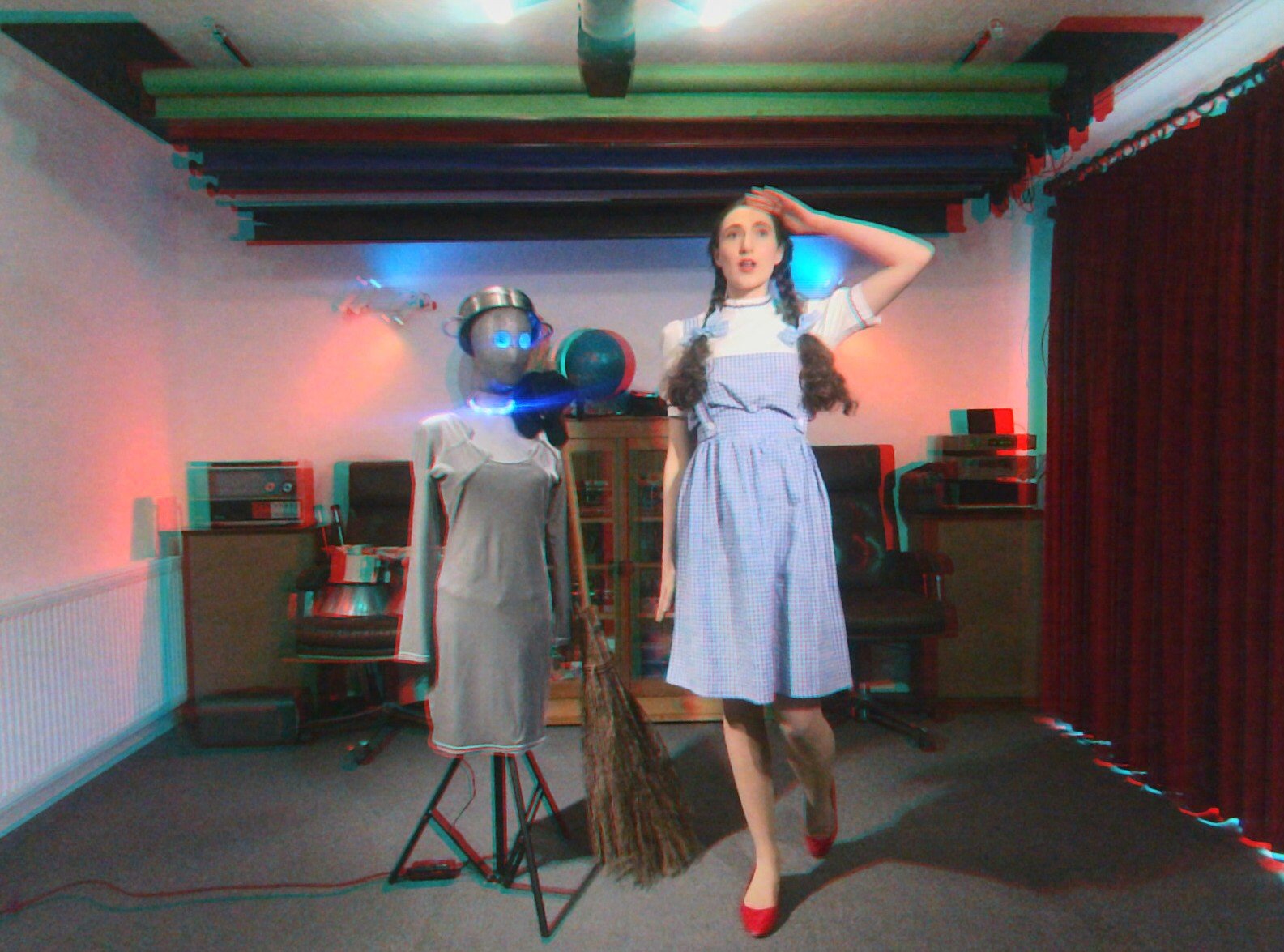
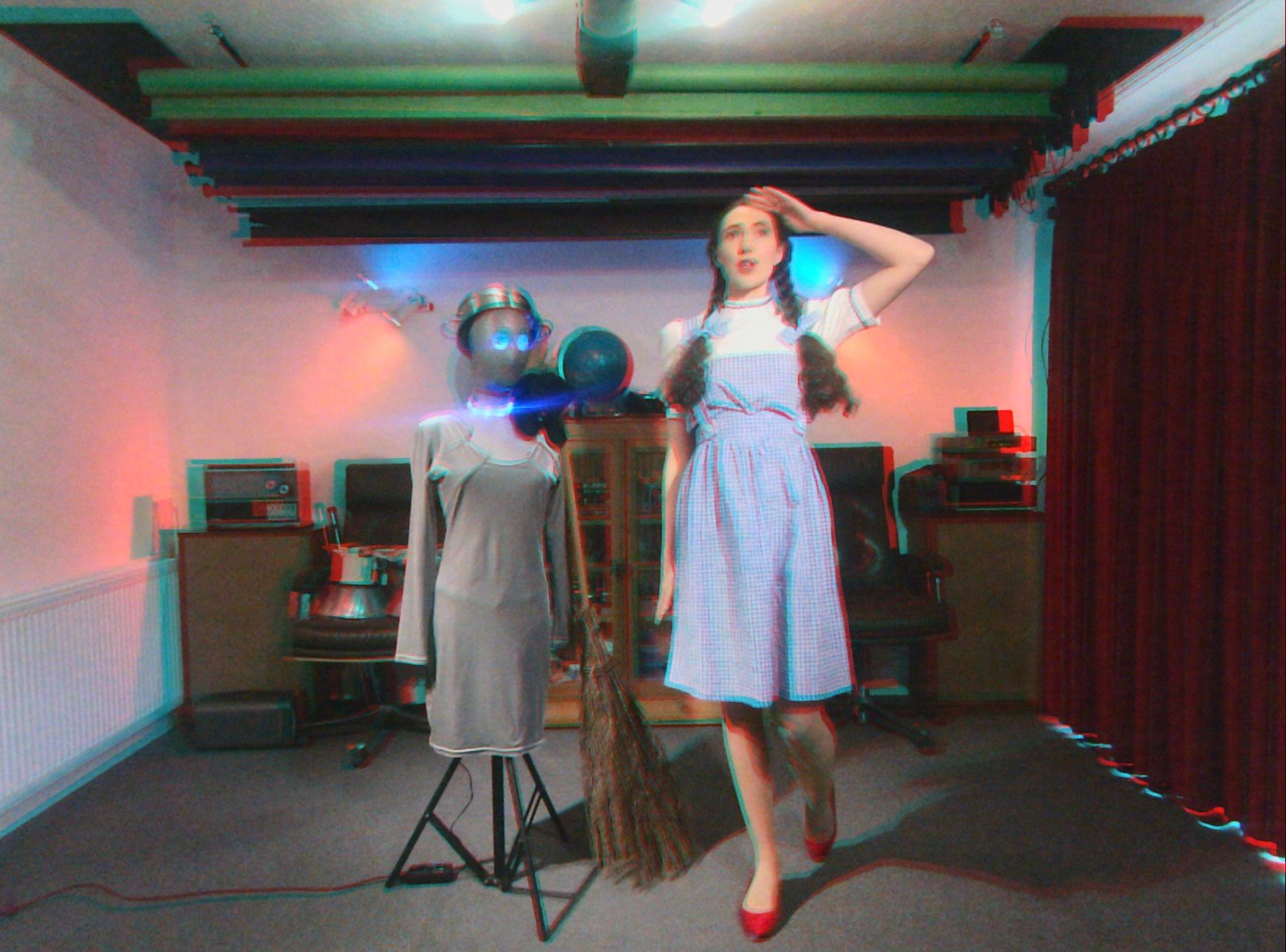
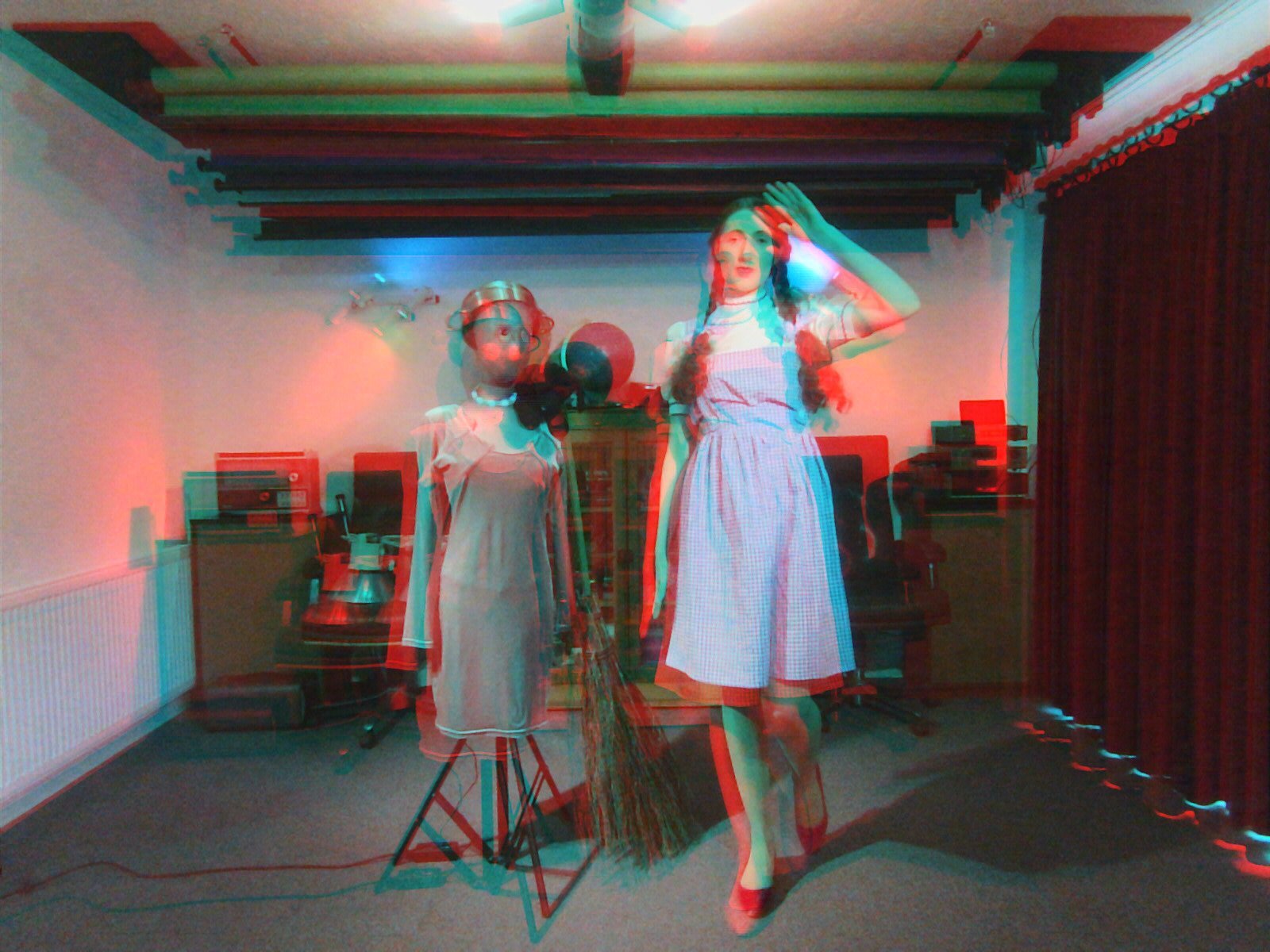
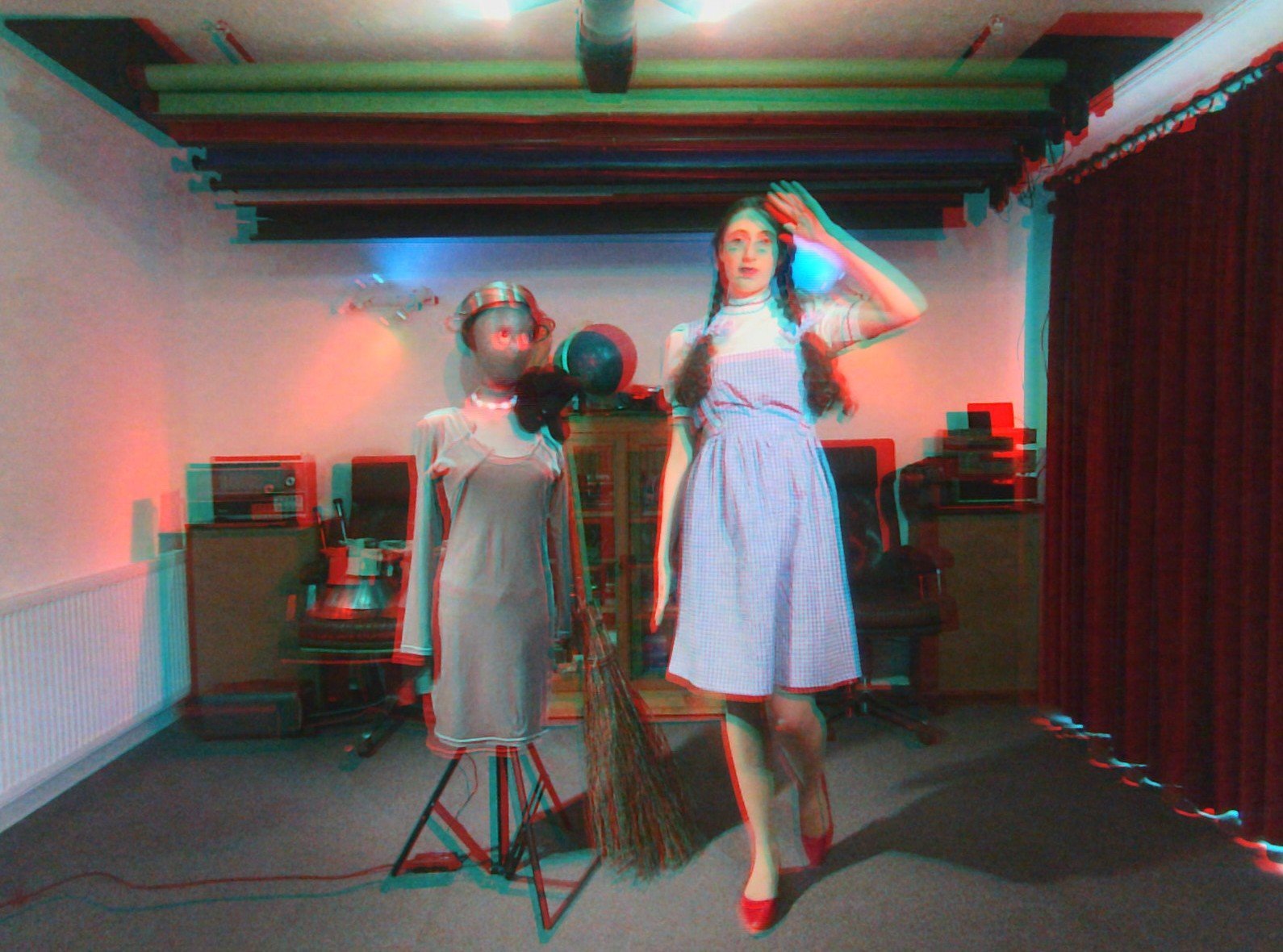
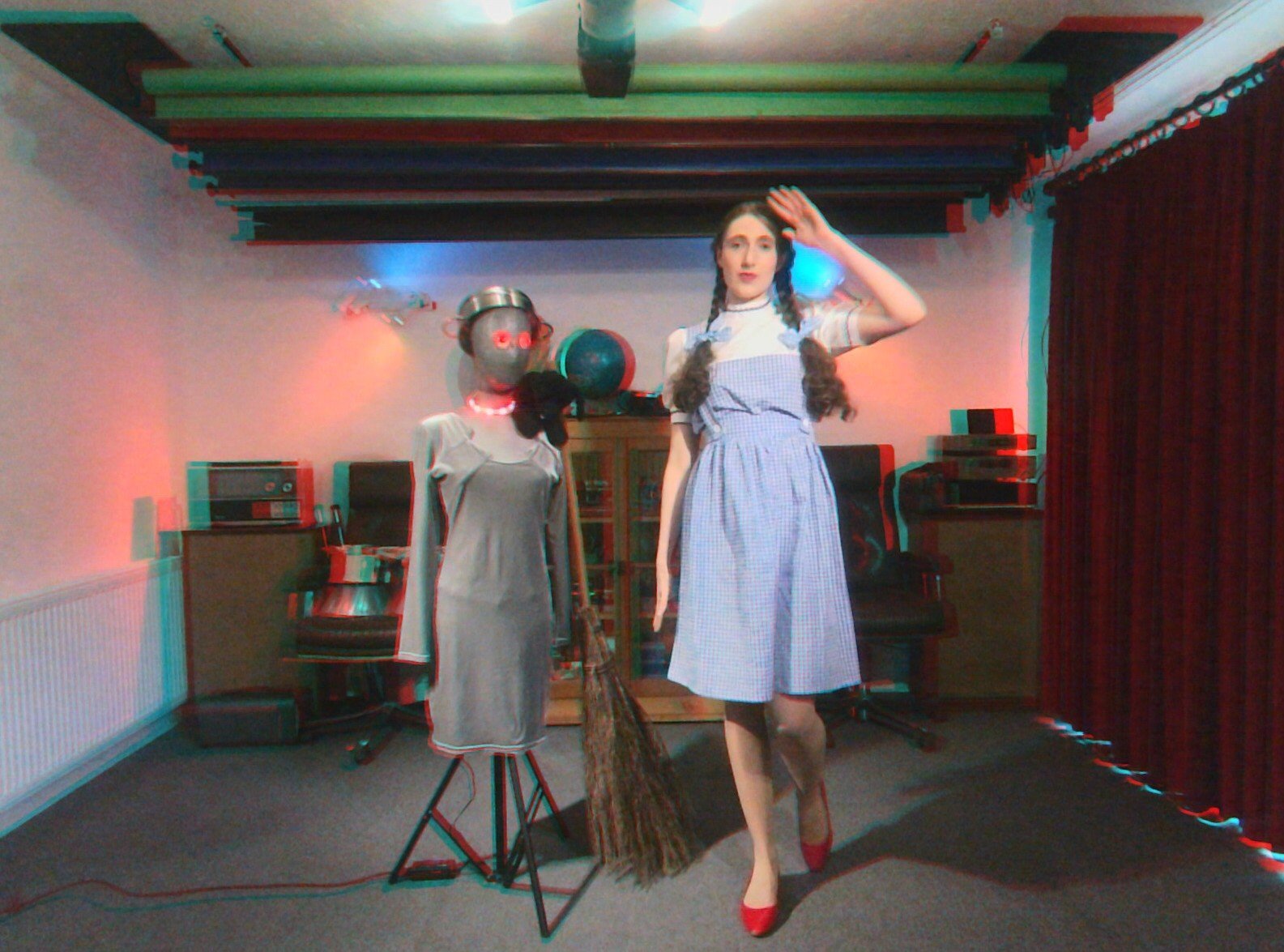
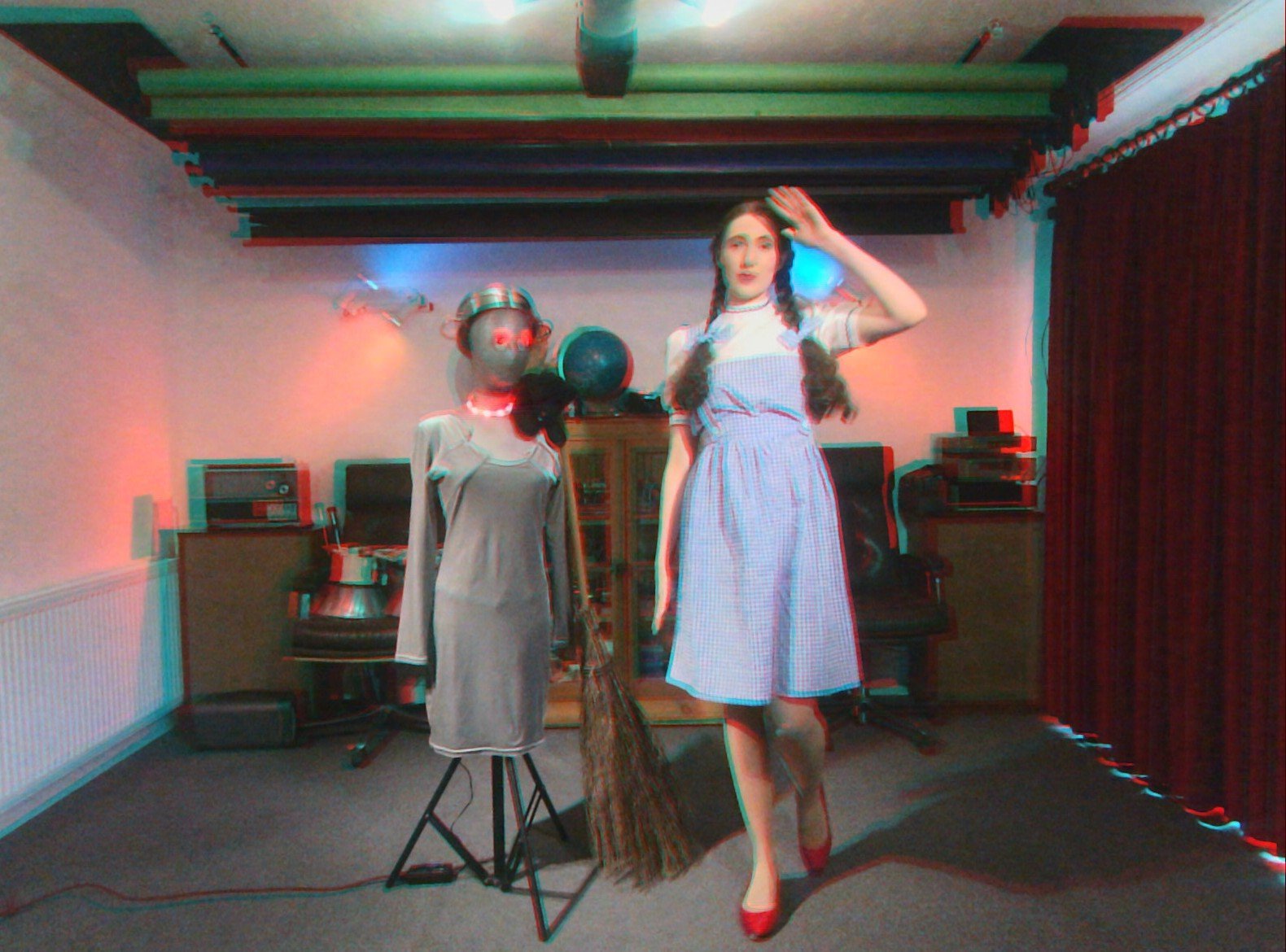
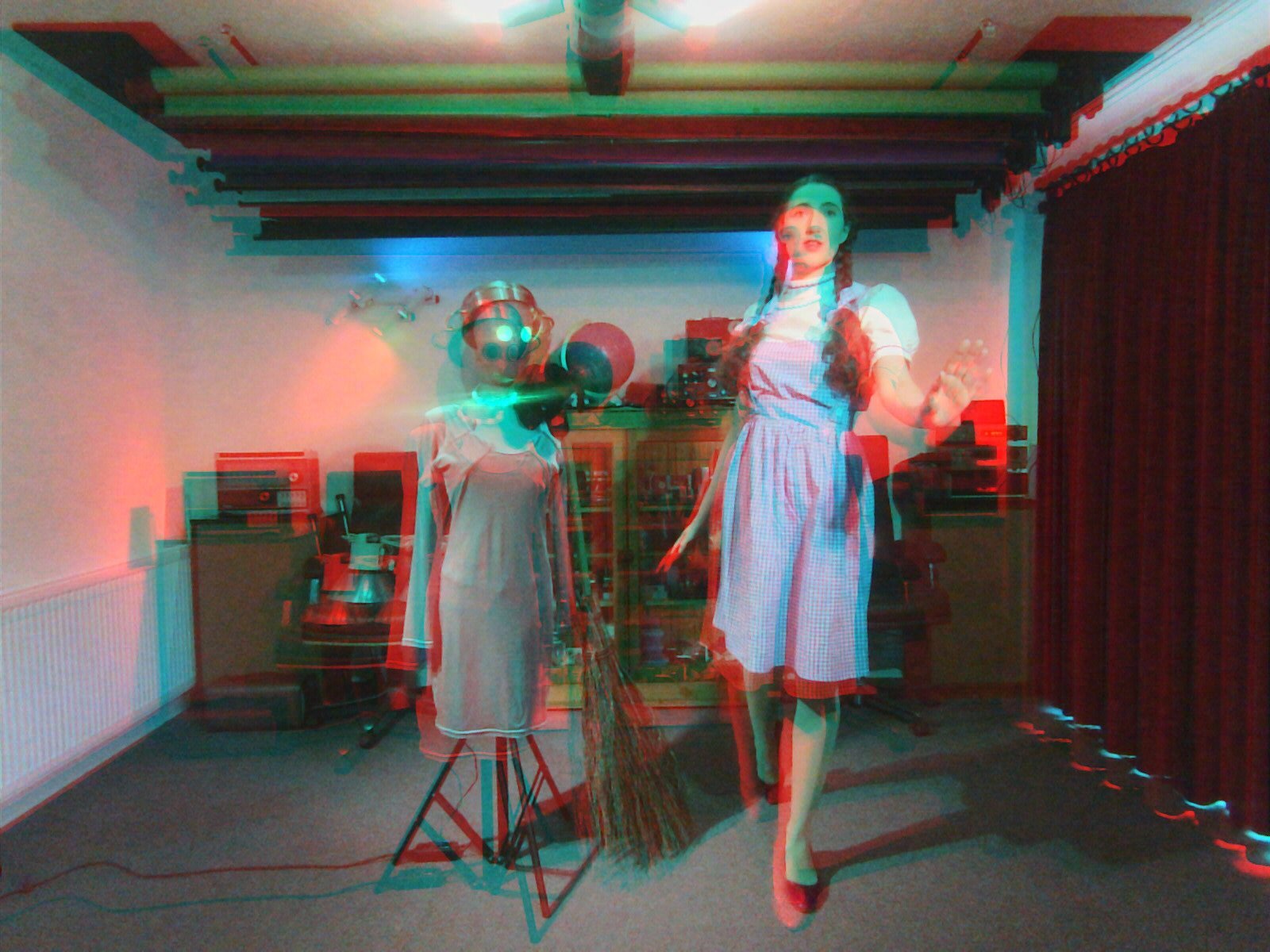
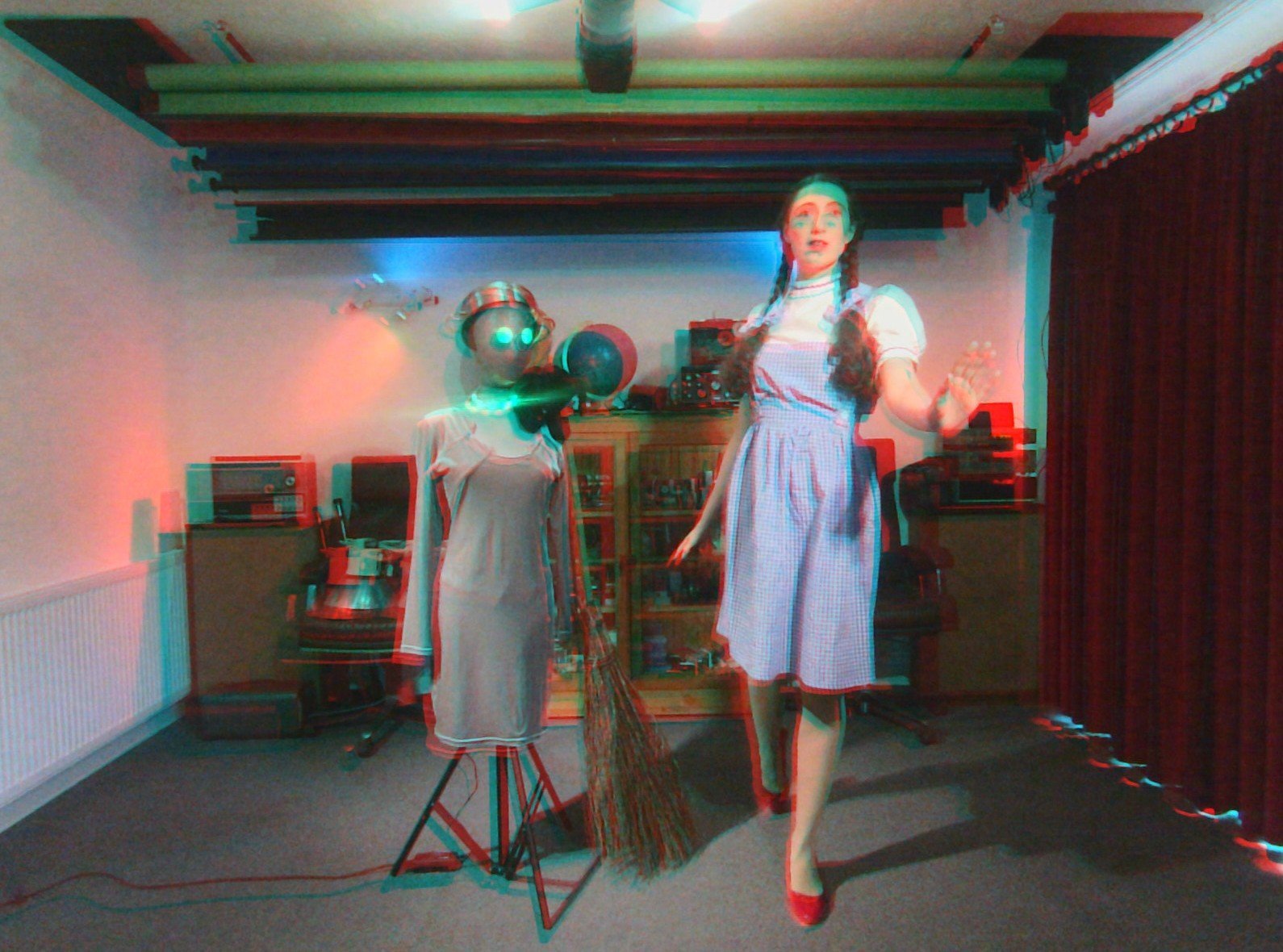
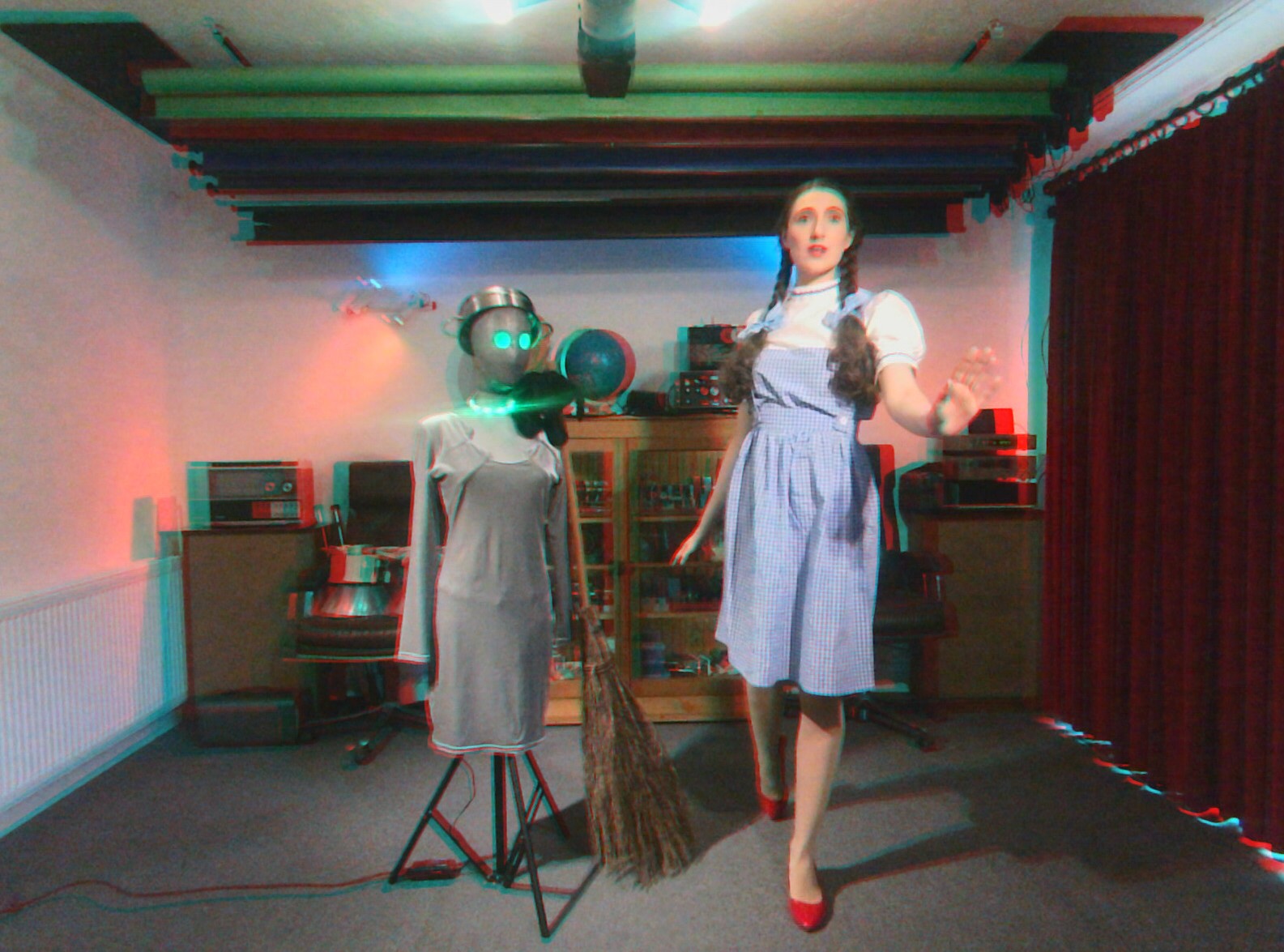
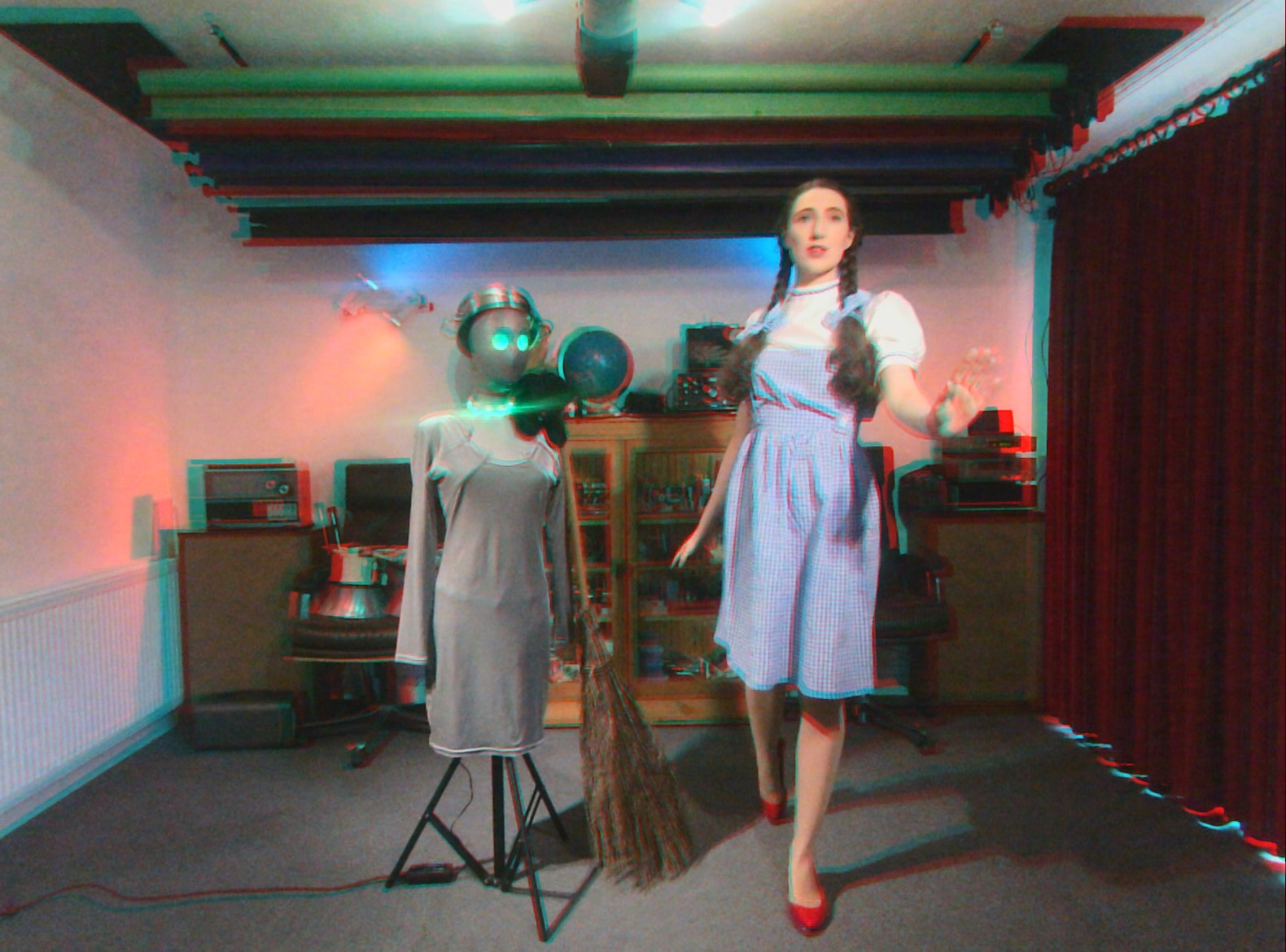
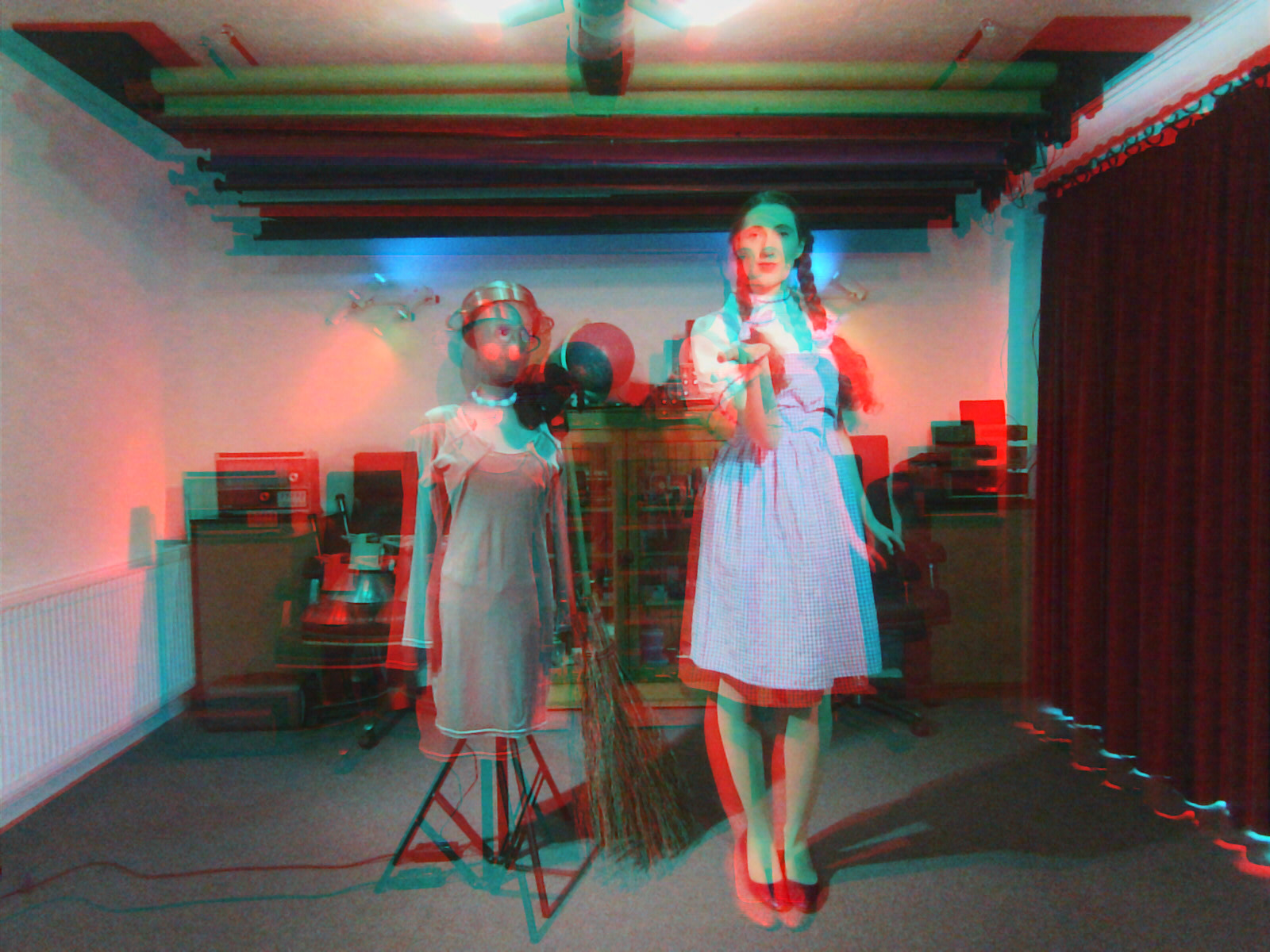
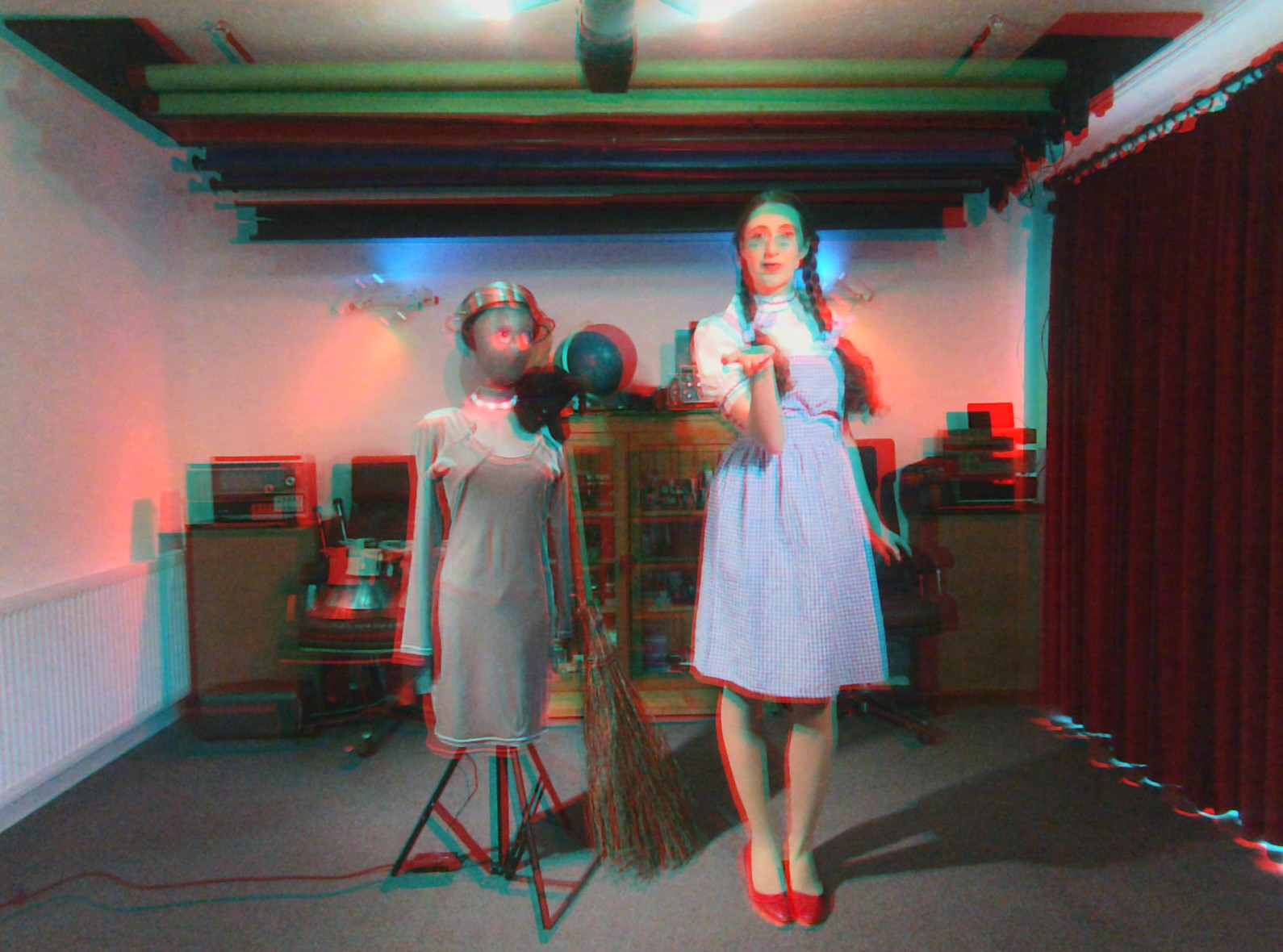
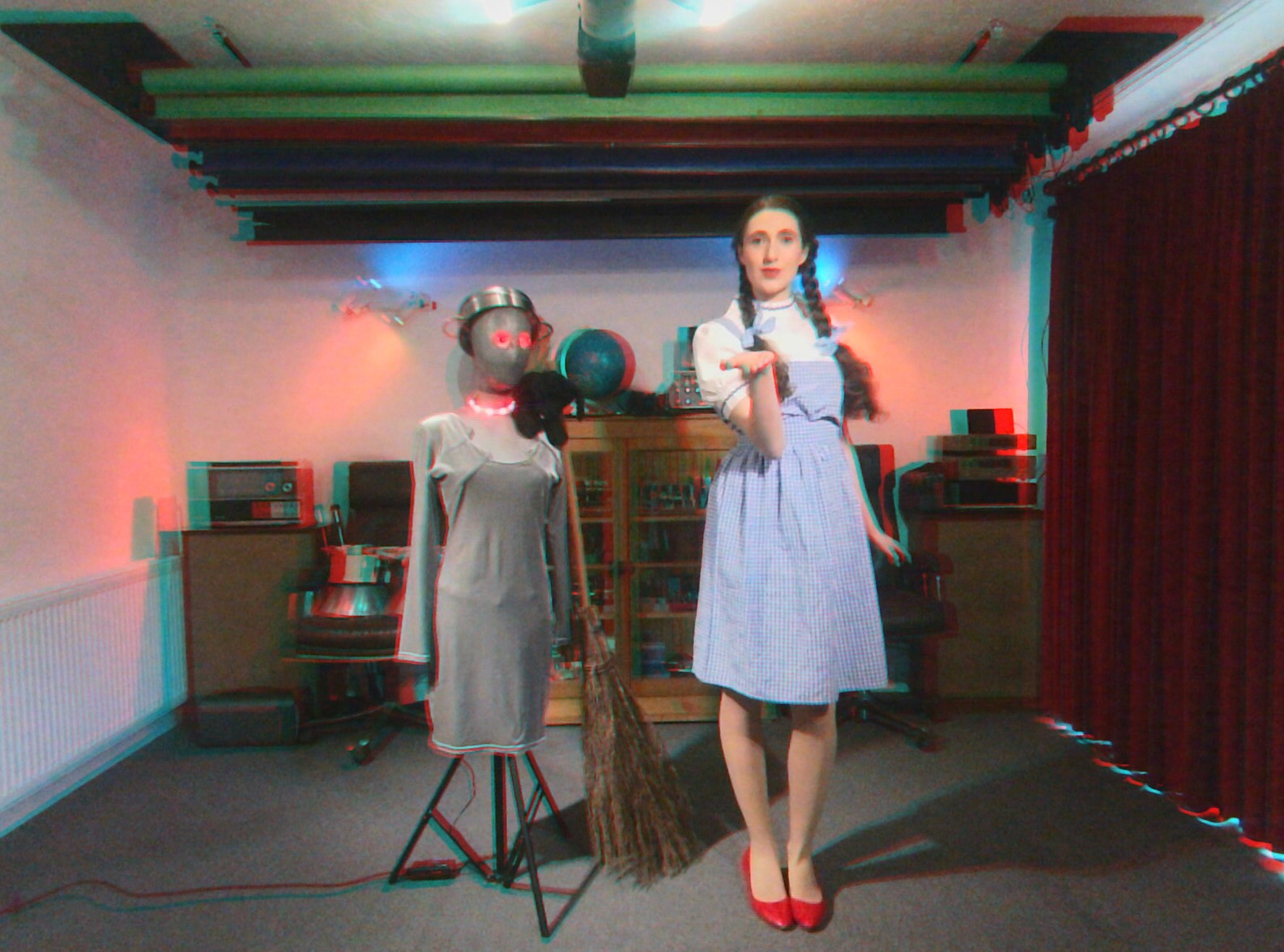
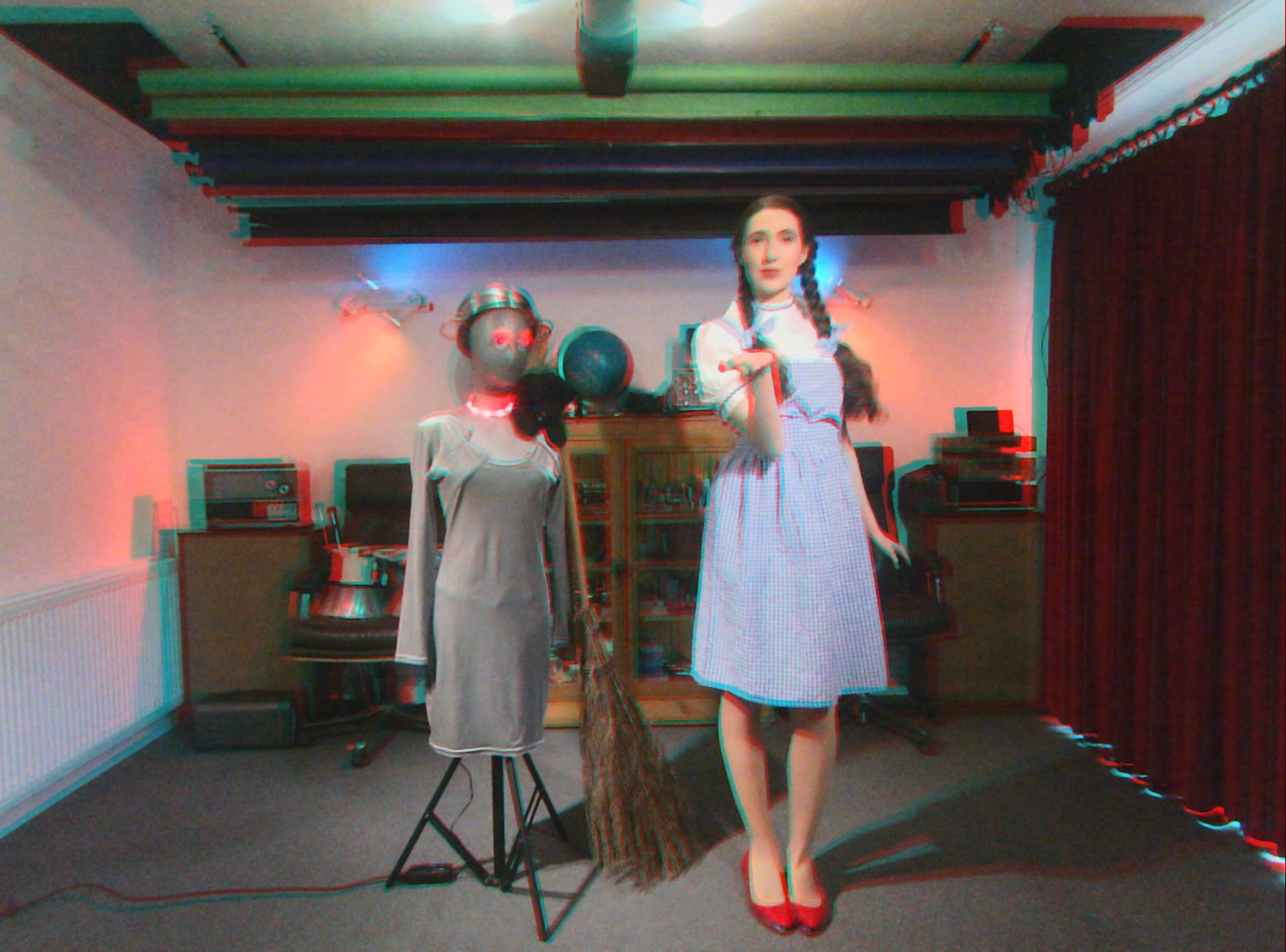
Useful shell scripts
These BASH scripts will enable you to convert 1200 pixel x 1600 pixel stereo pairs such as those produced by the aforementioned ELP board into red cyan single image anaglyphs. These assume you are using a recent Debian GNU/Linux or one of its many derivatives (Ubuntu, KDE Neon, Kubuntu, Mint et al). These scripts also assume you have Imagemagick already installed on your system. If you do not have Imagemagick, then you will need to install it, by typing the following into a terminal and hitting the return key:-
sudo apt install imagemagick
Creating red-cyan anaglyphs from stereo pairs:
This is a simple shell script to convert a pair of 1600 x 1200 pixel images into an anaglyph:-
#!/bin/bash

# garf-2anaglyph.
# Converts 3200 x 1200 pixel (2 x 1600 x 1200 pixel) stereo pairs into a red cyan anaglyph.
# Requires ImageMagick.
# Usage: ./garf-2anaglyph /path/to/stereopair-files
# By Garf
# Updated: 2026-05-20

DIR="${1:-.}"
OUTDIR="$DIR/anaglyph"

mkdir -p "$OUTDIR"

for file in "$DIR"/*.{png,jpg,jpeg,webp}; do
[ -e "$file" ] || continue

base=$(basename "$file")
name="${base%.*}"

echo "Processing $base"

# Split into left/right
convert "$file" -crop 1600x1200+0+0 left.png
convert "$file" -crop 1600x1200+1600+0 right.png

# Extract channels
convert left.png -channel R -separate left_r.png
convert right.png -channel G -separate right_g.png
convert right.png -channel B -separate right_b.png

# Combine into RGB (R from left, G+B from right)
convert left_r.png right_g.png right_b.png -combine \
"$OUTDIR/${name}_anaglyph.jpg"

rm -f left.png right.png left_r.png right_g.png right_b.png

done

echo "Done."
Simply save the file as “garf-2anaglyph”, and be sure to set its permissions to executable:-
chmod +x garf-2anaglyph
Usage:-
./garf-2anaglyph /path/to/stereopair-files
Creating red-cyan anaglyphs from stereo pairs and adding an offset
This is a modified version of that script that allows one to alter the X and Y offset, in pixels, to compensate for slightly crooked cameras. It is quite crude. You set the X and Y offset when you issue the command. Remember X counts from the left, Y counts from the top.
#!/bin/bash
# garf-2anaglyph+.
# Converts 3200 x 1200 pixel (2 x 1600 x 1200 pixel) stereo pairs into a red cyan anaglyph.
# Offers X and y offset to compensate for slightly crooked cameras.
# Requires ImageMagick.
# Usage: ./garf-2anaglyph+ /path/to/stereopair-files x-offset y-offset
# By Garf.
# Updated: 2026-05-21.

# -------------------------
# smart argument handling
# -------------------------

# default values
DIR="."
XSHIFT=0
YSHIFT=0

if [[ $# -ge 1 ]]; then
# check if first arg starts with + or - (an offset)
if [[ "$1" =~ ^[+-] ]]; then
XSHIFT="$1"
YSHIFT="${2:-0}"
else
DIR="$1"
XSHIFT="${2:-0}"
YSHIFT="${3:-0}"
fi
fi

OUTDIR="$DIR/anaglyph"
mkdir -p "$OUTDIR"

W=1600
H=1200

echo "Processing files in '$DIR' with offsets X=$XSHIFT Y=$YSHIFT"

for file in "$DIR"/*.{png,jpg,jpeg,webp}; do
[ -e "$file" ] || continue

base=$(basename "$file")
name="${base%.*}"

echo "Processing $base"

# -------------------------
# split stereo pair
# -------------------------
magick "$file" -crop ${W}x${H}+0+0 +repage left.png
magick "$file" -crop ${W}x${H}+${W}+0 +repage right.png

# -------------------------
# TRUE pixel shift (NO roll, NO distort)
# -------------------------
magick right.png \
-background black \
-extent ${W}x${H} \
-page +${XSHIFT}+${YSHIFT} \
-flatten \
right_fixed.png

# -------------------------
# channels
# -------------------------
magick left.png -channel R -separate left_r.png
magick right_fixed.png -channel G -separate right_g.png
magick right_fixed.png -channel B -separate right_b.png

# -------------------------
# combine
# -------------------------
magick left_r.png right_g.png right_b.png -combine \
"$OUTDIR/${name}_anaglyph_${XSHIFT}x_${YSHIFT}y.jpeg"

# -------------------------
# cleanup
# -------------------------
rm -f left.png right.png right_fixed.png \
left_r.png right_g.png right_b.png

done

echo "Done."
Simply save the file as “garf-2anaglyph+”, and be sure to set its permissions to executable:-
chmod +x garf-2anaglyph+
Usage:-
./garf-2anaglyph+ /path/to/stereopair-files x-offset y-offset
Suppose you wanted to create anaglyphs for the current directory with an x offset of +15 and a y offset of -20, then do the following:-
./garf-2anaglyph+ . +15 -20
Credits
- ImageMagick
- Many thanks to my friend and model Estella Rose for dressing up in her “Dorothy Gale” costume and posing for some test images.
Disclaimer
Scripts are provided as-is, with no warranty express or implied. Use and modify as you wish, but you do so at your own risk.