3D square stereograms and BASH script
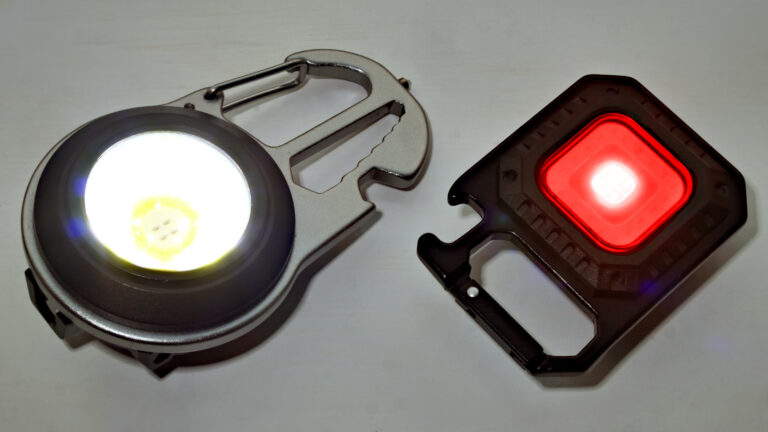
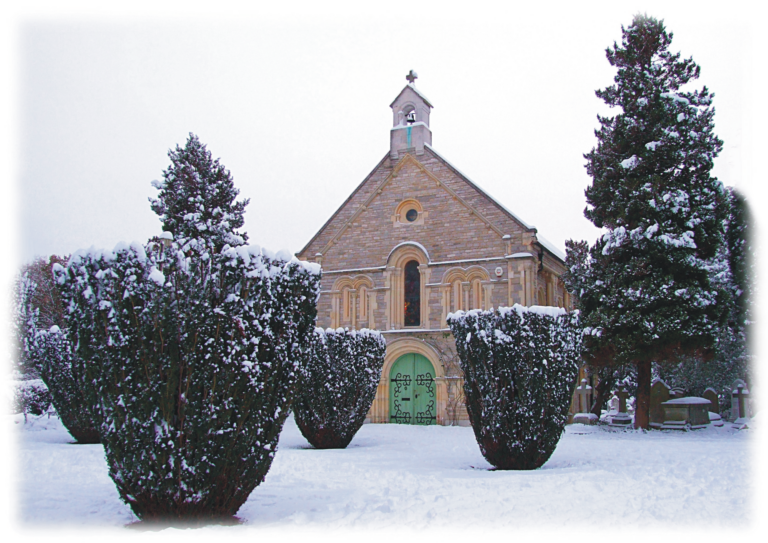
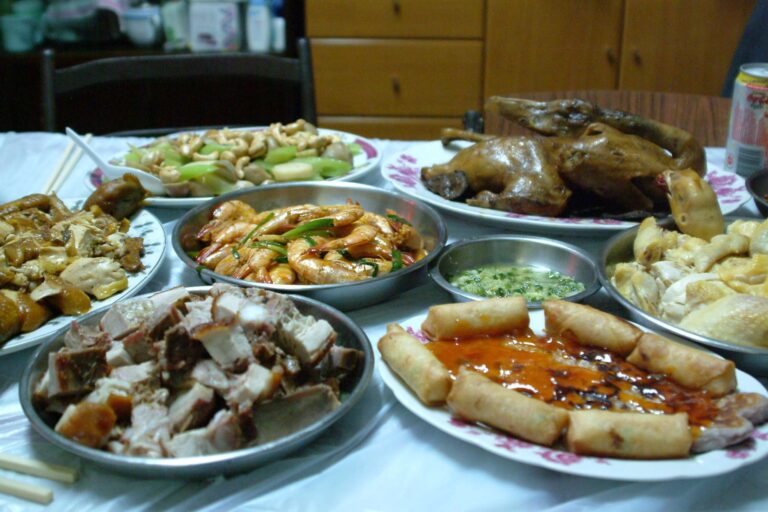
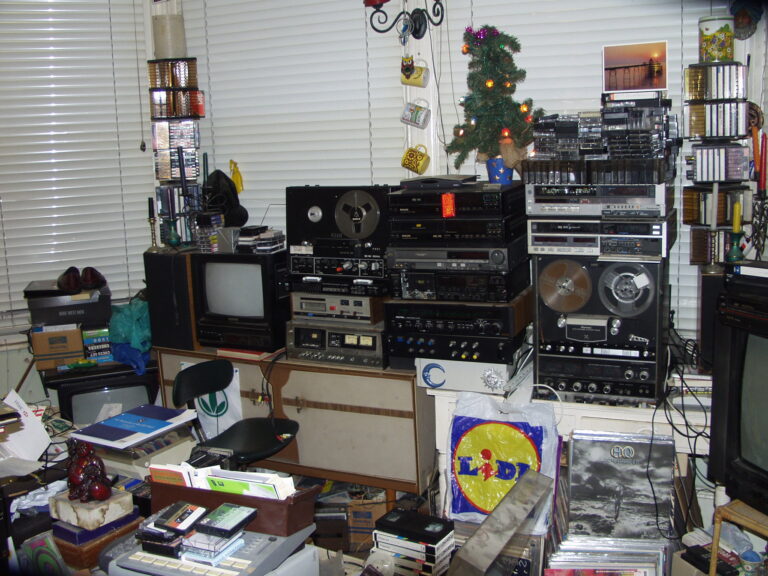
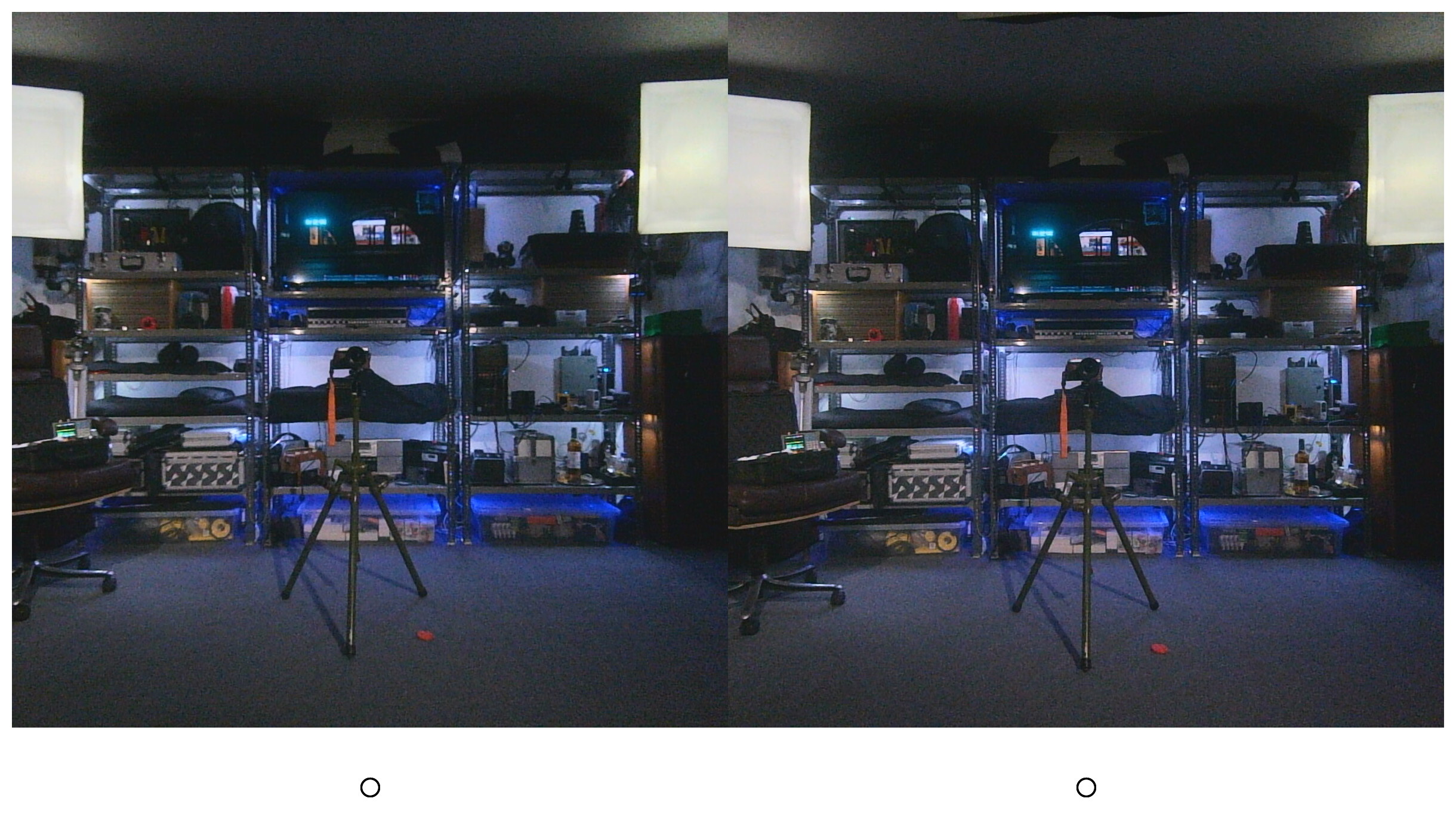
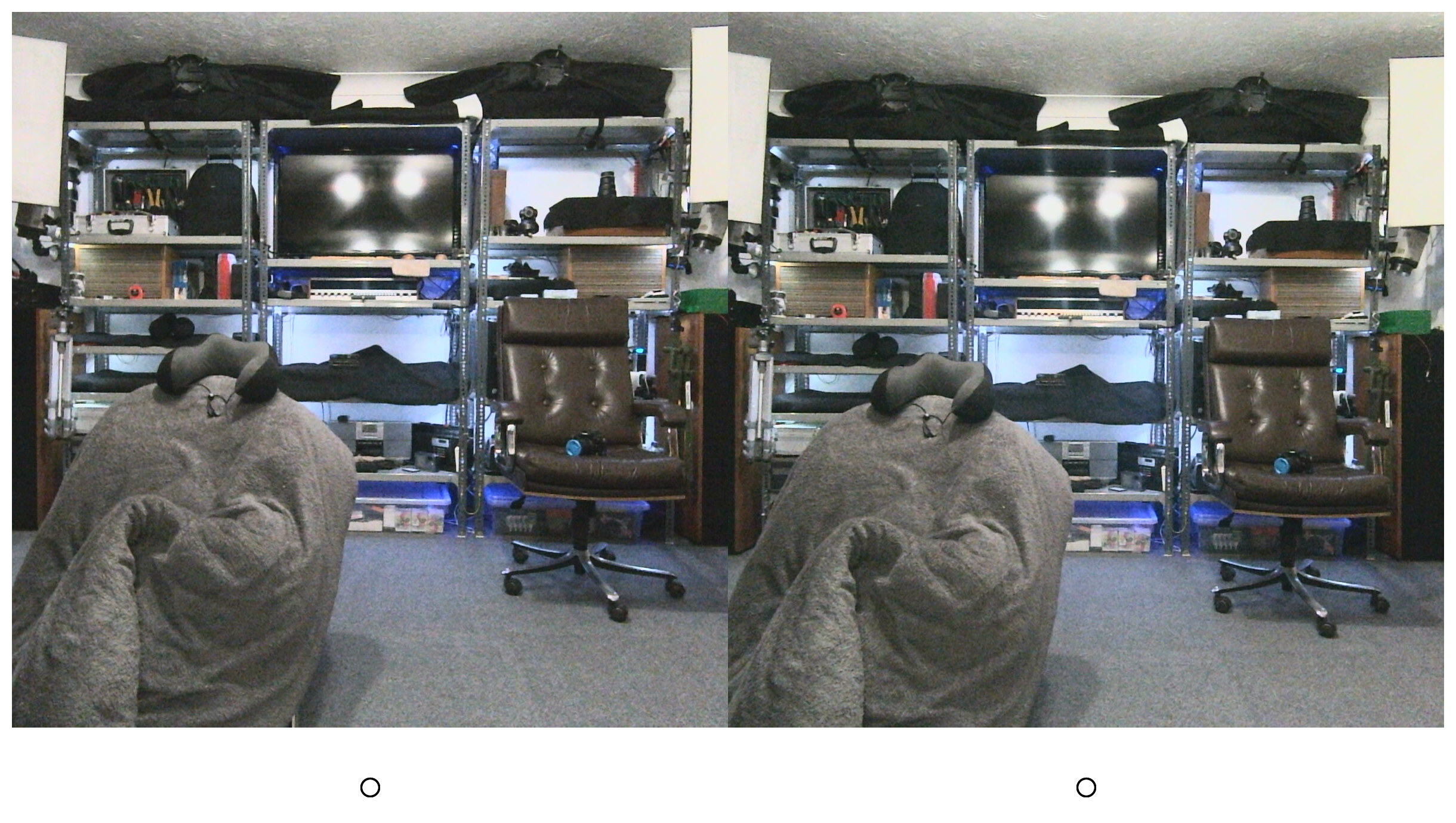
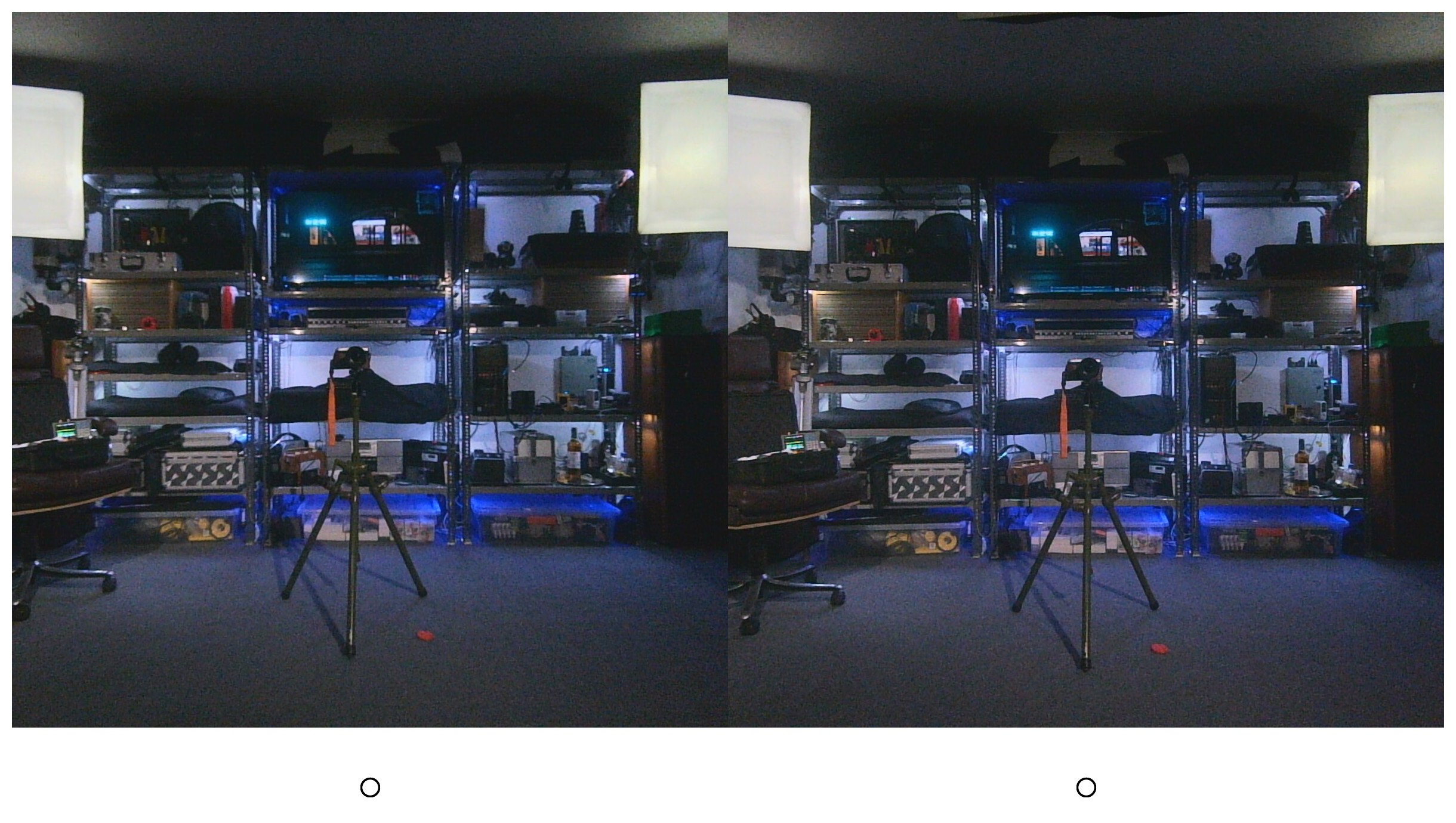
[Jump to gallery | script] These are some almost SooC images BUT cropped square AND with left and right images swapped AND “alignment circles” at the bottom. These 3D square stereograms were captured with my recently constructed stereo camera module. This is part of an ongoing project to create a modular GNU/Linux digital camera system using easily available generic components.
It seems some people are having trouble viewing the 4:3 aspect ratio test stereograms I created earlier because they are too wide to view cross-eyed comfortably. So I have written a BASH script that crops the centre square part from each frame and turns that into a stereogram consisting of a pair of square frames. .
Gallery of square cross eyed stereo pairs c/w alignment circles
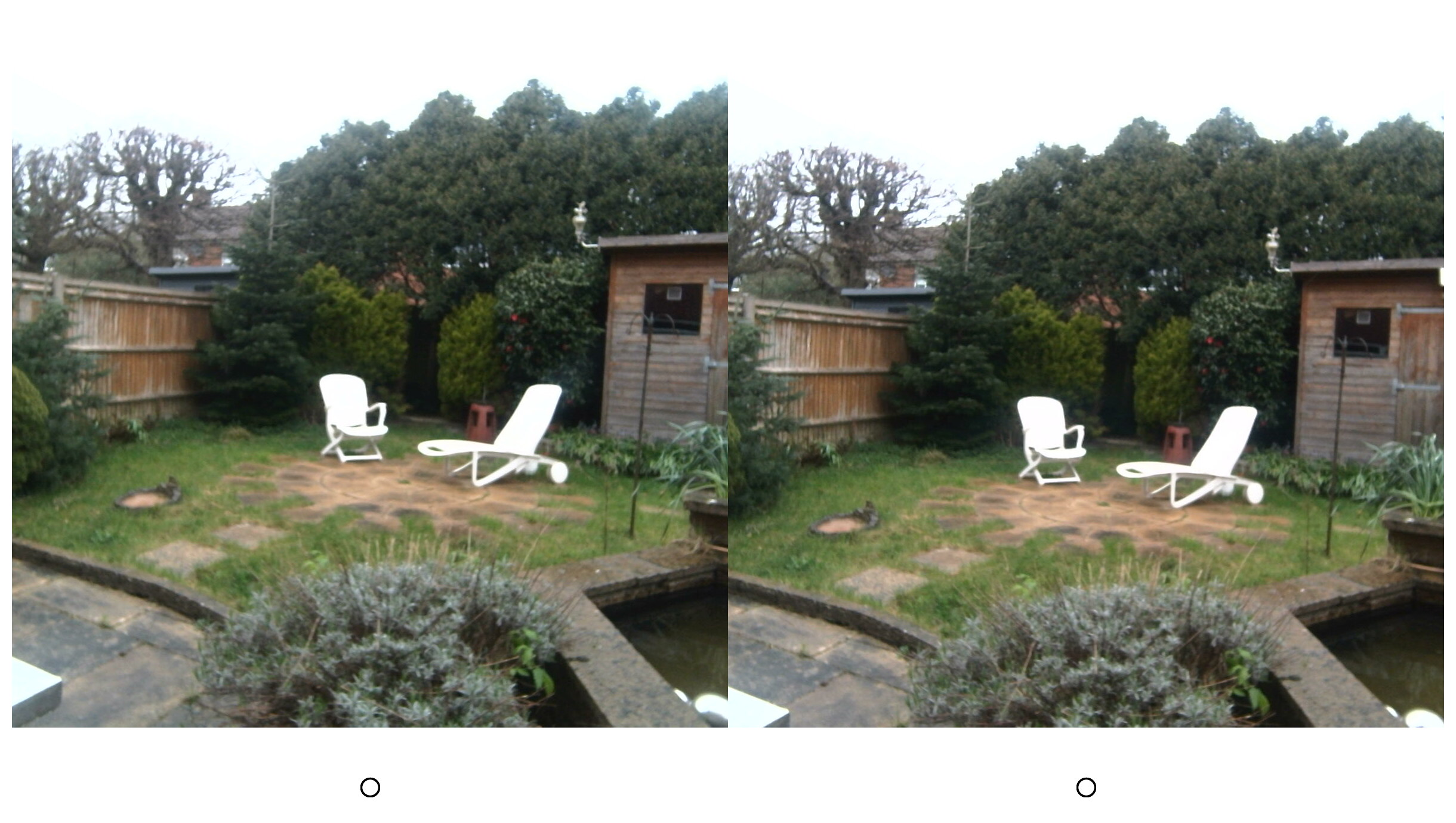
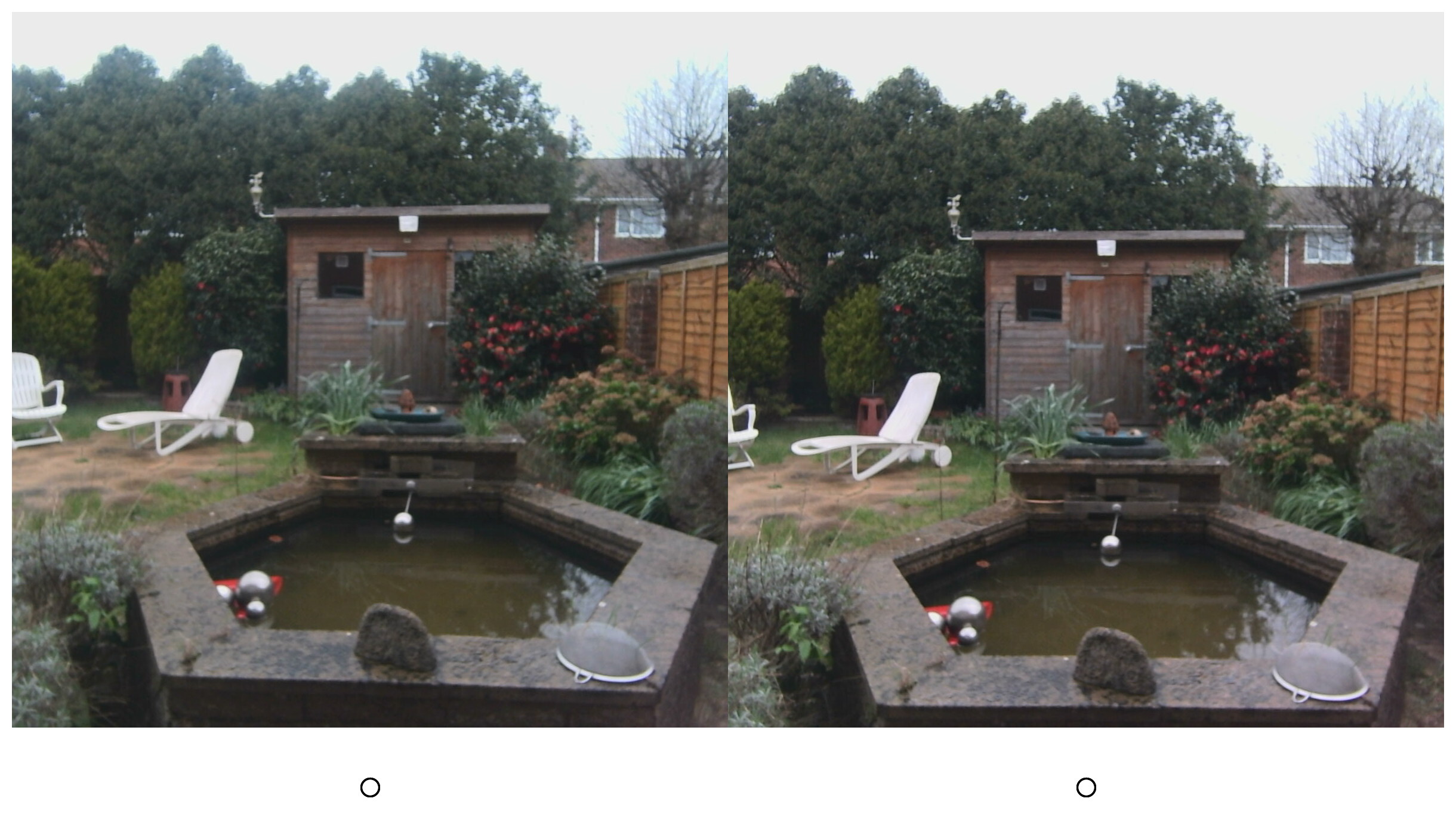
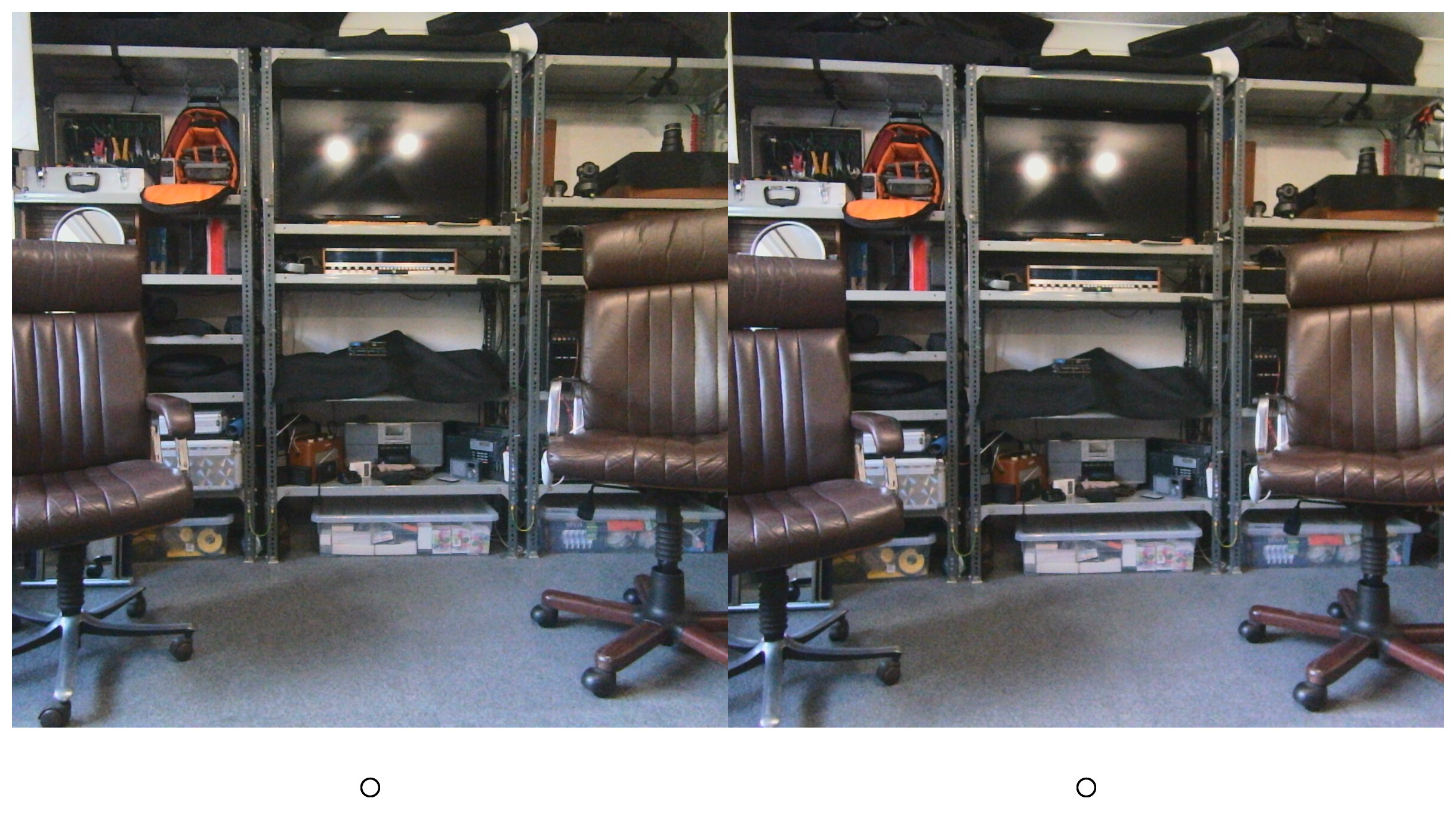
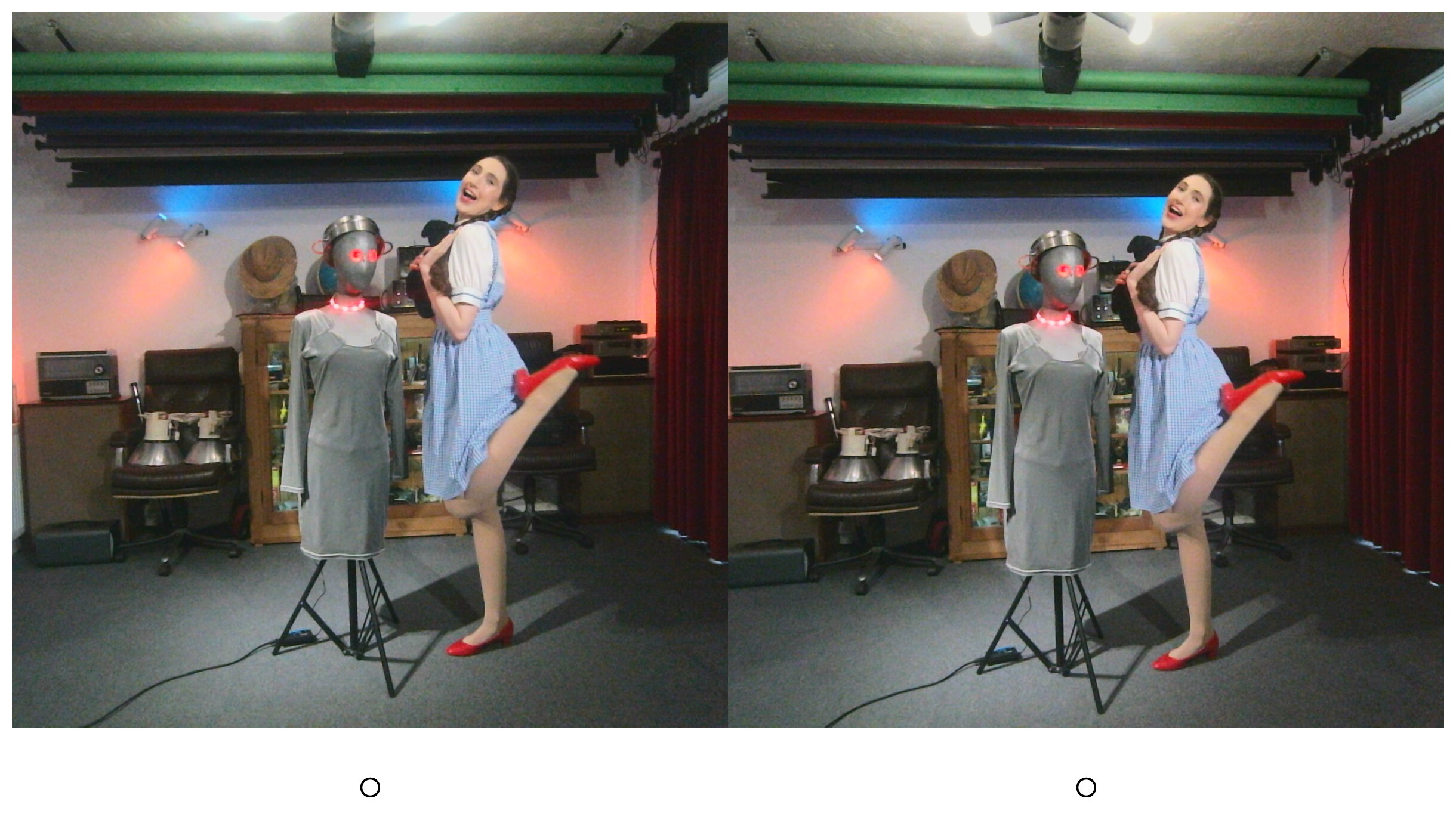
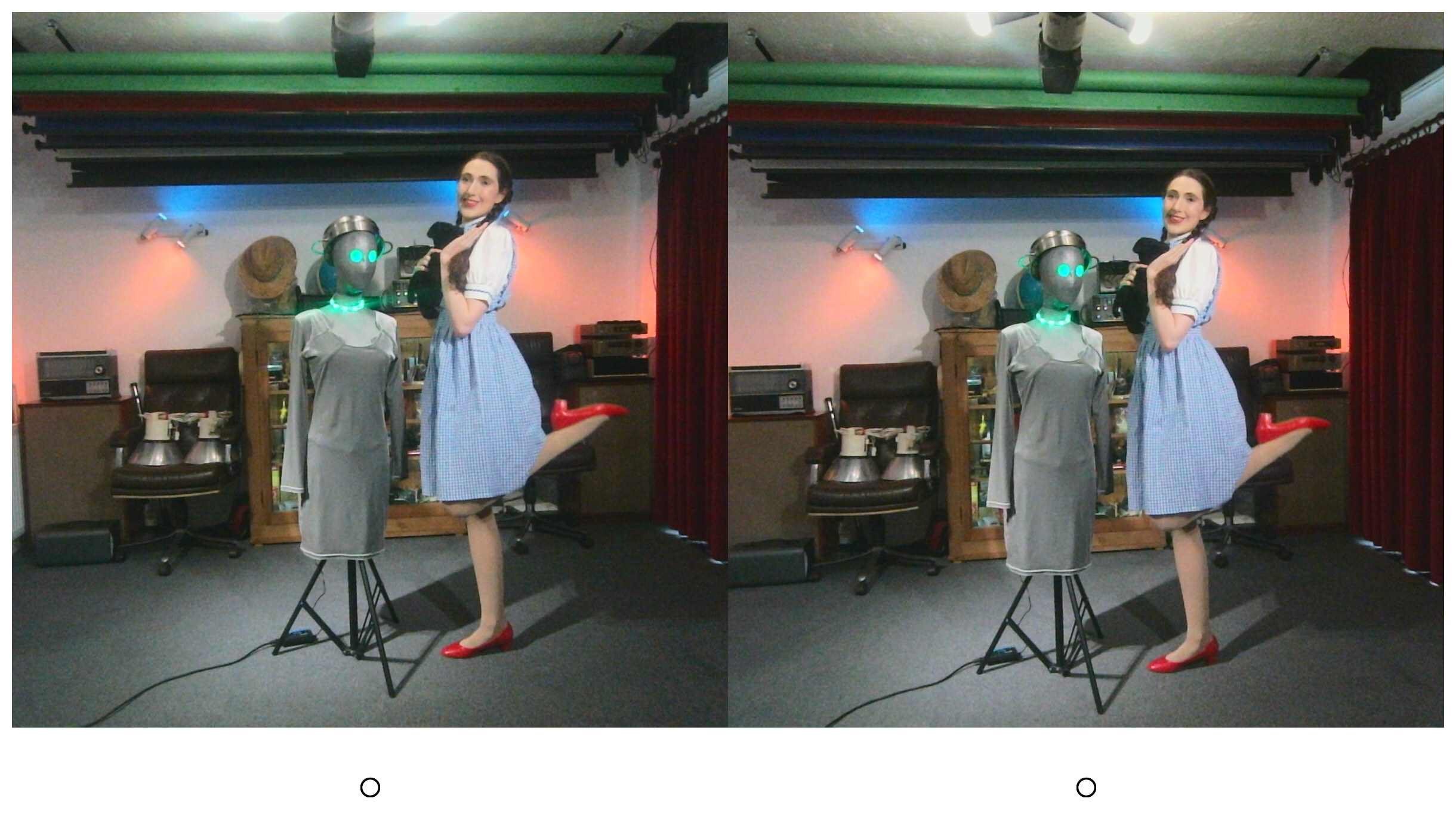
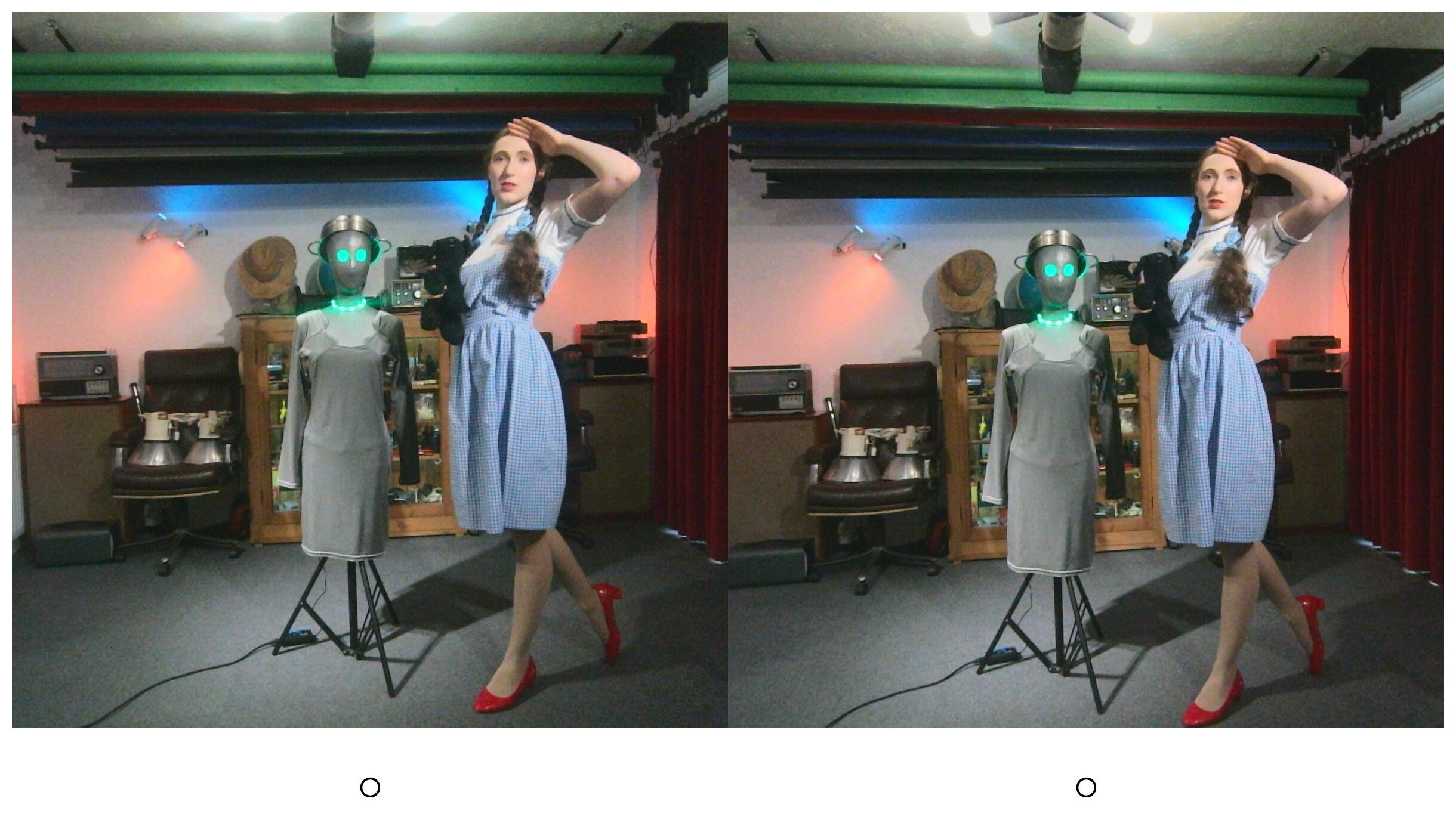
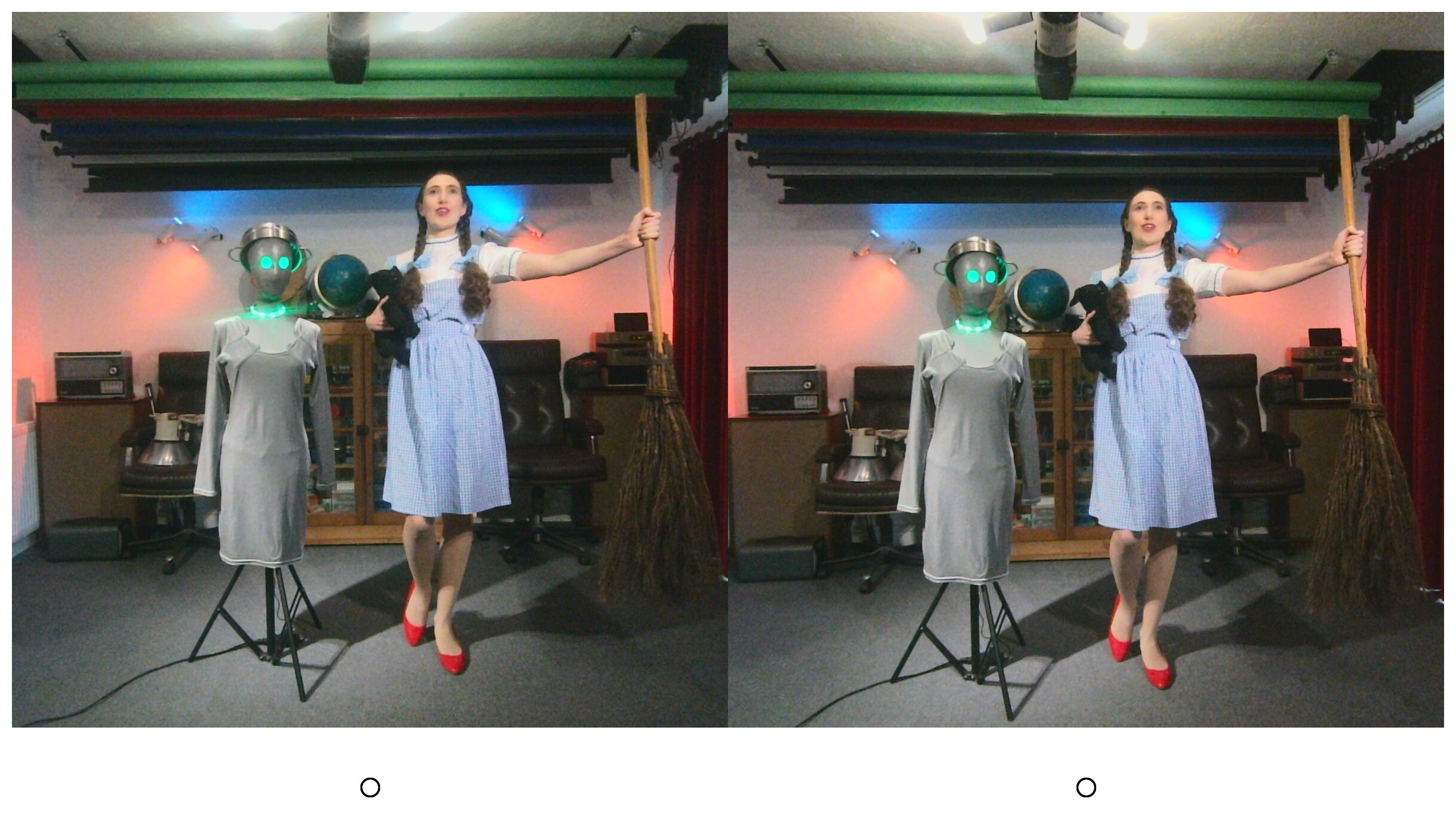

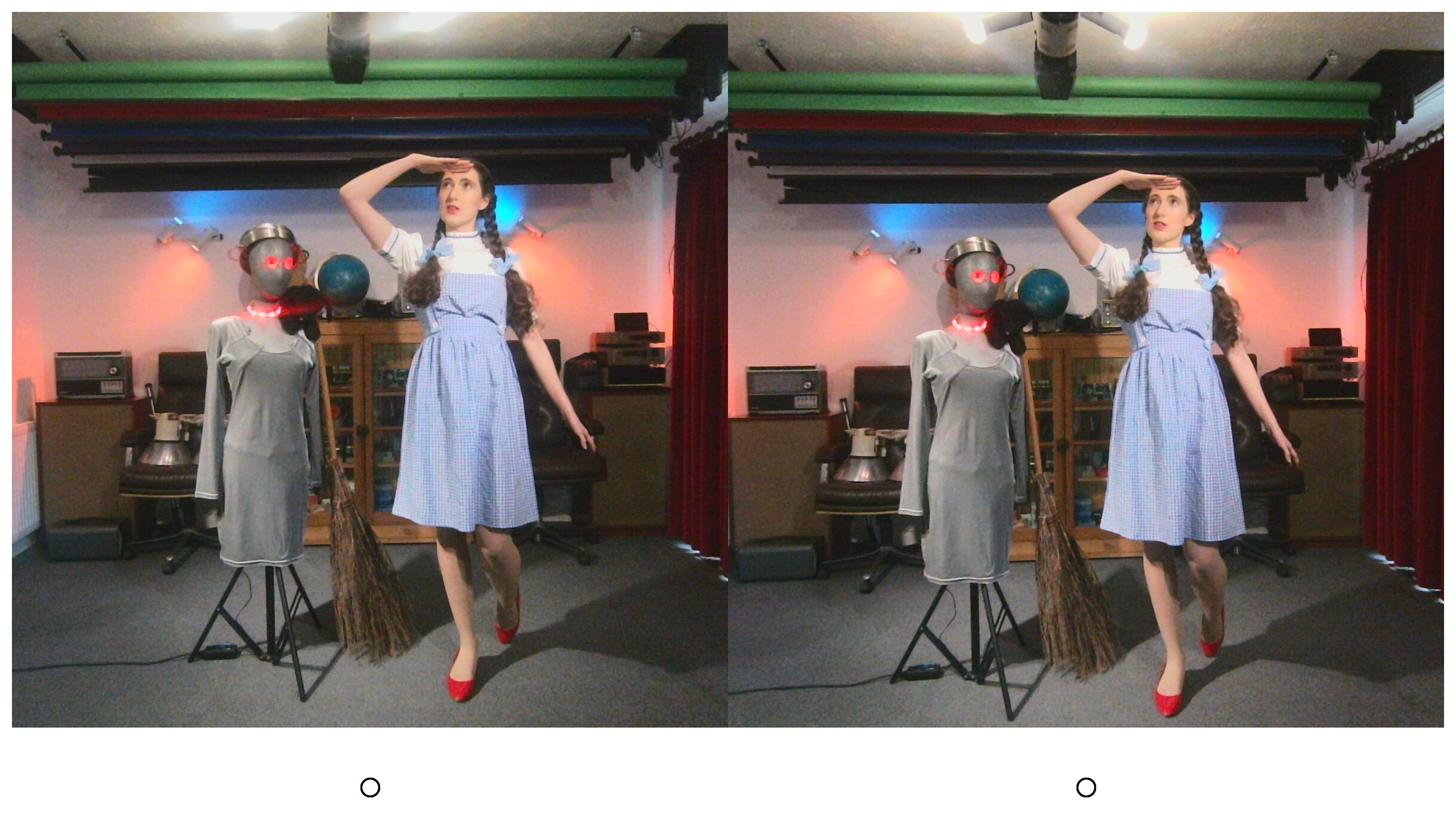
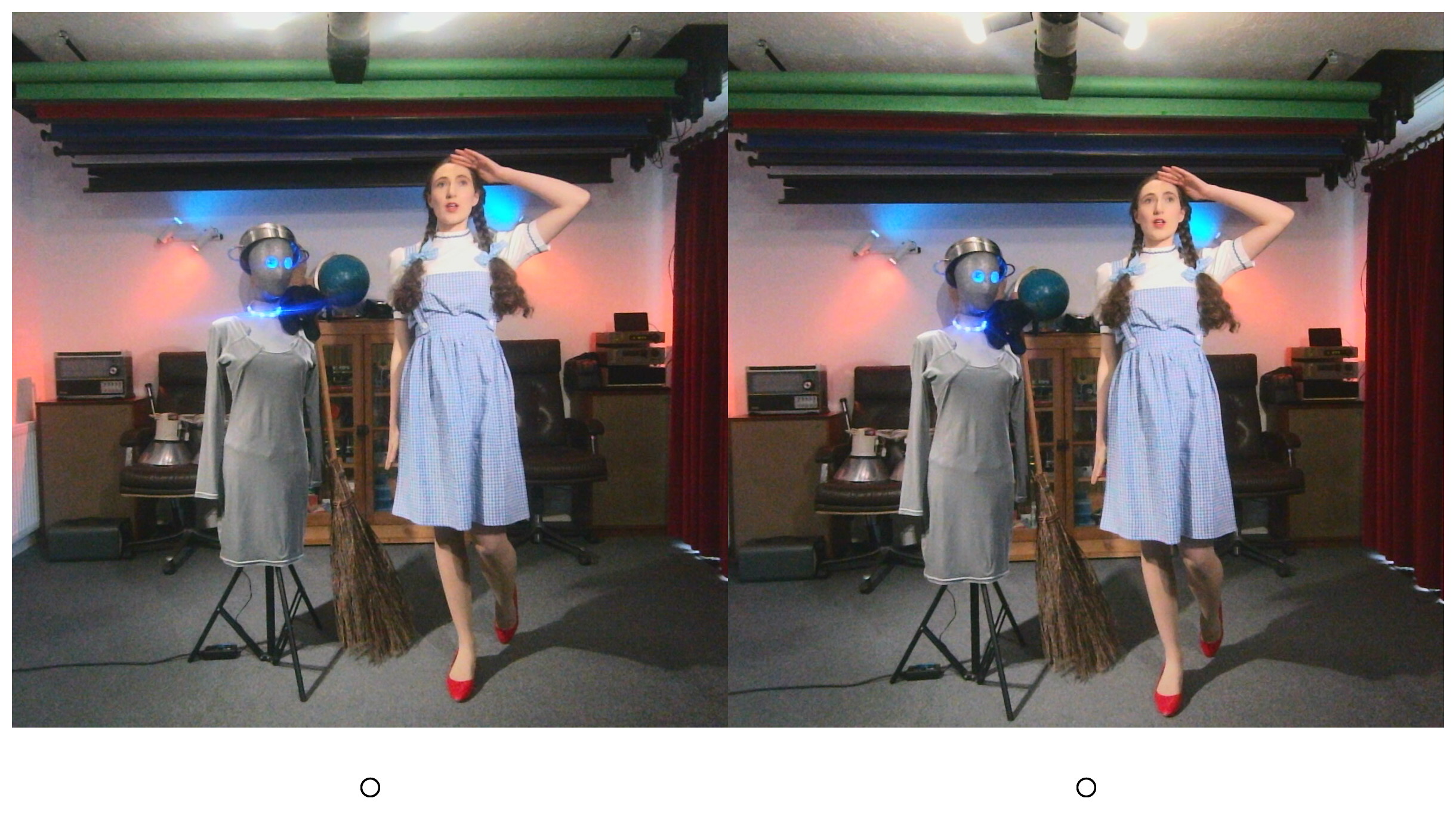
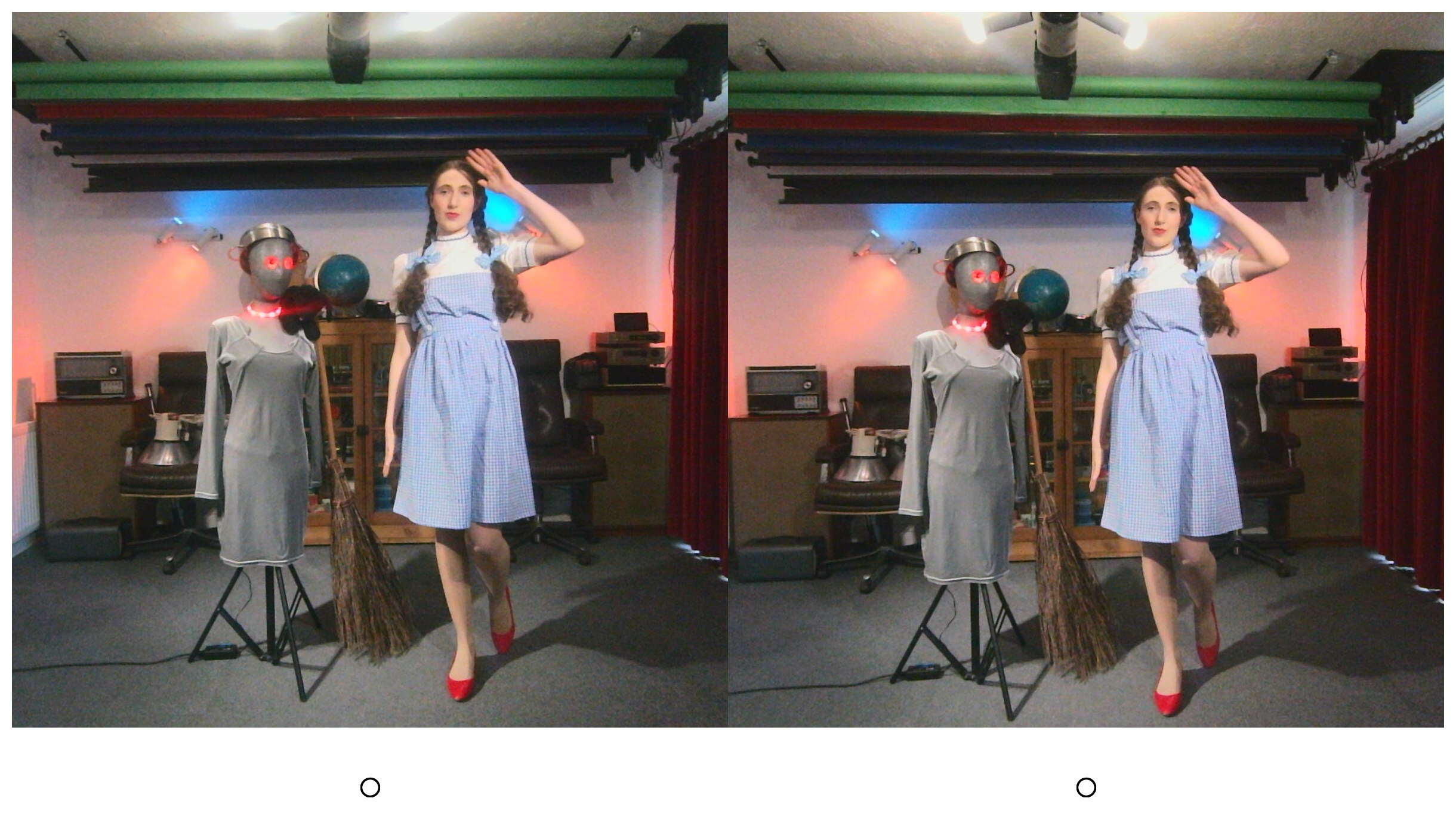
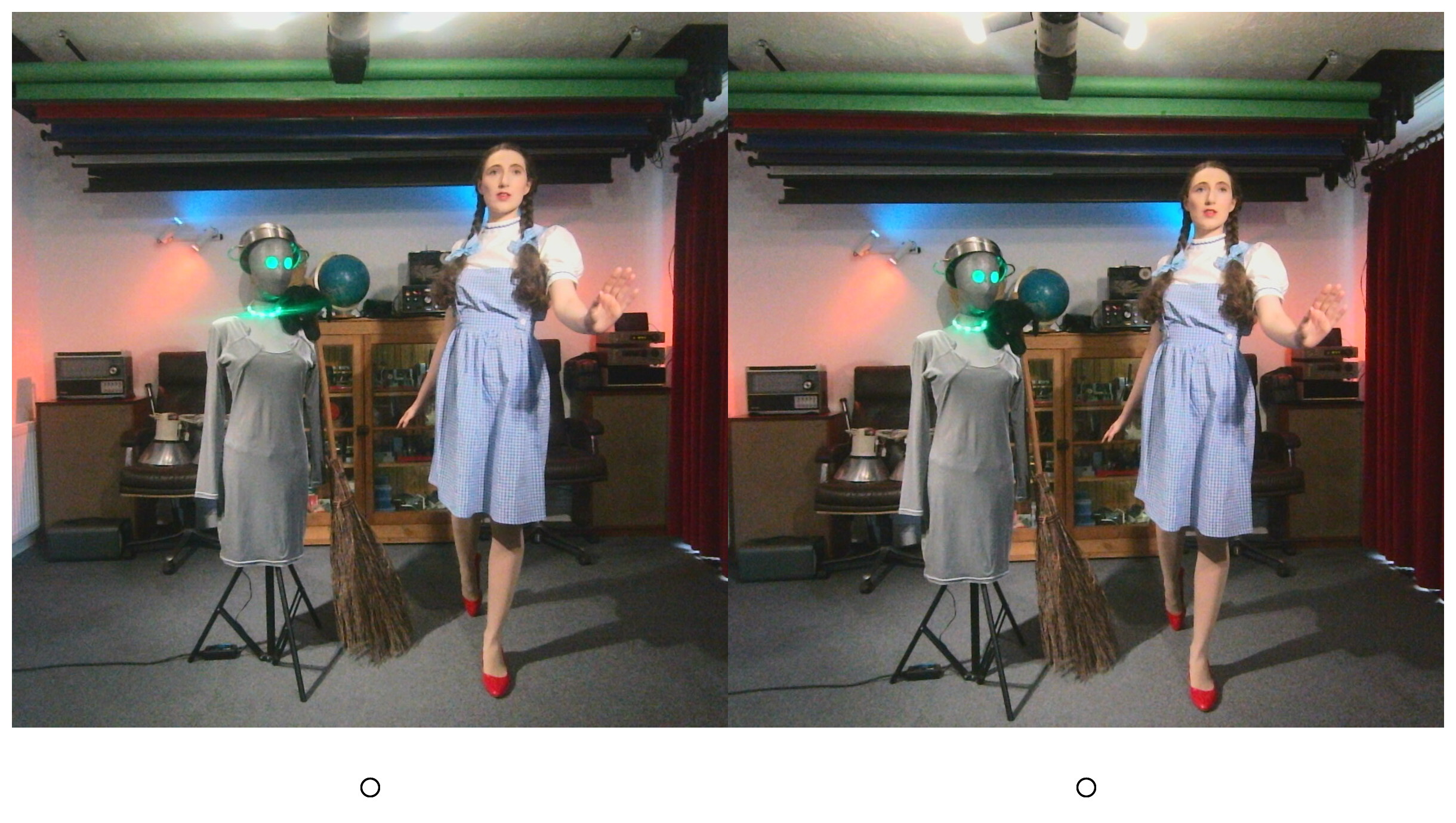
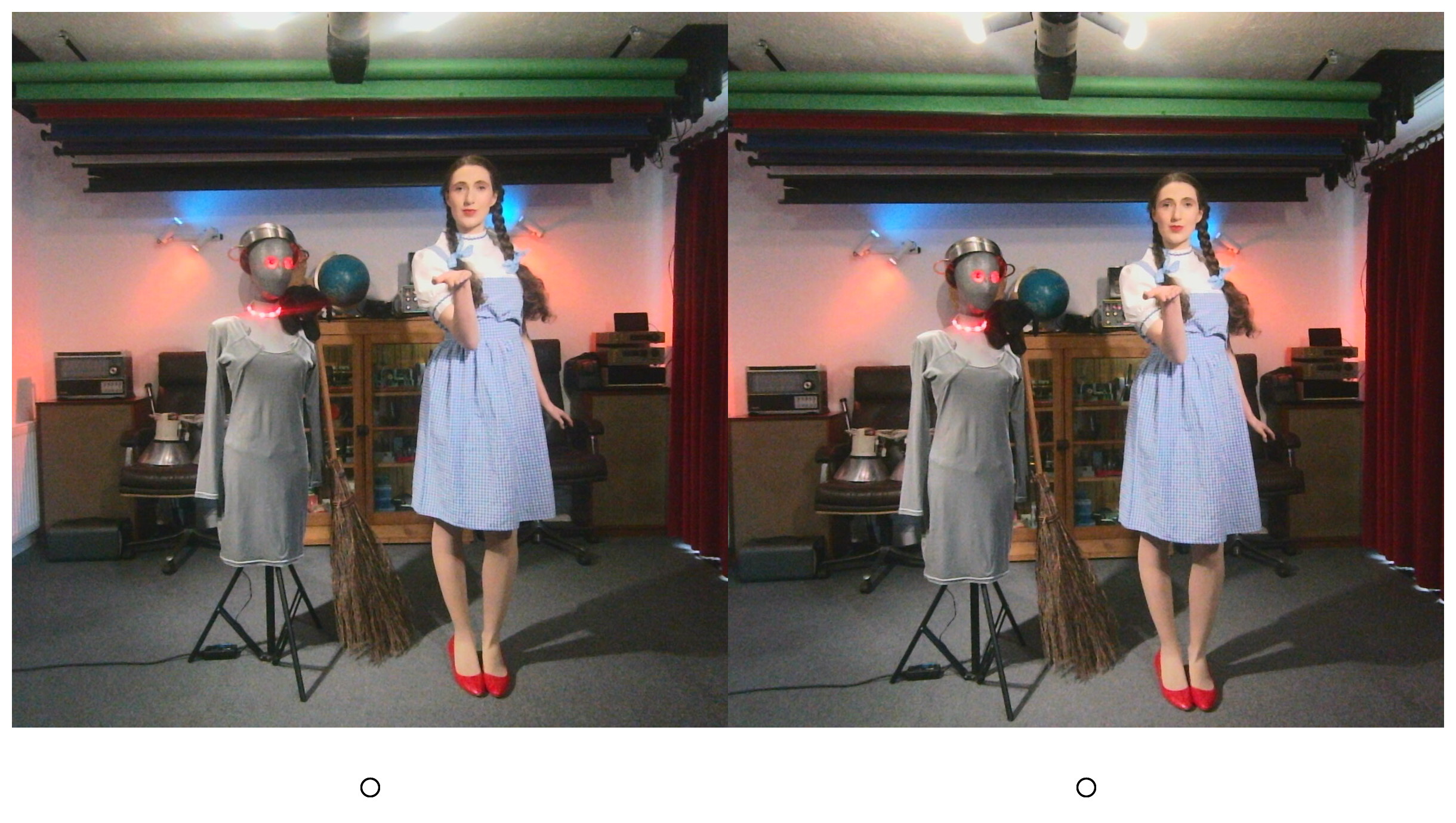
BASH script ‘garf-crosseyed+bg+sq’
This script takes a directory full of parallel stereo pairs, crops them to 1:1, and converts them into cross-eyed stereo pairs by swapping the left and right halves. This version of the script also adds a fine border and calibration circles at the bottom. It works on entire current directory and creates a new subdirectory for the new file(s).
#!/bin/bash

# garf-crosseeyed+bg+sq
#
# By Garfleld Lucas.
# Updated 2026-05-22.
#
# Converts parallel stereo pairs into cross-eyed stereo pairs
# by swapping the left and right halves.
# This version adds a fine border and calibration circles at the bottom.
# Works on entire current directory and creates a new subdirectory for the new file(s).
#
# Usage ./garf-crosseyed+bg+sq *.jpg or ./garf-crosseyed+bg+sq *.png
#
# May also work on other image formats.
#
# Input must be:
# Side-by-side image(s)
# Total size: 3200x1600
# Left eye : 1600x1600
# Right eye: 1600x1600.
#
# Output saved into ./crosseyed+bg+sq
# Original filenames preserved
#
# Requires: ImageMagick ("magick" command)

# Exit on errors, undefined variables, or failed pipelines
set -euo pipefail

# Create output directory if needed
mkdir -p "crosseyed+bg+sq"

# Process every file given on the command line
for img in "$@"; do

# Skip non-files
[ -f "$img" ] || continue

# Extract filename without path
filename=$(basename "$img")

# --------------------------------------------------
# Create crossed-eye stereo image using ImageMagick.
# 1. Crop square centre sections from each eye RIGHT eye first, then LEFT eye.
# 2. Append side-by-side in reversed order for crossed-eye viewing.
# 3. Add small outer white border.
# 4. Add white footer space underneath for alignment circles.
# 5. Draw alignment circles onto transparent overlay.
# 6. Composite overlay onto final image.
# --------------------------------------------------
magick "$img" \
\( -clone 0 -crop 1200x1200+1800+0 +repage \) \
\( -clone 0 -crop 1200x1200+200+0 +repage \) \
-delete 0 \
+append \
-bordercolor white -border 20 \
-background white \
-gravity south \
-splice 0x140 \
\( \
-size 2440x1380 xc:none \
-fill none \
-stroke black \
-strokewidth 3 \
-draw "circle 620,1320 635,1320" \
-draw "circle 1820,1320 1835,1320" \
\) \
-compose over -composite \
"crosseyed+bg+sq/$filename"
echo "Created: crosseyed+bg+sq/$filename"

done
Copy and paste the above script to a text file and save it as “garf-crosseyed+bg+sq”. Please note this script assumes the input images are 3200 x 1200 pixel pairs of equally sized 1600 x 1200 pixel images. If your input images are some other size, then you will need to make adjustments to the above script.
Permissions
Don’t forget to change the script file’s permissions to make it executable. From the same directory run the following command:-
chmod +x garf-crosseyed+bg+sq
Dependencies
This script requires ImageMagick on your system. To install it on Debian-based systems, type or paste the following into a terminal and hit return:-
sudo apt install imagemagick
Credits
- ImageMagick
- With many thanks to my friend and model Estella Rose for dressing up in her “Dorothy Gale” costume and posing for some test images.
Disclaimer
Scripts and other code are provided as-is, with no warranty, express or implied. They all work perfectly for me, but I cannot guarantee they will work for you.